 TellPip
Meeting notes the way you want them
Notes templates turn a transcript into the document you would have written yourself, without writing it. Here is how to build one, with two ready-made examples to copy.
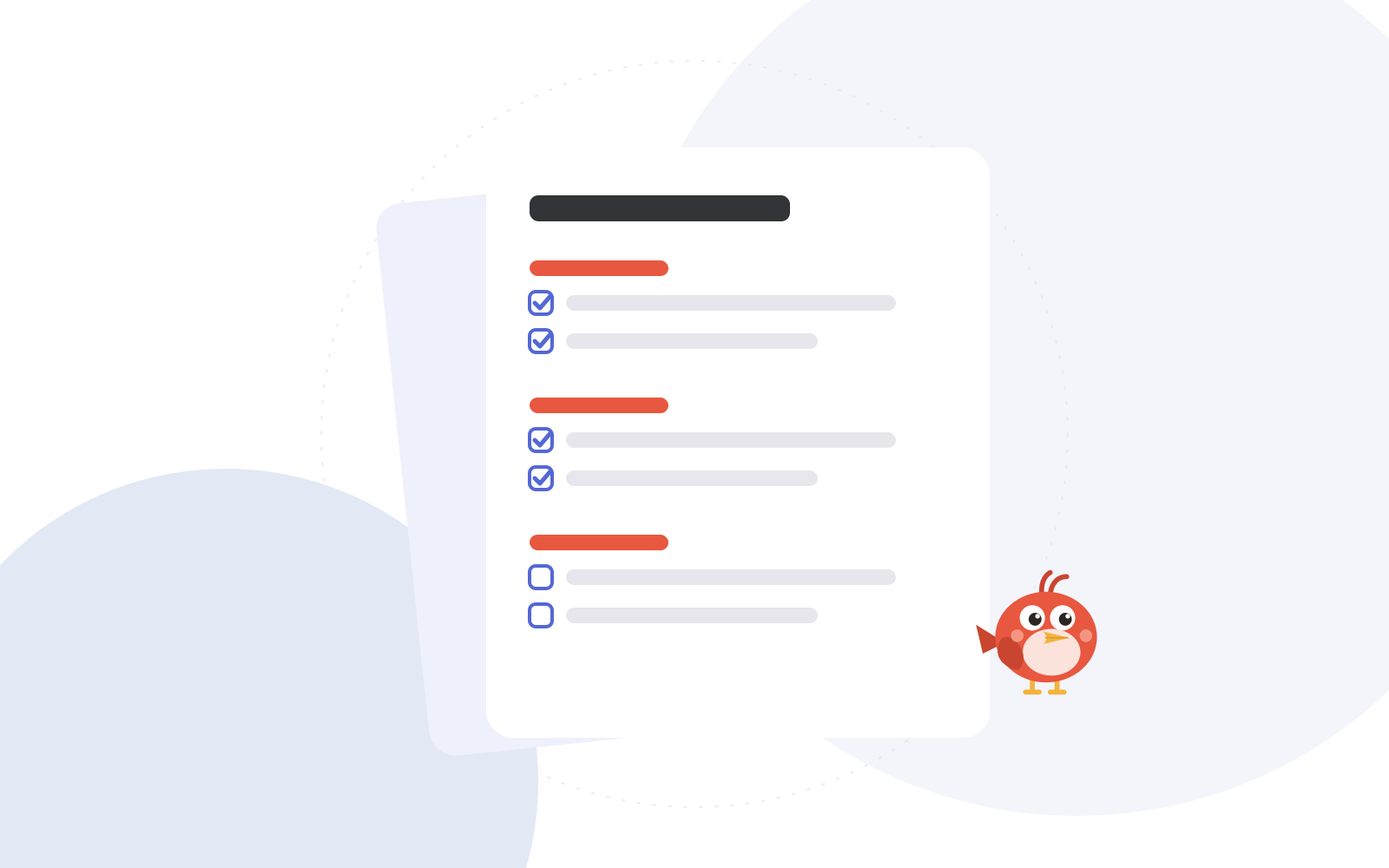
When the call ends, TellPip hands you finished notes, automatically. What makes them truly valuable is the shape: a lawyer wants the facts of the case and the next deadlines, a sales lead wants objections and next steps, a team lead wants decisions and who is responsible. The same transcript can become any of these documents. The notes template decides which.
How notes are made
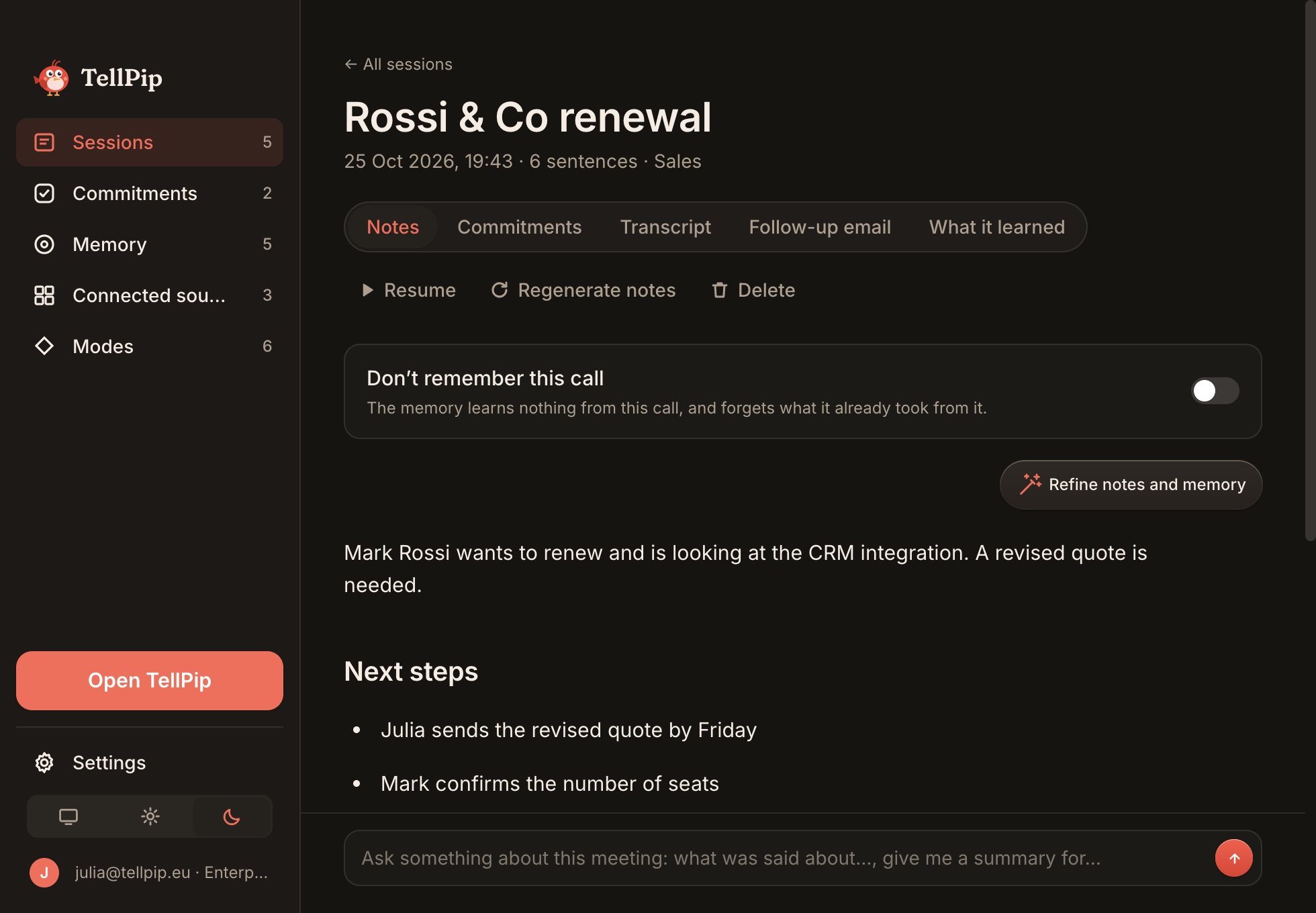
End the call with ⌘⇧\. The chat closes and TellPip’s main window opens on the session that just ended, while Pip finishes the notes. A few moments later you have three views at hand:
- Notes: the summary, organised by the template of the mode you used, with the Actions list at the end.
- Transcript: everything that was said, with names.
- Follow-up email: a ready-made draft to send to the participants.
Each view has its own copy button: paste the notes into your CRM, a case file or a shared document in a single click.
Anatomy of a notes template
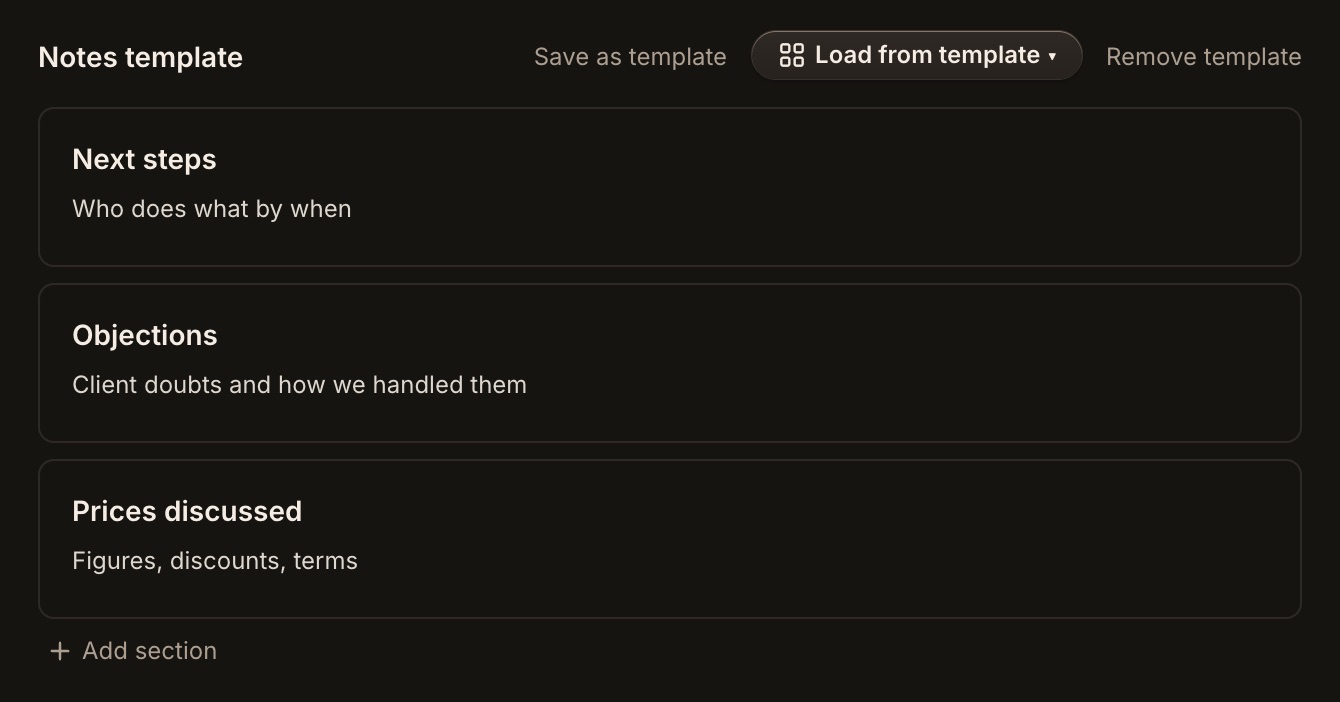
A notes template lives inside a mode, under Notes template. It is a list of sections, and each section has two fields:
- Section title: the heading you will see in the notes, such as “Decisions”.
- Instructions for TellPip: one or two sentences explaining to Pip what goes in that section and how to write it.
Quality comes from the instructions. “Decisions” alone gives you whatever Pip considers a decision. “Only decisions agreed by both sides, one line each, with who agreed” gives you a document you can rely on.
Use Add section to build it up, Load from template ▾ to start from an existing one, and Save as template to reuse a template that works well in other modes.
Writing instructions that work
Effective instructions have a few traits in common. They say what belongs in the section and, just as important, what doesn’t. They ask for a format you can scan: one line per item, a bullet list, a date next to every deadline. And they tell Pip what to write when there is nothing to report, so an empty section simply says “none”.
- Be specific about scope. “Only commitments with a person attached” is clearer than “commitments”.
- Ask for the source. “With who said it” makes figures and promises easy to check against the transcript.
- Set the length. “Two sentences at most” keeps a context section from turning into a second transcript.
- Say what to skip. “Ignore small talk and technical problems with the call” removes the noise every meeting has.
The notes follow the language spoken in the call, which TellPip recognises on its own: a call in Italian produces notes in Italian. Write the instructions in the same language, and the template will read naturally from the first call.
Example: a client meeting
Here is an ideal template for client calls in a consultancy or professional practice. Copy the titles and instructions as they are, then adjust the wording to your field. Notes support your work: review them before you share them, the final judgement stays yours.
- Context — Who was in the call and why it took place, in two sentences.
- What the client asked for — Every request or question from the client, as a bullet list, in their words when possible.
- What we promised — Every commitment we made, with a date if one was said. Do not include vague intentions.
- Open points — Questions left unanswered or topics postponed, and who needs to follow up.
- Figures mentioned — Prices, amounts, dates and deadlines exactly as said, with who said them.
The last section is the one people will thank you for: figures said quickly during a call are exactly the ones most worth having in black and white.
Example: a team meeting
Internal meetings need less context and more accountability. This template makes them quick and effective.
- Decisions — Only decisions actually agreed, one line each.
- Who does what — Each task with its owner and due date. If no owner was named, write “owner to be decided”.
- Blockers — Problems raised that stop someone from moving forward.
- Parked — Topics explicitly postponed to another meeting.
Send the follow-up email to the team straight after the call, and the meeting will have delivered its results before anyone has even left their desk.
Accurate notes, with a finishing touch
To give you notes that are always accurate, Pip may ask you to quickly confirm something that deserves attention, such as a name, a figure or a commitment. Your answers make both the notes and the memory more accurate.
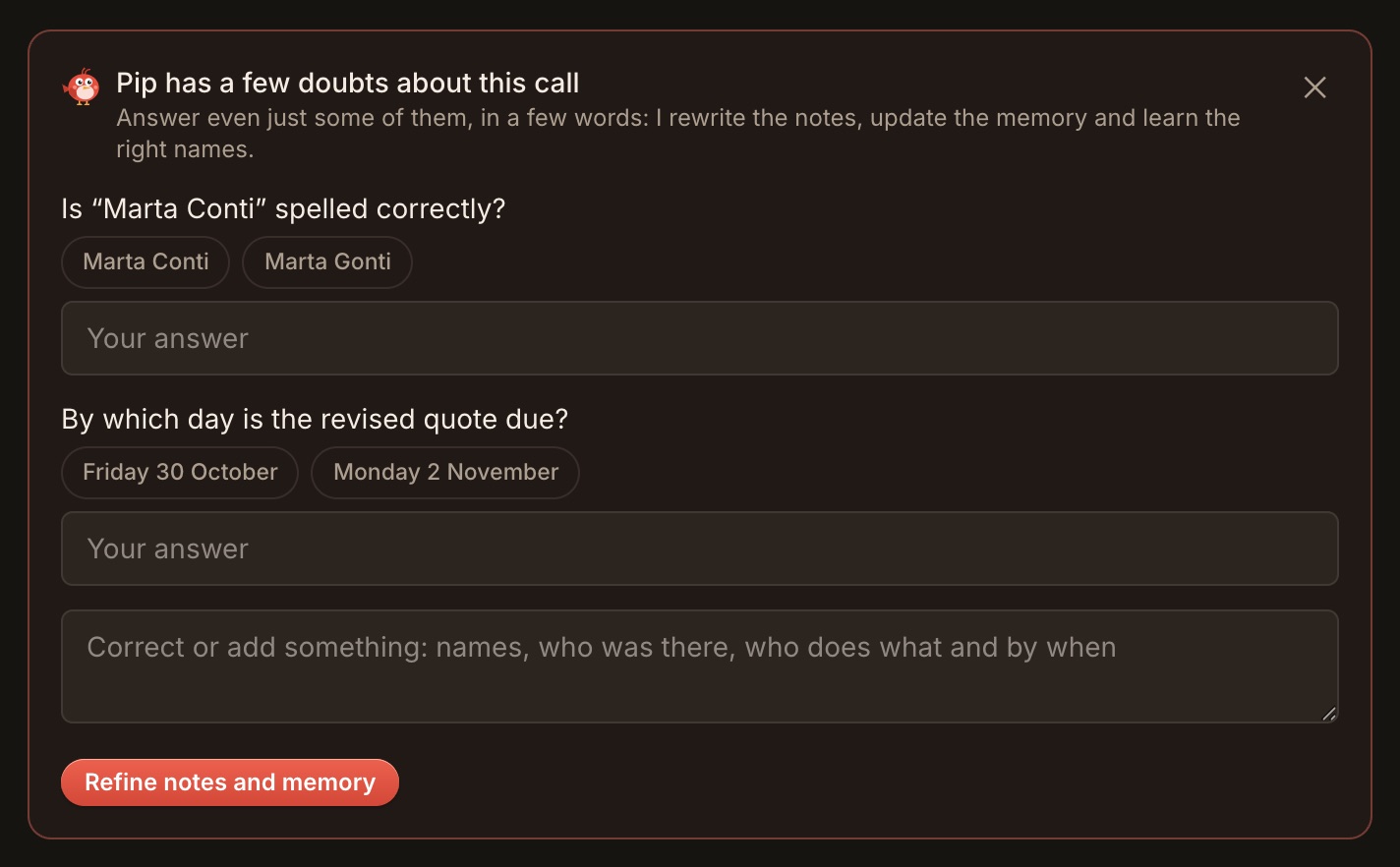
You can also trigger this pass yourself with Refine notes and memory. And if you have just updated the template, Regenerate notes rewrites them from the transcript, even with another mode’s template.
Resuming and reusing
A meeting that resumes after a break doesn’t need a second session. Open it on the Sessions page and press ▶ Resume: TellPip keeps enriching the same transcript and the notes cover the whole thing.
Weeks later, you can question the meeting from the box at the bottom of the session: “what did we say about the delivery date?”. Pip answers from that transcript and those notes. More in Ask a past meeting.
Start with one
Pick the kind of call you have most often, open its mode and write a template with four or five sections. Use it for a week, then refine the instructions until the notes are exactly the way you want them. The result will surprise you.
The step-by-step guide is in Meeting notes and the follow-up email, and modes are explained in Create a mode for each kind of call.
Quando la call finisce, TellPip ti consegna le note pronte, in automatico. A renderle davvero preziose è la forma: un avvocato vuole i fatti della pratica e le prossime scadenze, un commerciale vuole obiezioni e prossimi passi, chi guida un team vuole decisioni e responsabilità. La stessa trascrizione può diventare ciascuno di questi documenti. A deciderlo è il template delle note.
Come nascono le note
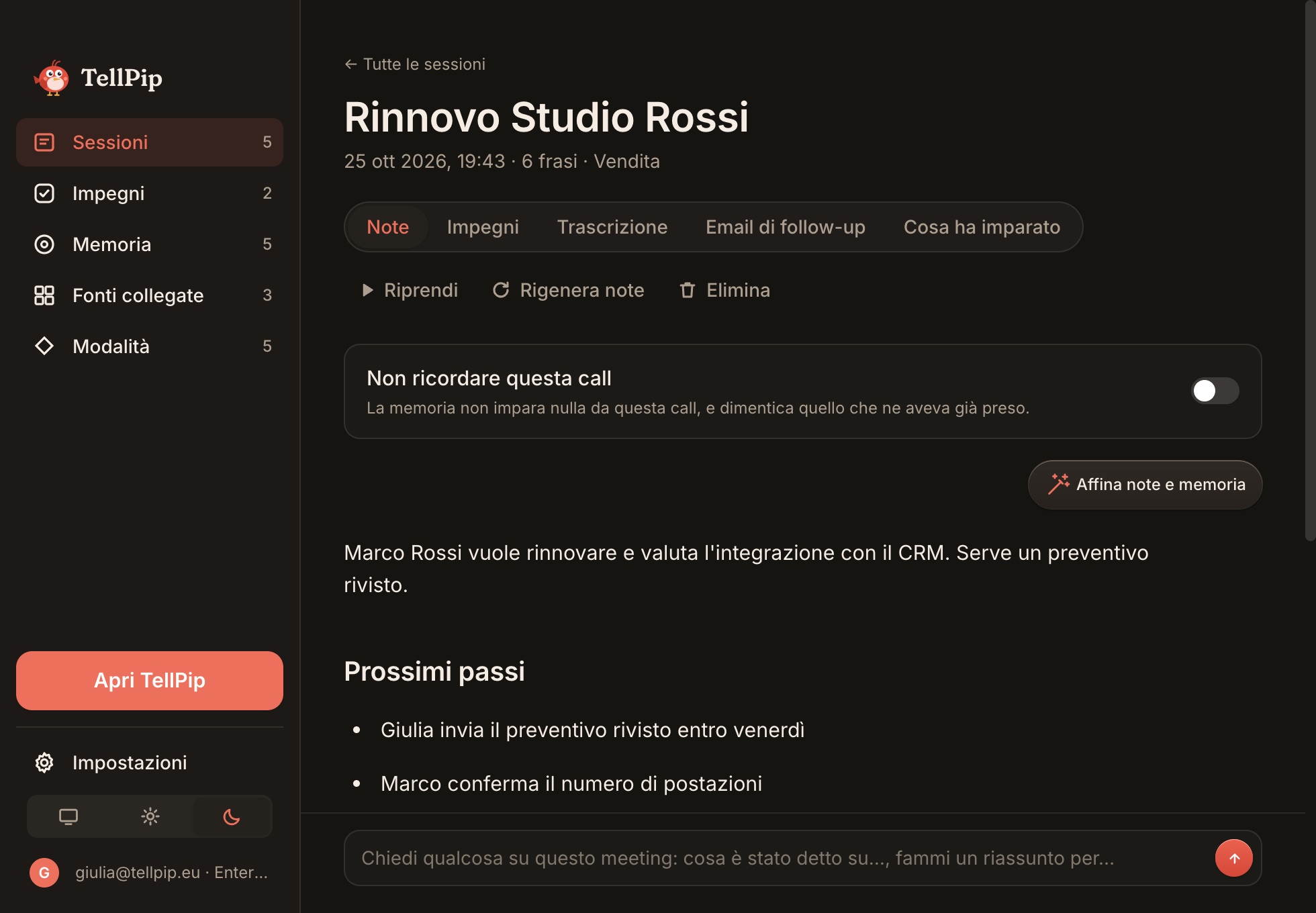
Concludi la call con ⌘⇧\. La chat si chiude e si apre la finestra principale di TellPip sulla sessione appena conclusa, mentre Pip rifinisce le note. Pochi istanti dopo hai a disposizione tre viste:
- Note: la sintesi, organizzata secondo il template della modalità che hai usato, con l’elenco delle Azioni in fondo.
- Trascrizione: tutto ciò che è stato detto, con i nomi.
- Email di follow-up: una bozza pronta da inviare ai partecipanti.
Ogni vista ha il suo pulsante per copiare: incolli le note nel CRM, in un fascicolo o in un documento condiviso con un solo clic.
Com’è fatto un template delle note
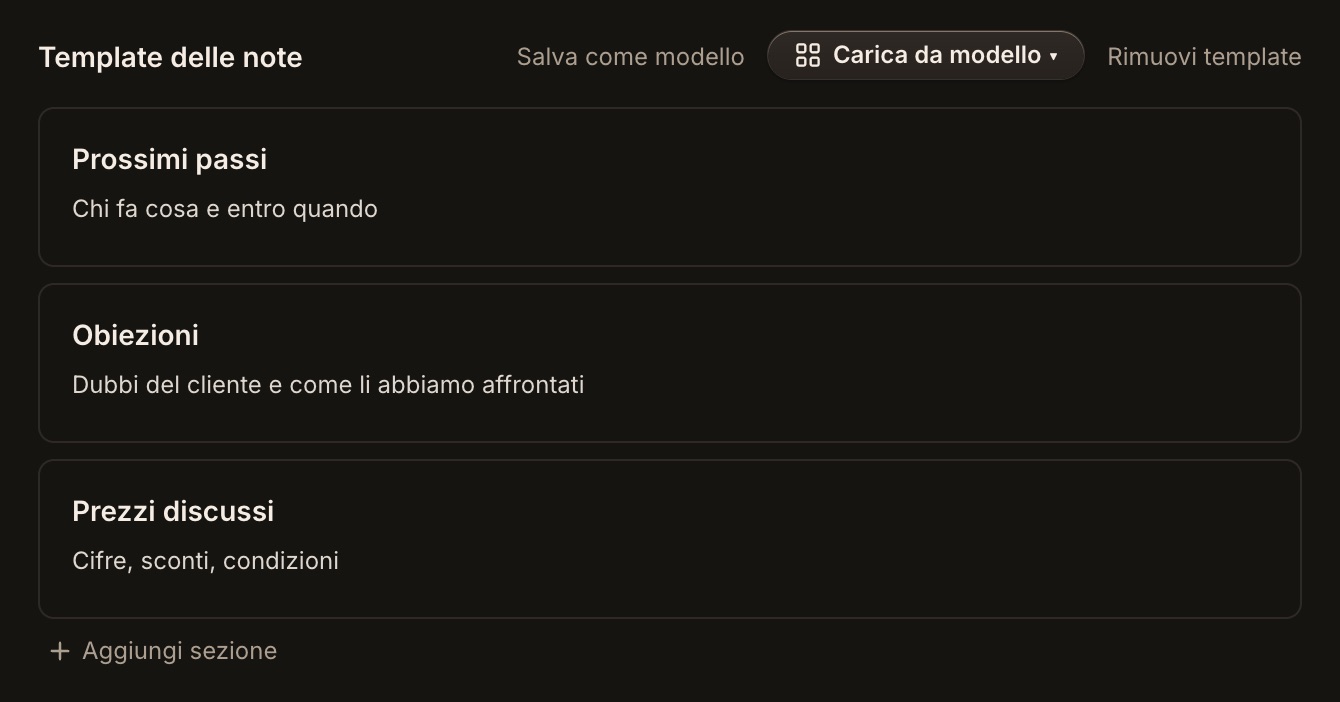
Un template delle note vive all’interno di una modalità, sotto Template delle note. È un elenco di sezioni, e ogni sezione ha due campi:
- Titolo della sezione: l’intestazione che vedrai nelle note, per esempio «Decisioni».
- Istruzioni per TellPip: una o due frasi che spiegano a Pip cosa va in quella sezione e come scriverlo.
La qualità nasce dalle istruzioni. «Decisioni» da sola ti restituisce ciò che Pip considera una decisione. «Solo le decisioni concordate da entrambe le parti, una riga ciascuna, con chi le ha accettate» ti restituisce un documento su cui contare.
Usa Aggiungi sezione per costruirlo, Carica da modello ▾ per partire da uno esistente e Salva come modello per riutilizzare un template riuscito in altre modalità.
Istruzioni che funzionano
Le istruzioni efficaci hanno alcune caratteristiche in comune. Dicono cosa va nella sezione e, altrettanto importante, cosa non ci va. Chiedono un formato facile da scorrere: una riga per voce, un elenco puntato, una data accanto a ogni scadenza. E indicano a Pip cosa scrivere quando non c’è nulla da riportare, così una sezione vuota riporta semplicemente «nessuno».
- Sii preciso sul perimetro. «Solo gli impegni con una persona responsabile» è più chiaro di «impegni».
- Chiedi la fonte. «Con chi l’ha detto» rende cifre e promesse facili da verificare nella trascrizione.
- Fissa la lunghezza. «Al massimo due frasi» evita che il contesto diventi una seconda trascrizione.
- Di' cosa saltare. «Ignora le chiacchiere e i problemi tecnici della call» toglie il rumore che ogni riunione ha.
Le note seguono la lingua parlata nella call, che TellPip riconosce da solo: una call in italiano produce note in italiano. Scrivi le istruzioni nella stessa lingua, e il template suonerà naturale fin dalla prima call.
Esempio: un incontro con il cliente
Ecco un template ideale per le call con i clienti in una società di consulenza o in uno studio professionale. Copia titoli e istruzioni così come sono, poi adatta le parole al tuo settore. Le note sono un supporto al tuo lavoro: rileggile prima di condividerle, il giudizio finale resta tuo.
- Contesto — Chi c’era nella call e perché si è tenuta, in due frasi.
- Cosa ha chiesto il cliente — Ogni richiesta o domanda del cliente, in elenco, con le sue parole quando possibile.
- Cosa abbiamo promesso — Ogni impegno preso da noi, con la data se è stata detta. Escludi le intenzioni vaghe.
- Punti aperti — Domande rimaste senza risposta o temi rimandati, e chi deve occuparsene.
- Cifre citate — Prezzi, importi, date e scadenze esattamente come detti, con chi li ha detti.
L’ultima sezione è quella per cui ti ringrazieranno: i numeri detti in fretta durante una call sono proprio quelli che è più prezioso avere nero su bianco.
Esempio: una riunione di team
Le riunioni interne chiedono meno contesto e più responsabilità. Questo template le rende rapide ed efficaci.
- Decisioni — Solo le decisioni davvero prese, una riga ciascuna.
- Chi fa cosa — Ogni attività con il responsabile e la scadenza. Se nessuno è stato indicato, scrivi «responsabile da decidere».
- Blocchi — Problemi emersi che impediscono a qualcuno di andare avanti.
- Rimandati — Temi rinviati esplicitamente a un’altra riunione.
Invia l’email di follow-up al team subito dopo la call, e la riunione avrà prodotto i suoi risultati prima ancora che qualcuno si alzi dalla sedia.
Note accurate, con un tocco di rifinitura
Per offrirti note sempre precise, Pip può chiederti una rapida conferma su ciò che merita attenzione, come un nome, una cifra o un impegno. Le tue risposte rendono più accurate le note e la memoria.
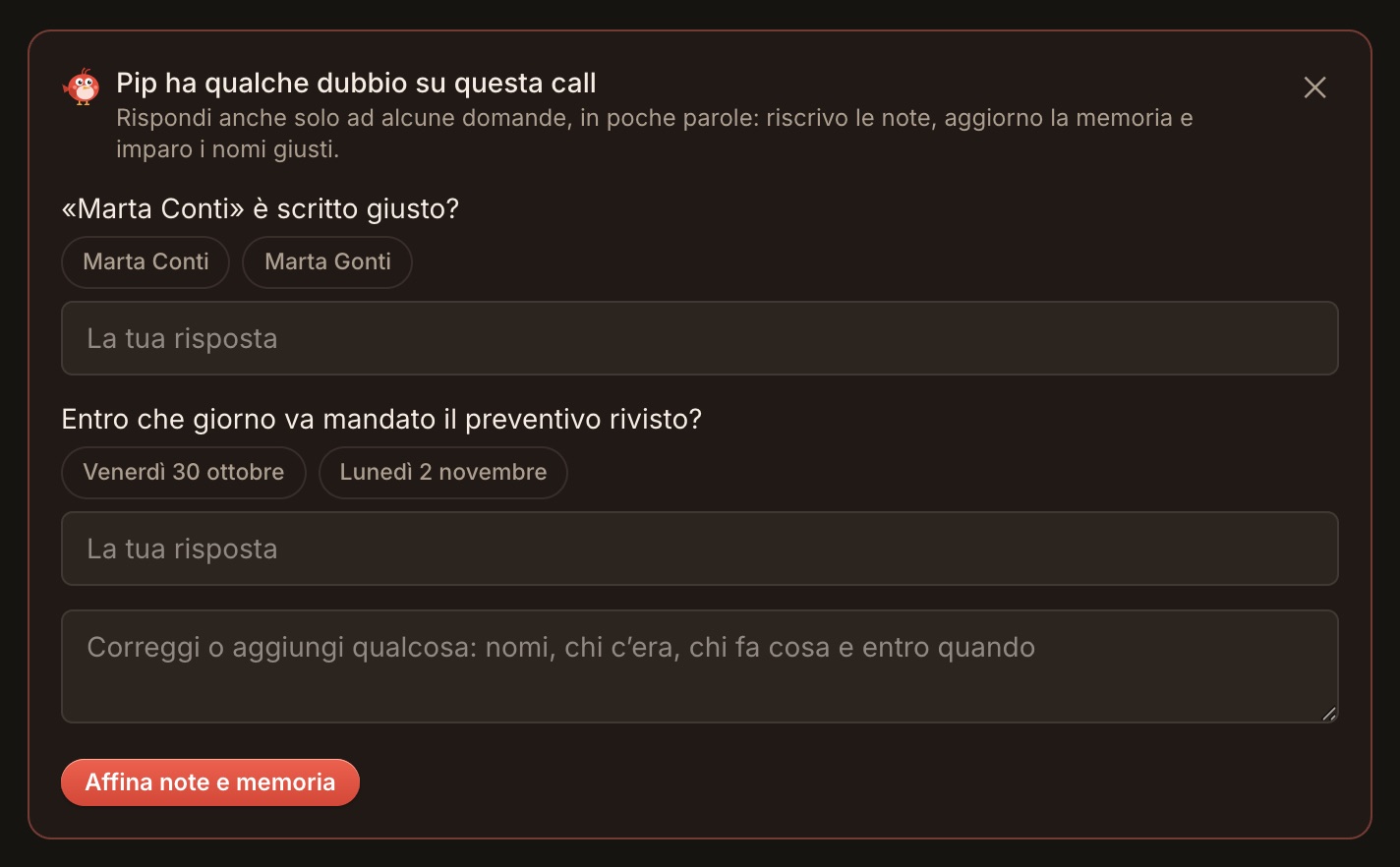
Puoi avviare tu stesso questo passaggio con Affina note e memoria. E se hai appena aggiornato il template, Rigenera note le riscrive dalla trascrizione, anche con il template di un’altra modalità.
Riprendere e riusare
Una riunione che riprende dopo una pausa non ha bisogno di una seconda sessione. Aprila nella pagina Sessioni e premi ▶ Riprendi: TellPip continua ad arricchire la stessa trascrizione e le note coprono tutto.
Settimane dopo puoi interrogare la riunione dal riquadro in fondo alla sessione: «cosa avevamo detto sulla data di consegna?». Pip risponde da quella trascrizione e da quelle note. Scopri di più in Chiedi a una call passata.
Comincia da uno
Scegli il tipo di call che fai più spesso, apri la sua modalità e scrivi un template con quattro o cinque sezioni. Usalo per una settimana, poi affina le istruzioni finché le note non saranno esattamente come le vuoi. Il risultato ti sorprenderà.
La guida passo passo è in Note della riunione ed email di follow-up, e le modalità sono spiegate in Crea una modalità per ogni tipo di call.