 TellPip
Modes: one setup for each kind of call
Create a mode, start from one of the nine ready-made templates, write effective instructions and switch from one setup to another, even during a call.
Updated 30 October 2026
Contents
What a mode is
A mode tells Pip what kind of call you are in. A sales call needs different answers from a legal consultation, and a team meeting needs different notes from a lecture. A mode brings together in one place everything that changes from one kind of call to another: your instructions, your documents and the layout of your notes.
The result is an assistant that adapts to you: in every call Pip already knows how to speak, where to look and how to organise the notes, without you having to tell it again.
The General mode is always available and is the starting point of every installation. Next to it you can add as many modes as you like: one for first meetings with new clients, one for follow-ups, one for internal meetings, and so on.
The ideal moment to create a new mode is when the same kind of call keeps coming back and you want Pip to behave in a specific way every time.
What a mode holds
Real-time prompt
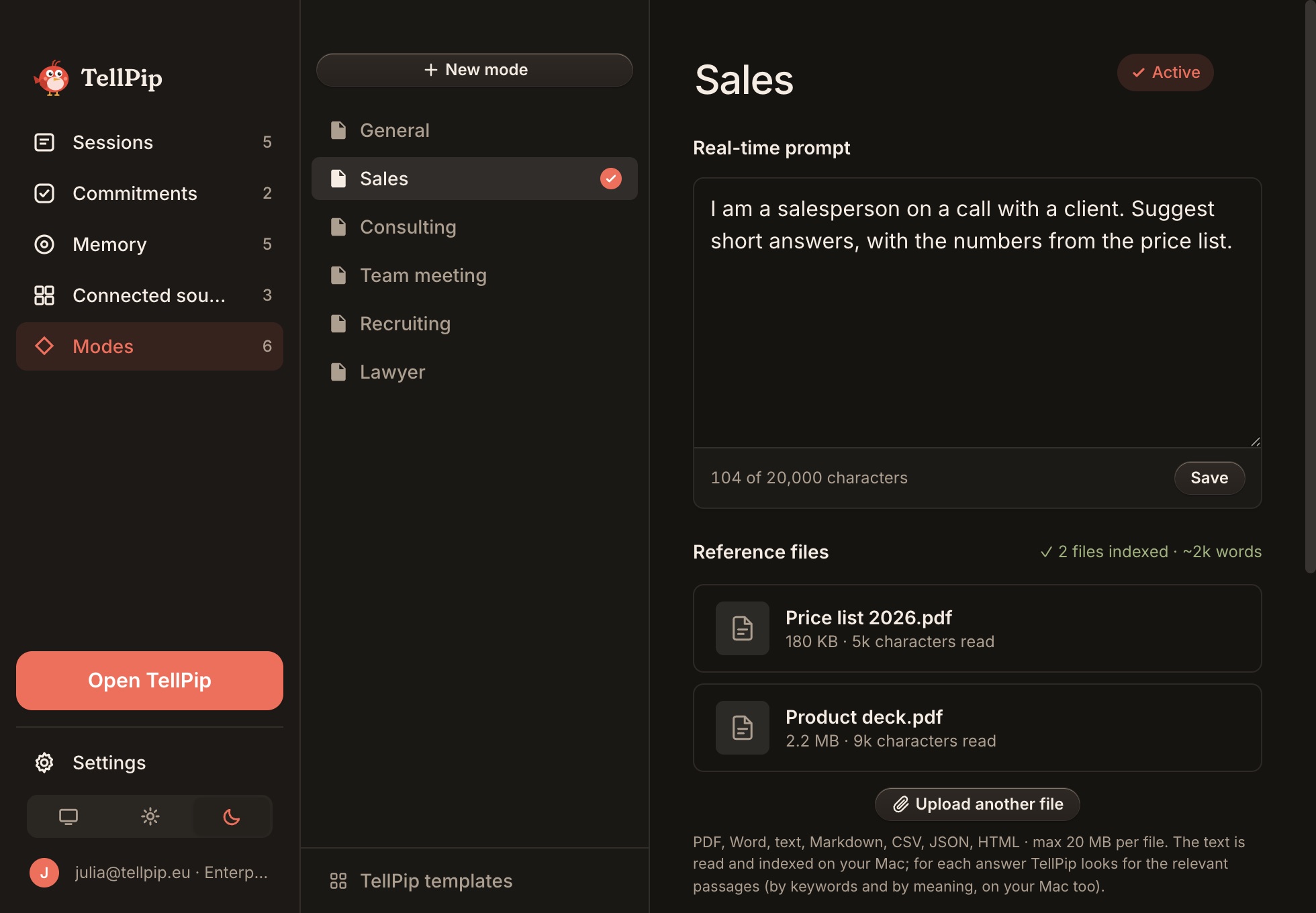
The Real-time prompt holds your instructions for Pip: who you are, who you usually talk to, the tone you prefer, what to highlight and what to avoid. It travels with every question you ask in that mode, so Pip always answers in your style. You have up to 20,000 characters, with a counter that always shows how much space you have used. After editing it, remember to save it.
Reference files
The Reference files are the documents Pip looks at in that kind of call: price lists, contracts, procedures, product sheets. Each mode has its own, so Pip searches exactly where it's needed and finds the right passage in a few moments. See Reference files.
Notes template
The Notes template sets the sections of the notes you get after the call. Each section has a Section title and Instructions for TellPip, which describe what to write in it. That way every call ends with a document already organised the way you like it.
The mode also guides your client memory: in a call with a given mode, Pip uses the memories that came from calls in the same mode, so sales conversations and consulting ones each stay in their own context. Each person's profile, their "who they are", is always available. See Client memory.
Create a mode, step by step
- Open TellPip's main window with ⌘ ⇧ T, or choose Open TellPip from the chat's ••• menu, and select Modes in the sidebar: you'll find the list of your modes, with the active one highlighted.
- Click New mode and give it a clear name, for example "First client meeting". A descriptive name helps you pick it in a second before each call.
- Write the Real-time prompt and save it. A few lines are enough: you'll find some examples in section 5.
- Under Reference files, add the documents for this kind of call.
- Set up the Notes template: add a template, then a section for each part of your notes.
- Click Set as active. Pip switches to the new mode from your next question.
You can reorganise your modes at any time: to remove the ones you no longer need, open them and click Delete mode.
Start from a template
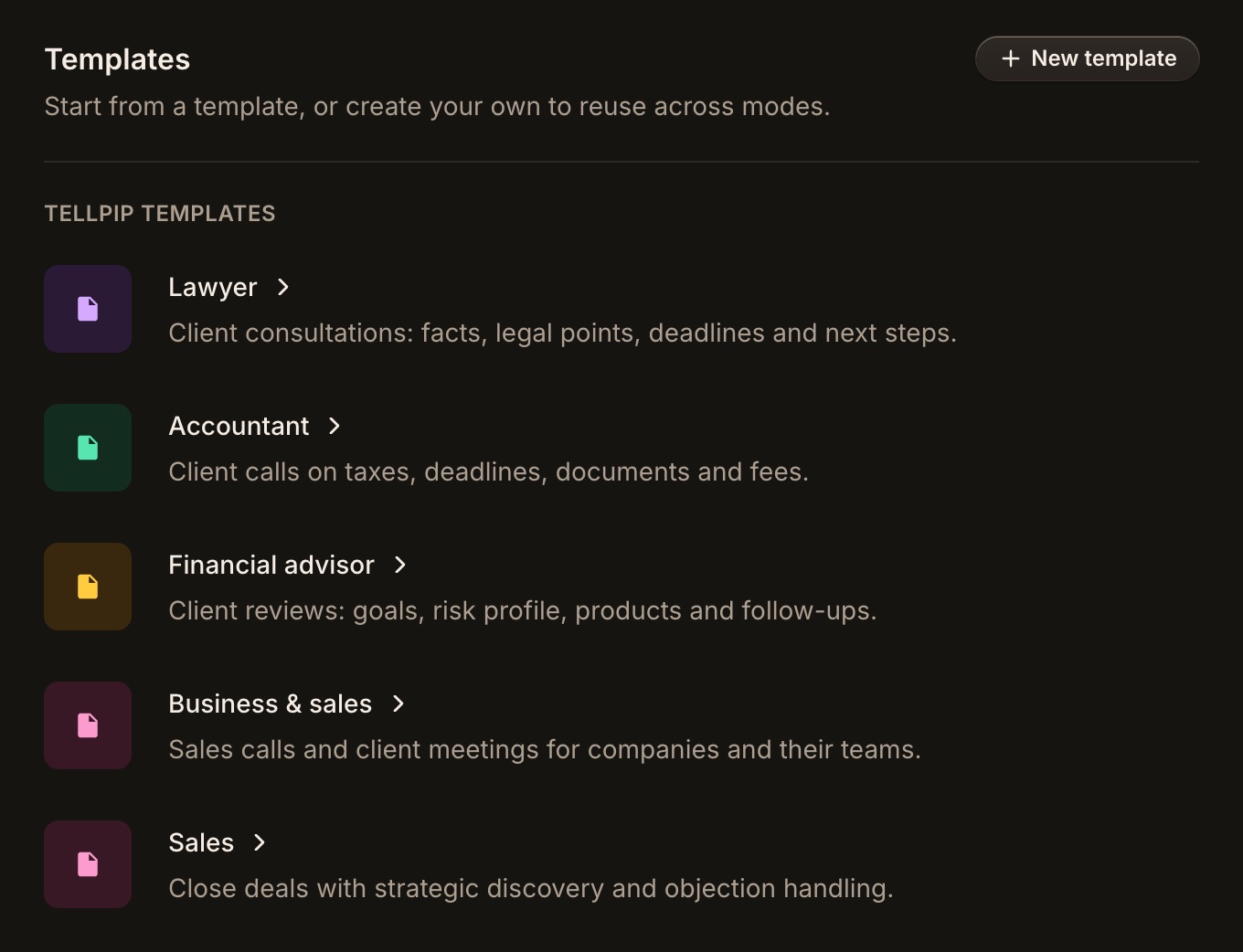
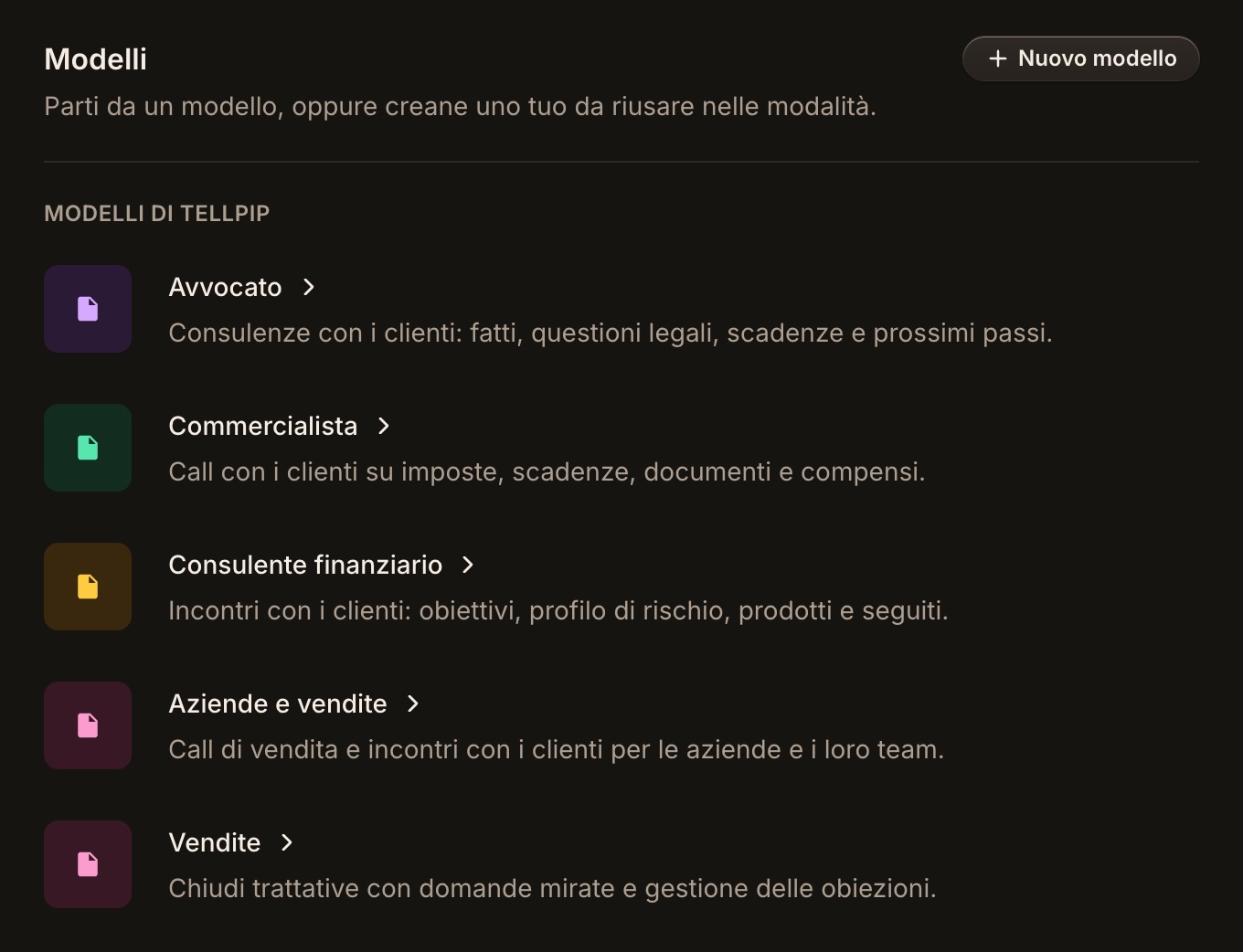
You don't have to start from scratch. Under TellPip templates you'll find nine ready-made setups, designed for the professionals who use TellPip every day:
- Lawyer, Accountant, Financial advisor and Business & sales, built for client work in these professions;
- Sales, Team Meet and Lecture, for more general situations;
- Recruiting, for those who run interviews and want tidy notes on every candidate;
- Looking for work, to prepare for your interviews: go over your pitch, line up your strengths and walk into the meeting with a clear head.
Pick one and click Create a mode from this template. You get a new mode with the template's prompt and notes layout, ready to use straight away and to adapt as you like.
When you build a notes layout you're happy with, save it as a template to reuse it in your other modes: your layouts appear under My templates, where New template starts one from scratch. In any mode you can load the notes template from one of these templates, or remove it.
Write effective instructions
A template is the ideal starting point; the finishing touch is yours. The more your prompt sounds like you, the more Pip's answers will too. A good prompt is short and concrete. Here is an example for a lawyer:
I'm a commercial lawyer. My clients are small and medium-sized companies. Answer in two or three sentences I can say out loud. Quote the clause or the document when you use one. Never promise an outcome or give a deadline I haven't confirmed. If a question needs a check, suggest I answer in writing.
A few rules of thumb for an effective prompt:
- Say who you are and who is on the other side.
- Say how long the answers should be.
- Write what Pip must never do: promise prices, give advice outside your field, mention a competitor.
- Stick to the essentials: short, precise instructions work better than a page of general directions, even though there is plenty of space.
- Reread the prompt after your first few calls and fine-tune it: every tweak brings Pip even closer to the way you work.
There's no need to set the language: Pip answers in the language spoken in the call, and answers written questions in the language you write them in.
A notes template, section by section
Each section is made of a title and an instruction. For example, for a client meeting:
- Context: who was in the call and why.
- What the client asked: their requests, in their words.
- What we promised: commitments, with who and by when.
- Open points: what still needs an answer.
The notes always end with an Actions list, ready to share. If you update the template after a call, use Regenerate notes on that session and choose the template for that call: the notes are rewritten with the new sections. See Notes, transcript and follow-up email.
Switch mode during a call
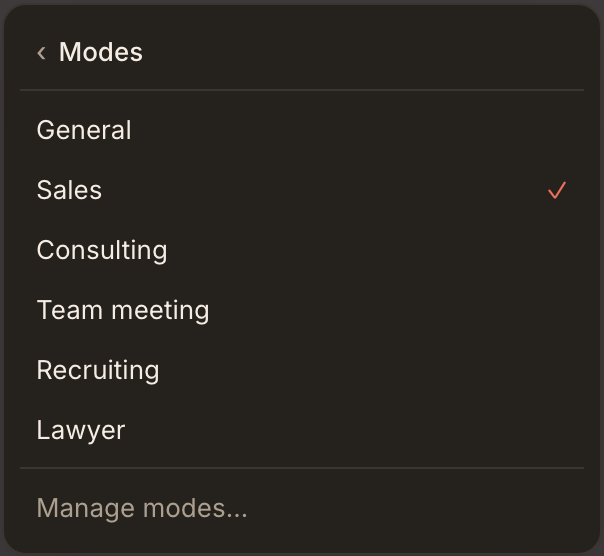
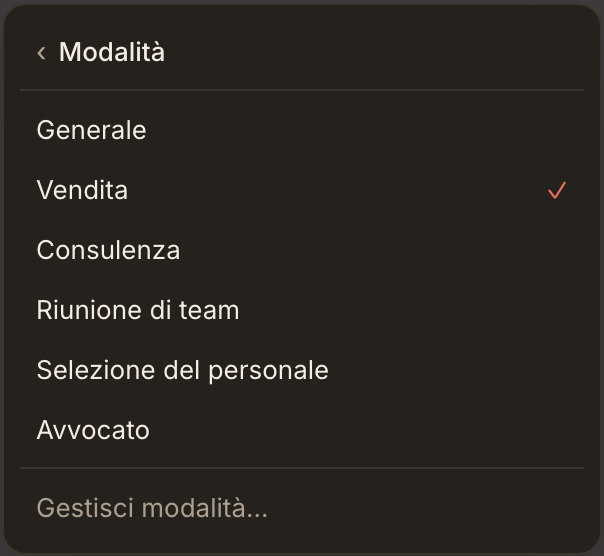
In the chat, open the ••• menu → Modes and pick another one: your next question already uses the new mode. That way you can move naturally from a commercial part to a technical one, without interrupting the conversation.
Next steps
Cos’è una modalità
Una modalità dice a Pip in che tipo di call ti trovi. Una call di vendita richiede risposte diverse da una consulenza legale, e una riunione di team richiede note diverse da una lezione. La modalità riunisce in un unico posto tutto ciò che cambia da un tipo di call all’altro: le tue istruzioni, i tuoi documenti e il formato delle note.
Il risultato è un assistente che si adatta a te: in ogni call Pip sa già come parlare, dove cercare e come organizzare le note, senza che tu debba ripeterglielo.
La modalità Generale è sempre disponibile ed è il punto di partenza di ogni installazione. Accanto puoi aggiungerne quante desideri: una per i primi incontri con nuovi clienti, una per i follow-up, una per le riunioni interne, e così via.
Il momento ideale per creare una nuova modalità è quando lo stesso tipo di call torna spesso e desideri che Pip si comporti ogni volta in un modo preciso.
Cosa contiene una modalità
Prompt in tempo reale
Il Prompt in tempo reale contiene le tue istruzioni per Pip: chi sei, con chi parli di solito, il tono che preferisci, cosa valorizzare e cosa evitare. Accompagna ogni domanda che fai in quella modalità, così Pip risponde sempre nel tuo stile. Hai a disposizione fino a 20.000 caratteri, con un contatore che ti mostra sempre lo spazio utilizzato. Dopo averlo modificato, ricordati di salvarlo.
File di riferimento
I File di riferimento sono i documenti che Pip consulta in quel tipo di call: listini, contratti, procedure, schede prodotto. Ogni modalità ha i propri, così Pip cerca esattamente dove serve e trova il passaggio giusto in pochi istanti. Vedi File di riferimento.
Template delle note
Il Template delle note stabilisce le sezioni delle note che ricevi dopo la call. Ogni sezione ha un Titolo della sezione e delle Istruzioni per TellPip, che descrivono cosa scriverci. In questo modo ogni call si chiude con un documento già organizzato come piace a te.
La modalità guida anche la memoria dei clienti: in una call con una certa modalità, Pip usa i ricordi nati nelle call della stessa modalità, così le conversazioni di vendita e quelle di consulenza restano ciascuna nel proprio contesto. Il profilo di ogni persona, il suo «chi è», è sempre disponibile. Vedi Memoria dei clienti.
Crea una modalità, passo dopo passo
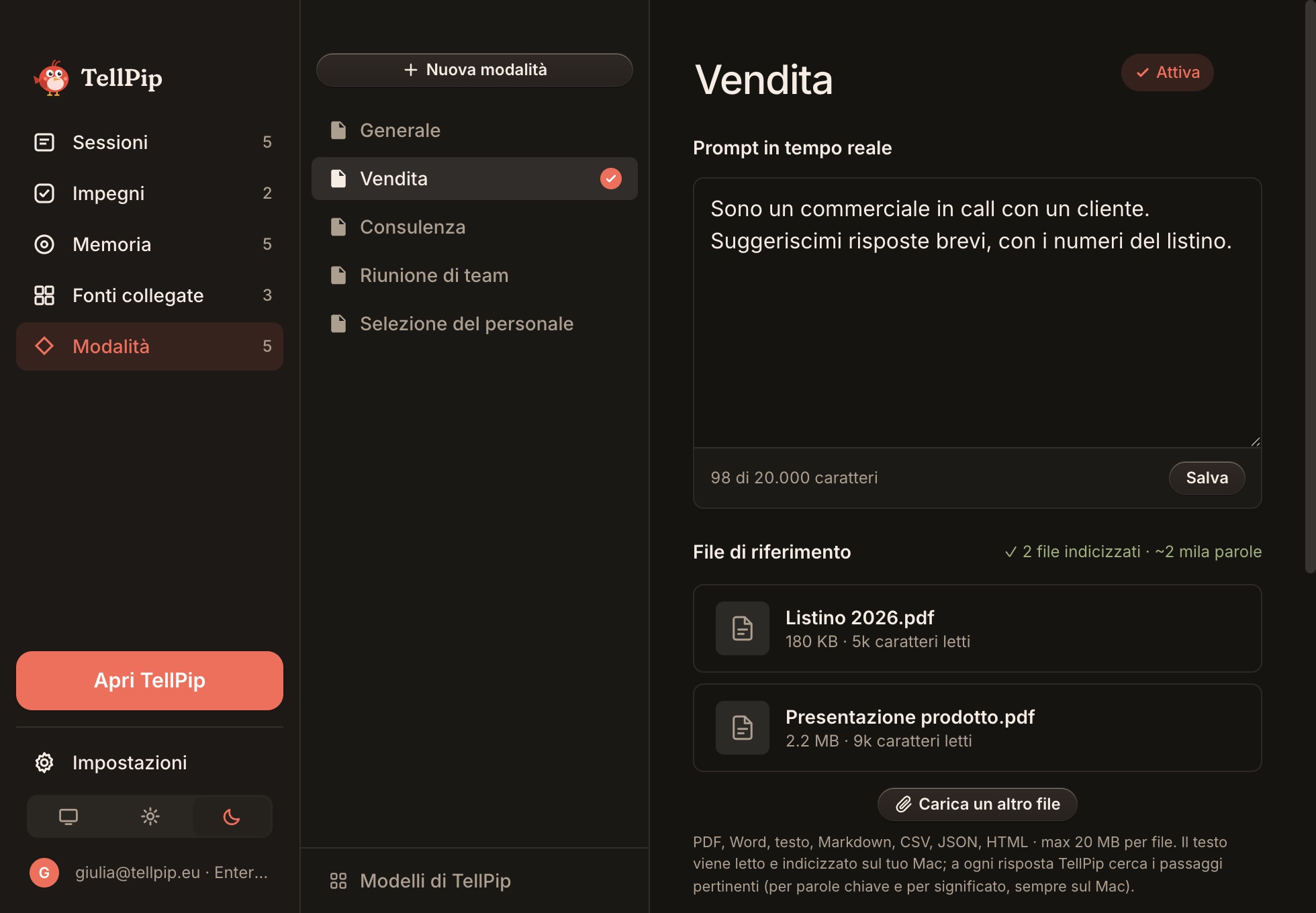
- Apri la finestra principale di TellPip con ⌘ ⇧ T, oppure scegli Apri TellPip dal menu ••• della chat, e seleziona Modalità nella barra laterale: trovi l’elenco delle tue modalità, con quella attiva in evidenza.
- Clicca Nuova modalità e assegnale un nome chiaro, per esempio «Primo incontro cliente». Un nome descrittivo ti aiuta a sceglierla al volo prima di ogni call.
- Scrivi il Prompt in tempo reale e salvalo. Bastano poche righe: trovi qualche esempio nella sezione 5.
- Aggiungi in File di riferimento i documenti dedicati a questo tipo di call.
- Imposta il Template delle note: aggiungi un template, poi una sezione per ogni parte delle tue note.
- Clicca Imposta come attiva. Pip adotta la nuova modalità dalla domanda successiva.
Puoi riorganizzare le tue modalità in qualsiasi momento: per rimuovere quelle che non ti servono più, aprile e clicca Elimina modalità.
Parti da un modello
Non devi partire da zero. Tra i Modelli di TellPip trovi nove assetti già pronti, pensati per i professionisti che usano TellPip ogni giorno:
- Avvocato, Commercialista, Consulente finanziario e Aziende e vendite, costruiti per il lavoro con i clienti in queste professioni;
- Vendite, Riunione di team e Lezione, per le situazioni più trasversali;
- Selezione del personale, per chi conduce colloqui e vuole note ordinate su ogni candidato;
- Cerco lavoro, per prepararti ai colloqui: ripassa la tua presentazione, metti in ordine i punti di forza e arriva all’incontro con le idee chiare.
Scegline uno e clicca Crea modalità da questo modello. Ottieni una nuova modalità con il prompt e il formato delle note del modello, pronta da usare subito e da personalizzare come preferisci.
Quando costruisci un formato di note che ti convince, salvalo come modello per riutilizzarlo nelle altre modalità: i tuoi formati compaiono in I miei modelli, dove Nuovo modello ne crea uno da zero. In qualsiasi modalità puoi caricare il template delle note da uno di questi modelli, oppure rimuoverlo.
Scrivi istruzioni efficaci
Un modello è il punto di partenza ideale; il tocco finale lo dai tu. Più il prompt ti somiglia, più ti somiglieranno le risposte di Pip. Un buon prompt è breve e concreto. Ecco un esempio per un avvocato:
Sono un avvocato d'affari. I miei clienti sono piccole e medie imprese. Rispondi in due o tre frasi che posso dire ad alta voce. Cita la clausola o il documento quando ne usi uno. Non promettere mai un esito e non dare scadenze che non ho confermato. Se una domanda richiede una verifica, suggeriscimi di rispondere per iscritto.
Qualche regola pratica per un prompt efficace:
- Di’ chi sei e chi c’è dall’altra parte.
- Indica quanto devono essere lunghe le risposte.
- Scrivi cosa Pip non deve mai fare: promettere prezzi, dare consigli fuori dal tuo campo, nominare un concorrente.
- Punta all’essenziale: istruzioni brevi e precise rendono più di una pagina di indicazioni generiche, anche se lo spazio disponibile è ampio.
- Rileggi il prompt dopo le prime call e affinalo: ogni ritocco rende Pip ancora più allineato al tuo modo di lavorare.
Non serve indicare la lingua: Pip risponde nella lingua in cui si parla in call, e alle domande scritte nella lingua in cui le scrivi.
Un template delle note, sezione per sezione
Ogni sezione è composta da un titolo e da un’istruzione. Per esempio, per un incontro con un cliente:
- Contesto: chi c’era in call e perché.
- Cosa ha chiesto il cliente: le sue richieste, con le sue parole.
- Cosa abbiamo promesso: gli impegni, con chi ed entro quando.
- Punti aperti: cosa aspetta ancora una risposta.
Le note si chiudono sempre con un elenco di Azioni, pronto per essere condiviso. Se aggiorni il template dopo una call, usa Rigenera note su quella sessione e scegli il modello della call: le note vengono riscritte con le nuove sezioni. Vedi Note, trascrizione ed email di follow-up.
Cambia modalità durante la call
Nella chat apri il menu ••• → Modalità e scegline un’altra: la domanda successiva usa già la nuova modalità. Così puoi passare con naturalezza da una parte commerciale a una tecnica, senza interrompere la conversazione.
Prossimi passi
Related articles
Need anything else? We’re here for you.
Write to us