 TellPip
Write to Pip
Written questions about your screen and your documents: Pip answers in seconds, before, during and after the call.
Updated 30 October 2026
Contents
You don’t need to wait for a question in a call to ask Pip for help. In the chat you can write to it whenever you like: to prepare for a meeting, to reply to an email, to find a passage in your documents or to quickly make sense of what’s on your screen. In this guide you’ll see how to get the most out of written questions.
What Pip knows when you write to it
When you type a question, Pip answers by drawing on:
- your screen, if Use the screen is on: the email, document or spreadsheet in front of you;
- the documents of the active mode, looked up on your computer;
- your connected sources, if you use Enterprise: the company knowledge base;
- the ongoing conversation, if you’re in a call.
Pip answers in the language you write the question in.
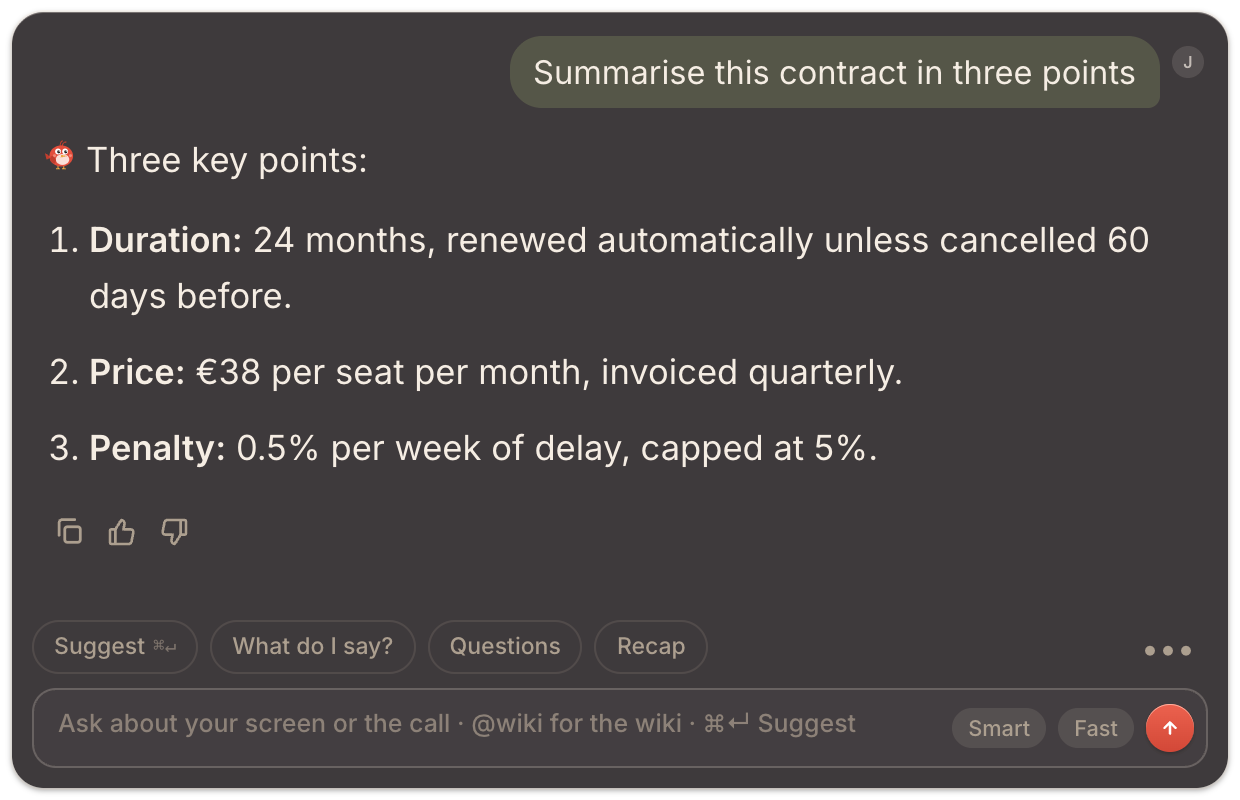
When it’s handy
- Before a call: “What are the payment terms in our standard contract?”
- Writing: draft a reply to the email on your screen, in the tone of your mode.
- Checking: compare a figure on a spreadsheet with your price list.
- Looking things up: find a passage in your documents without opening them one by one.
Type your question
- Open the chat with Psst… or ⌘\. Opening the chat also starts listening, so Pip is ready if the call begins.
- Type the question in the text field and press ↵ (⇧↵ for a new line).
- Or use the quick actions: Suggest, What do I say?, Questions and Recap.
For the toughest questions turn on Smart; for an instant answer choose Fast. See Ask Pip during a call.
Choose what Pip knows
Answers draw on the documents of the active mode: pick the one that best fits the question in the ••• menu → Modes. With a company knowledge base connected, type @wiki to search right there. See Reference files and Connected sources.
Questions to try right away
- “Reply to this email politely, and propose Thursday at 10.”
- “Does this offer match our price list? Point out any differences.”
- “Find where our policy talks about refunds and summarise it.”
- “Explain this chart in three short sentences.”
Manage the answers
- Copy answer copies the text in one click, ready to paste wherever you need it.
- Stop interrupts an answer while it’s being written.
- Clear chat (⌘R) starts again from scratch.
To know what text is sent to the AI for each answer, read What stays on your computer, and what the AI needs.
Next steps
When the call starts, Pip is already with you: see how to follow it from start to finish in Your first call with TellPip.
Non serve aspettare una domanda in call per chiedere aiuto a Pip. Nella chat puoi scrivergli quando vuoi: per prepararti a un incontro, per rispondere a un’email, per ritrovare un passaggio nei tuoi documenti o per capire al volo ciò che hai sullo schermo. In questa guida scopri come ottenere il massimo dalle domande scritte.
Cosa sa Pip quando gli scrivi
Quando scrivi una domanda, Pip risponde attingendo a:
- il tuo schermo, se Usa lo schermo è attivo: l’email, il documento o il foglio di calcolo che hai davanti;
- i documenti della modalità attiva, consultati sul tuo computer;
- le fonti collegate, se usi Enterprise: la knowledge base aziendale;
- la conversazione in corso, se sei in call.
Pip ti risponde nella lingua in cui scrivi la domanda.
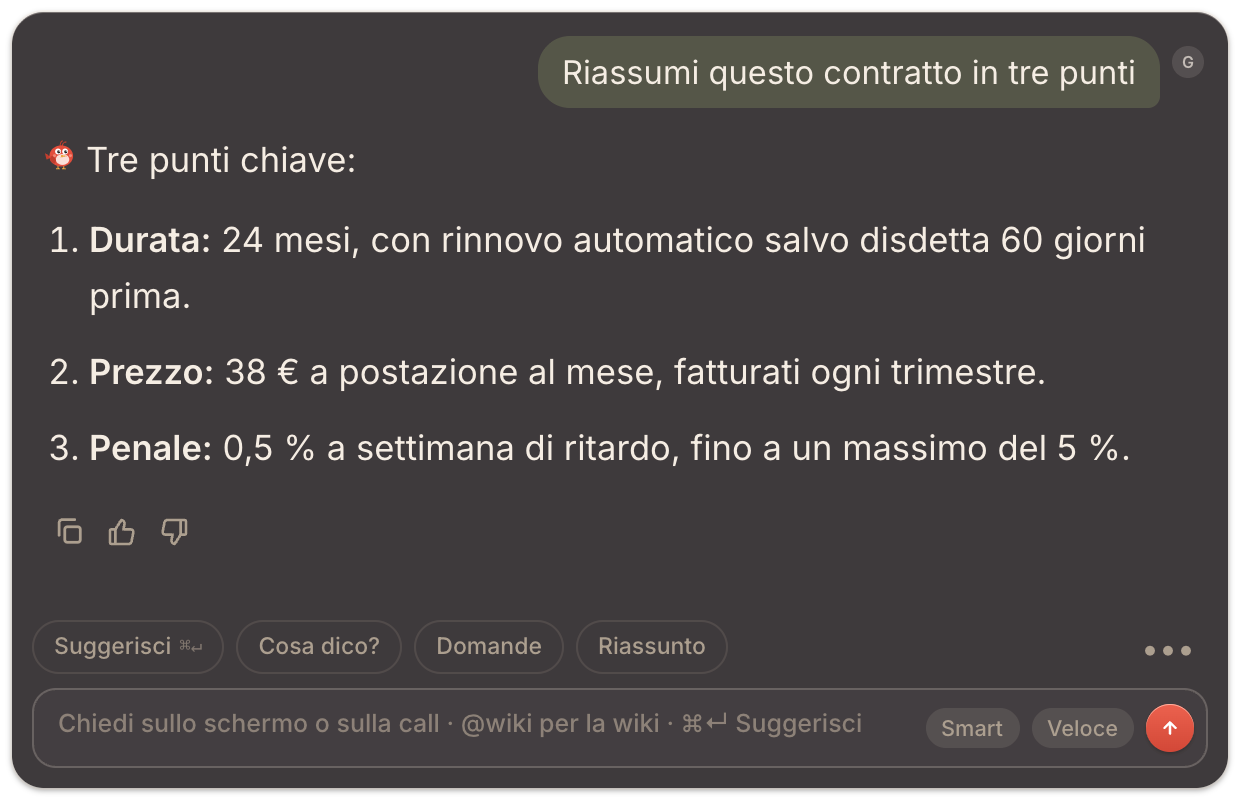
Quando ti è utile
- Prima di una call: «Quali sono i termini di pagamento nel nostro contratto standard?»
- Per scrivere: prepara la risposta all’email che hai sullo schermo, con il tono della tua modalità.
- Per verificare: confronta un numero di un foglio di calcolo con il tuo listino.
- Per cercare: trova un passaggio nei tuoi documenti senza aprirli uno per uno.
Scrivi la tua domanda
- Apri la chat con Psst… o ⌘\. Aprire la chat avvia anche l’ascolto, così Pip è pronto se la call comincia.
- Scrivi la domanda nel campo di testo e premi ↵ (⇧↵ per andare a capo).
- Oppure usa le azioni rapide: Suggerisci, Cosa dico?, Domande e Riassunto.
Per le domande più impegnative attiva Smart; per una risposta immediata scegli Veloce. Vedi Chiedi a Pip durante una call.
Scegli le conoscenze di Pip
Le risposte attingono ai documenti della modalità attiva: scegli quella più adatta alla domanda dal menu ••• → Modalità. Se hai collegato una knowledge base aziendale, scrivi @wiki per cercare direttamente lì. Vedi File di riferimento e Fonti collegate.
Domande da provare subito
- «Rispondi a questa email con gentilezza e proponi giovedì alle 10.»
- «Questa offerta è in linea con il nostro listino? Segnalami le differenze.»
- «Trova dove la nostra policy parla di rimborsi e riassumilo.»
- «Spiegami questo grafico in tre frasi brevi.»
Gestisci le risposte
- Copia risposta copia il testo con un clic, pronto da incollare dove ti serve.
- Stop interrompe una risposta mentre viene scritta.
- Svuota chat (⌘R) riparte da zero.
Per sapere quale testo viene inviato all’AI per ogni risposta, leggi Cosa resta sul tuo computer, e cosa serve all’AI.
I prossimi passi
Quando inizia la call, Pip è già con te: scopri come seguirla dall’inizio alla fine in La tua prima call con TellPip.
Related articles
Need anything else? We’re here for you.
Write to us