 TellPip
Keep TellPip out of screen sharing
Share your screen and record the call: only you see Pip.
Updated 30 October 2026
Contents
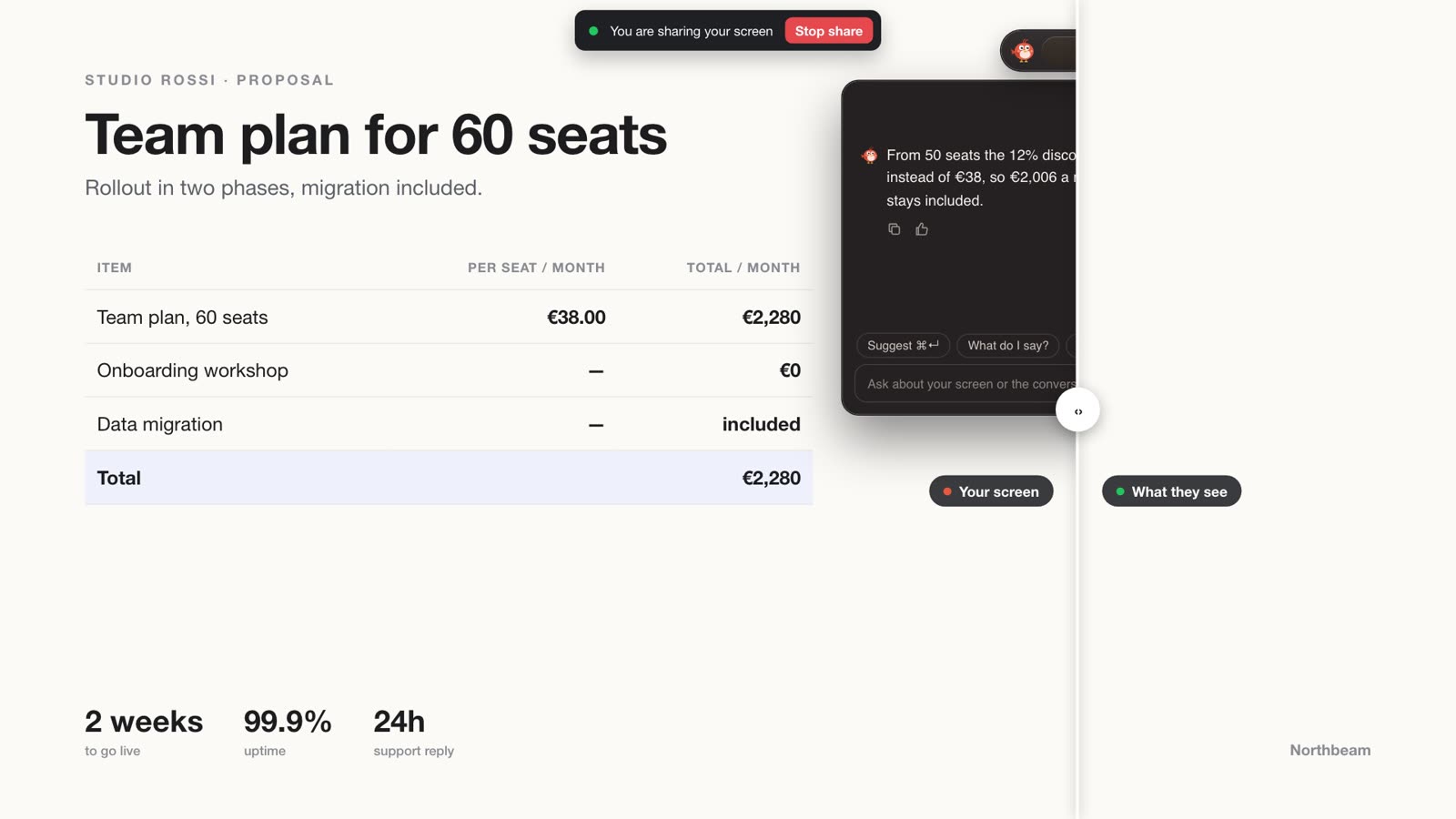
When you present slides or walk a client through a document, your screen becomes a shared space: the client should see your presentation, not your notes. With invisibility on, TellPip stays at your service on your screen, but out of what you share and out of what gets recorded. A touch of professional elegance that makes every presentation tidier.
What invisibility does
With Invisible when sharing your screen on:
- TellPip’s bar and chat stay out of screen sharing, in Zoom, Meet, Teams and any other app;
- they also stay out of recordings and screenshots taken by other apps, so the meeting video shows only the meeting;
- TellPip doesn’t appear in the Dock or in ⌘Tab, for an even tidier screen.
Nothing changes for you: you see the bar, the chat and every answer exactly as always.
How to tell it’s on
Invisibility is on by default. While it’s on, the chat shows a dashed outline: you recognise it at a glance.
Turn it on or off
- press ⌘⇧I, from any app: the quickest way;
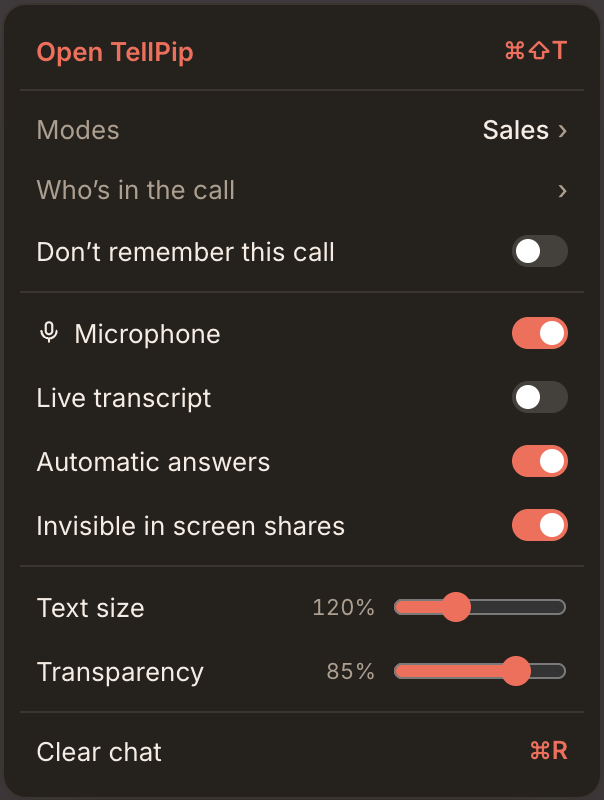
- use Invisible in the chat’s ••• menu;
- use the same item from the menu-bar icon;
- or go to Settings → Appearance.
Present without interruptions: Don’t steal focus
While you present, you want every key you press to reach your slides. That’s why TellPip offers Don’t steal focus when invisible, which you’ll find in Settings → Appearance.
With this option on, the chat leaves the keyboard to your presentation: you interact with Pip through the quick actions and the shortcuts, while your slides move along without interruptions.
Before an important presentation
- Check that the chat shows the dashed outline.
- Turn on Don’t steal focus (when invisible) if you’ll be moving through slides.
- Close TellPip’s main window, so the shared screen stays dedicated to your presentation.
- For complete peace of mind, share your screen in a test call with yourself and look at what the other side sees.
Reaching TellPip while it’s invisible
When TellPip is invisible, you reach it in a moment with:
- ⌘\ to show or hide the chat;
- ⌘⇧T to open the main window (Open TellPip);
- the menu-bar icon, for sessions, Past sessions and Settings…
Quick checks
- The chat doesn’t show the dashed outline? Invisibility is off: press ⌘⇧I to turn it on.
- The switch appears greyed out? Invisibility comes with its dedicated add-on. See below.
To restore invisibility in a share that has already started, stop sharing, quit TellPip from the menu-bar icon, reopen it and share again. Our team is always here for you: write to us, or use Contact support in the About TellPip window, from the TellPip menu.
Which plans include it
Invisibility is included in Everything, in the 5-hour pack, in the free trial and in Enterprise, and it’s an add-on of the Solo plan. If it isn’t part of your current plan, the switch appears greyed out and you can add it whenever you like. See Plans, free trial and add-ons.
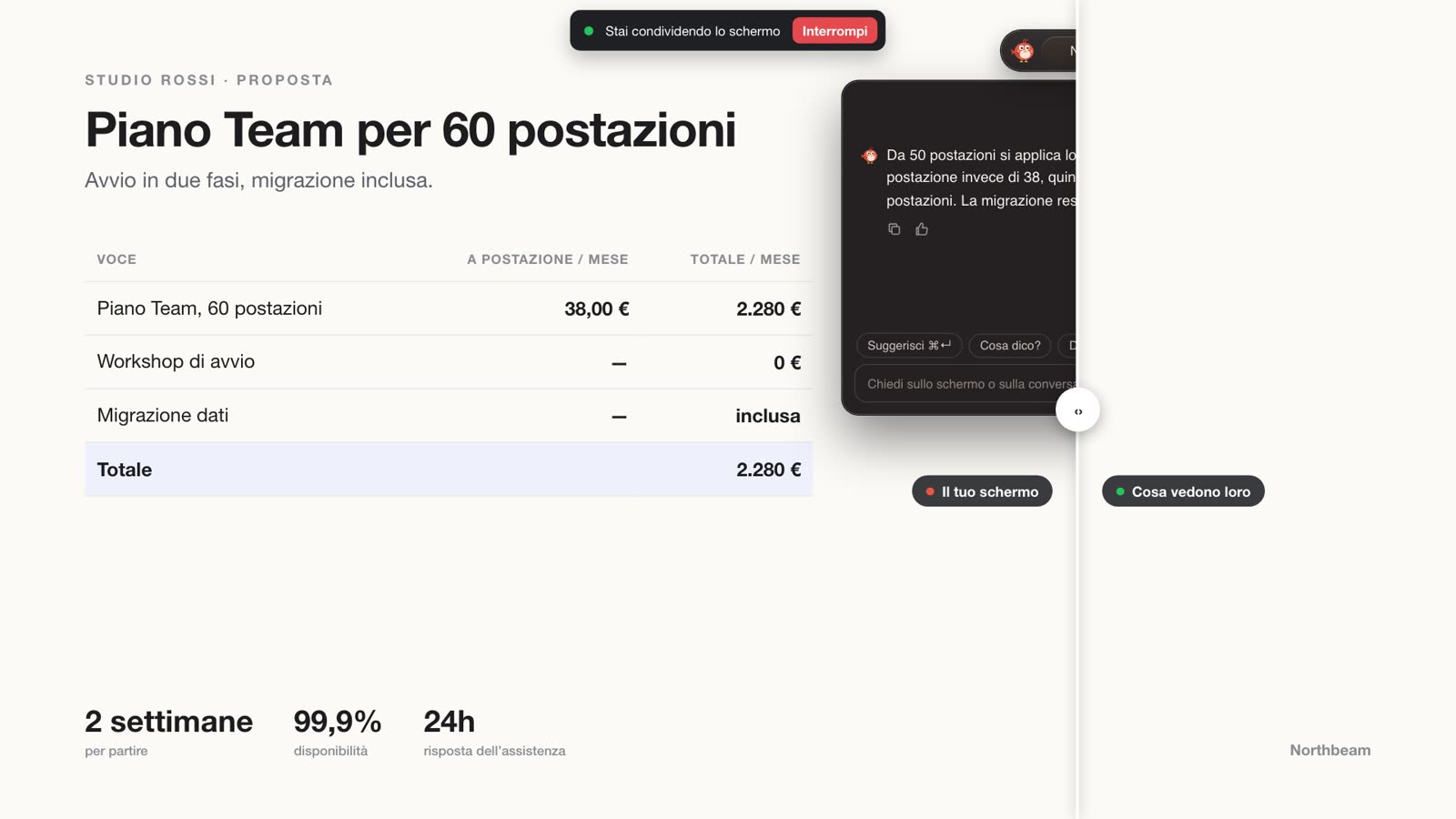
Quando presenti delle slide o scorri un documento con un cliente, il tuo schermo diventa uno spazio condiviso: il cliente deve vedere la tua presentazione, non i tuoi appunti. Con l’invisibilità attiva, TellPip resta a tua disposizione sul tuo schermo, ma fuori da ciò che condividi e da ciò che viene registrato. Un dettaglio di eleganza professionale che rende ogni presentazione più ordinata.
Cosa fa l’invisibilità
Con Invisibile nelle condivisioni schermo attivo:
- la barra e la chat di TellPip restano fuori dalla condivisione schermo, in Zoom, Meet, Teams e in qualsiasi altra app;
- restano fuori anche dalle registrazioni e dagli screenshot di altre app, così il video della riunione mostra solo la riunione;
- TellPip non compare nel Dock né in ⌘Tab, per uno schermo ancora più ordinato.
Per te non cambia nulla: vedi la barra, la chat e ogni risposta esattamente come sempre.
Come capire se è attiva
Di base l’invisibilità è attiva. Quando lo è, la chat mostra un bordo tratteggiato: lo riconosci a colpo d’occhio.
Attivala o disattivala
- premi ⌘⇧I, da qualsiasi app: il modo più rapido;
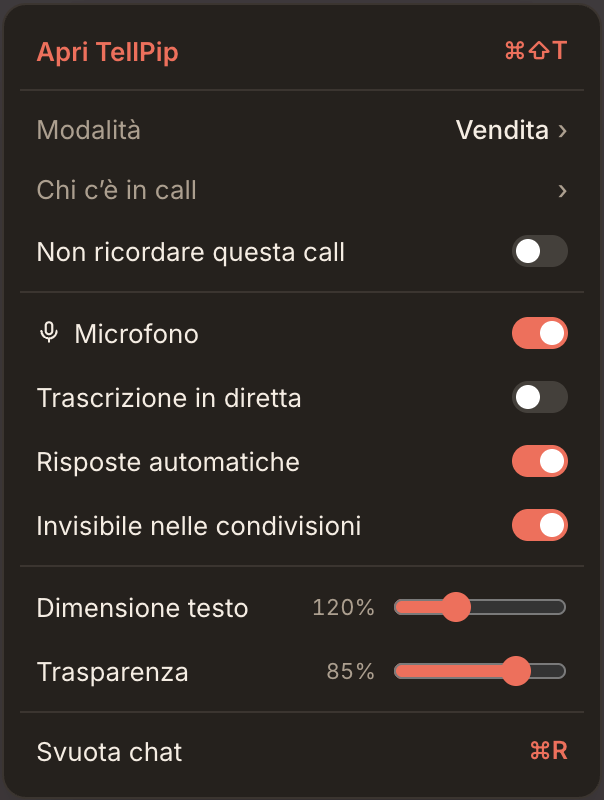
- usa Invisibile nel menu ••• della chat;
- usa la stessa voce dall’icona nella barra dei menu;
- oppure vai in Impostazioni → Aspetto.
Presenta senza interruzioni: Non rubare il focus
Mentre presenti, vuoi che i tasti che premi arrivino sempre alle tue slide. Per questo TellPip offre Non rubare il focus quando invisibile, che trovi in Impostazioni → Aspetto.
Con questa opzione attiva, la chat lascia la tastiera alla tua presentazione: interagisci con Pip tramite le azioni rapide e le scorciatoie, mentre le slide scorrono senza interruzioni.
Prima di una presentazione importante
- Verifica che la chat mostri il bordo tratteggiato.
- Attiva Non rubare il focus (quando invisibile) se scorrerai delle slide.
- Chiudi la finestra principale di TellPip, così lo schermo condiviso resta dedicato alla tua presentazione.
- Per la massima tranquillità, condividi lo schermo in una call di prova con te stesso e osserva ciò che vede l’altra parte.
Raggiungere TellPip quando è invisibile
Quando TellPip è invisibile, lo raggiungi in un attimo con:
- ⌘\ per mostrare o nascondere la chat;
- ⌘⇧T per aprire la finestra principale (Apri TellPip);
- l’icona nella barra dei menu, per le sessioni, Sessioni passate e Impostazioni…
Verifiche rapide
- La chat non mostra il bordo tratteggiato? L’invisibilità è disattivata: premi ⌘⇧I per attivarla.
- L’interruttore appare in grigio? L’invisibilità si attiva con la funzione extra dedicata. Vedi sotto.
Per ripristinare l’invisibilità in una condivisione già avviata, interrompi la condivisione, chiudi TellPip dall’icona nella barra dei menu, riaprilo e condividi di nuovo. Il nostro team è sempre a disposizione: scrivici, oppure usa Contatta l’assistenza nella finestra Informazioni su TellPip, dal menu TellPip.
In quali piani c’è
L’invisibilità è inclusa in Tutto compreso, nel pacchetto 5 ore, nella prova gratuita e in Enterprise, ed è una funzione extra del piano Solo. Se non è compresa nel tuo piano attuale, l’interruttore appare in grigio e puoi aggiungerla quando vuoi. Vedi Piani, prova gratuita e funzioni extra.
Related articles
Need anything else? We’re here for you.
Write to us