 TellPip
Real-time answers
Pip prepares the answer at the exact moment someone asks you a question.
Updated 30 October 2026
Contents
In a fast-paced call, every second counts. With real-time answers on, Pip follows the conversation and prepares the answer as soon as someone asks you a question: you don’t have to press anything. In this guide you’ll see how Pip picks the right moment to step in, and how to adapt it to your style.
What it does
When the other person asks you a question, Pip recognises it and offers you the answer by itself, marked with the Automatic answer tag. A glance is all it takes to read it and make it your own.
Suggest, the other quick actions and your own questions are always available: real-time answers add to them and work in perfect harmony with them.
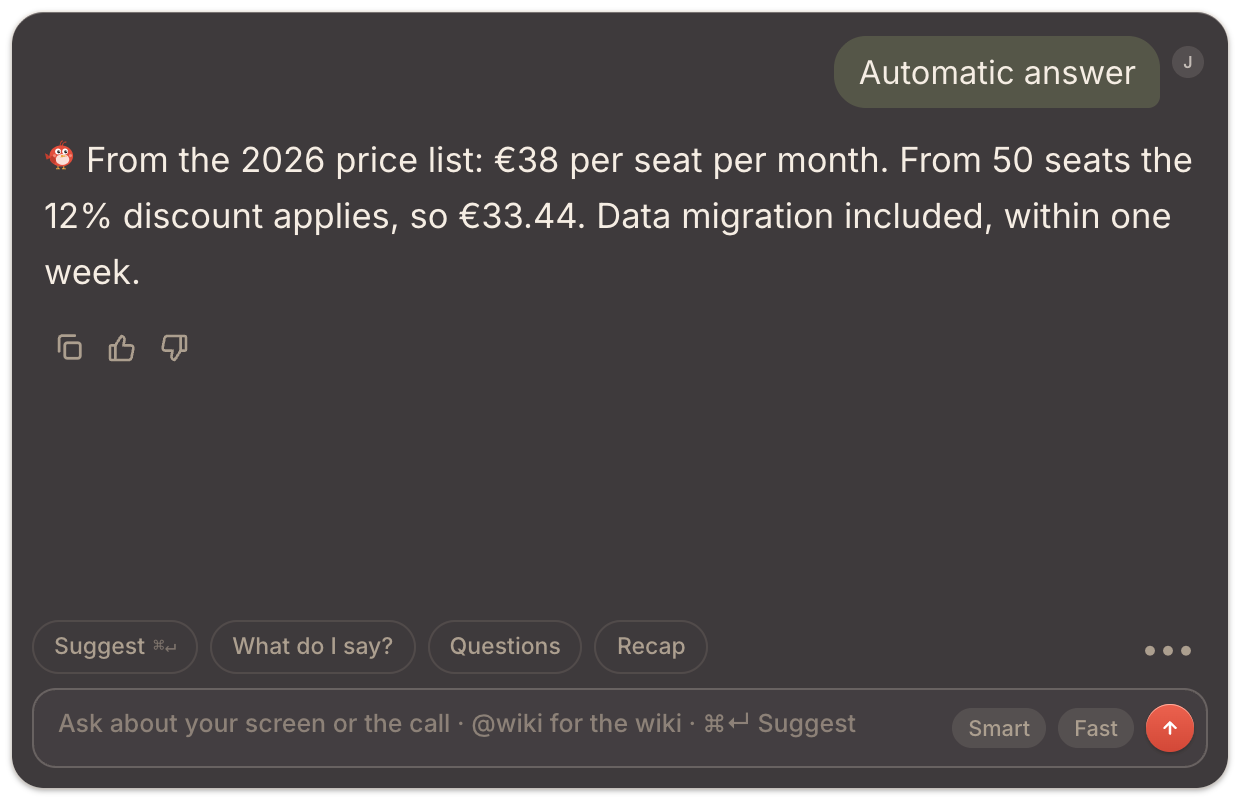
Turn it on
You turn on Automatic answers in one of two places:
- in the chat’s ••• menu, during a call: ideal for switching them on and off as the call goes on;
- in Settings → Intelligence, where you also find all the tuning options.
Once on, they stay on for the next calls too, until you decide otherwise.
Discreet, at the right moment
Pip steps in when the conversation really involves you, discreetly, so the chat stays tidy and your attention stays on the call. With Your names in calls, which you set in Settings → Account, Pip recognises when someone is talking to you.
When Pip steps in
In Settings → Intelligence, under When and how to answer, Frequency sets how often Pip steps in:
- Low: only questions put to you, by name or right after you spoke. The most discreet setting.
- Medium (default): also questions to everyone about your work, when you are the right person to answer. The ideal starting point.
- High: also when you can add something useful without being asked, at most once every two minutes. Perfect for sales calls and negotiations.
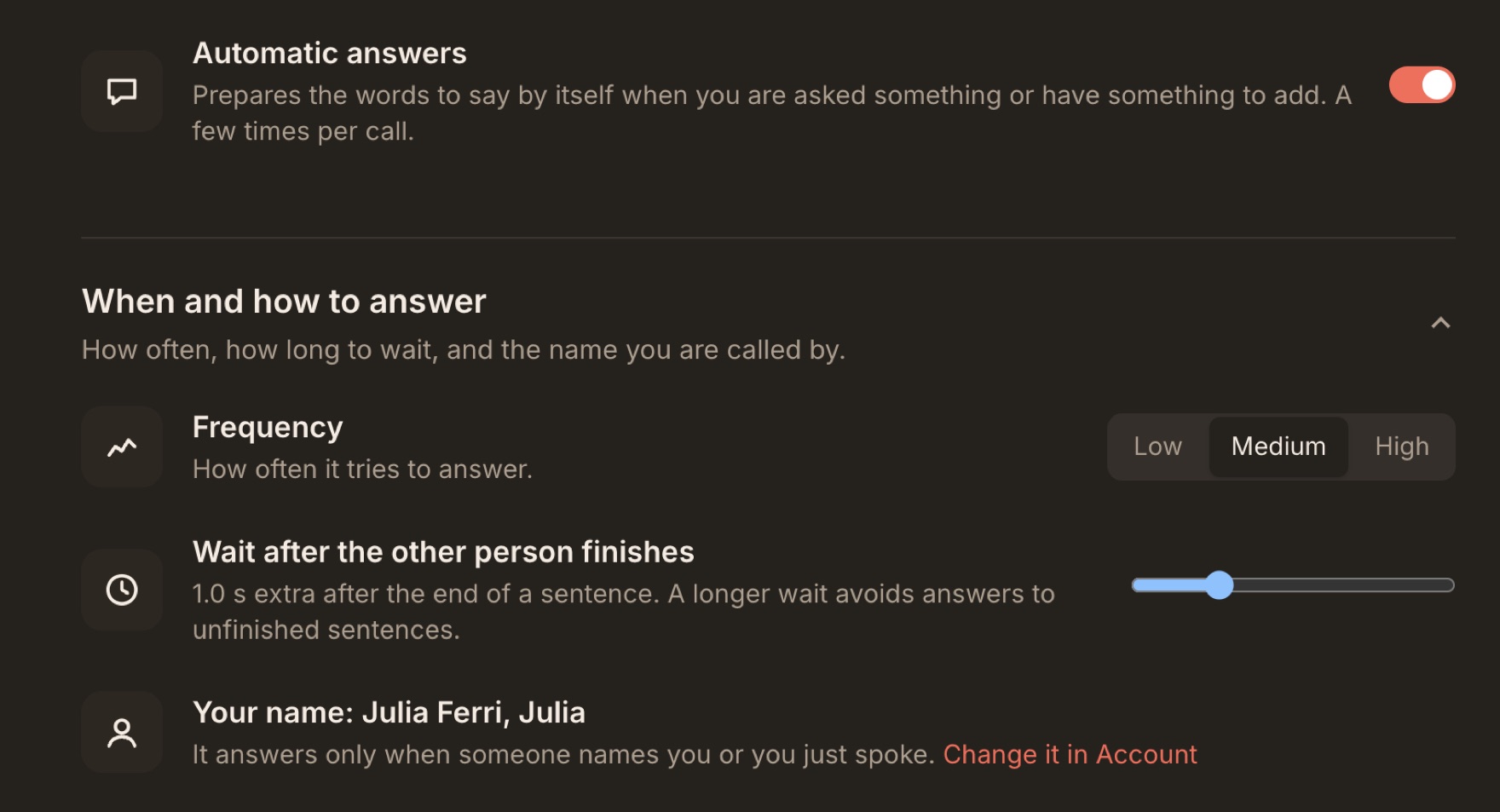
How long Pip waits
Wait after the other person finishes sets how long Pip waits, after the other person stops talking, before offering the answer: from 0 to 4 seconds, 1 by default.
- Raise it if the people in your calls like to pause and think mid-sentence.
- Lower it if you want the answer as fast as possible, for example in calls with very quick back-and-forth.
Tips to get started
- Start with Medium and fine-tune the settings after a couple of calls.
- Fill in Your names in calls in Settings → Account: Pip will recognise precisely when someone is talking to you.
- Pair them with invisibility when you share your screen: the answers appear only for you.
- Pick the right mode before the call: the answers draw on its documents and follow its instructions.
Tune Pip to your style
- For more selective answers. Move Frequency one step towards Low, raise the wait, or add a rule such as “Only answer questions addressed to me”.
- For more frequent answers. Move towards High and lower the wait. Also make sure the system audio permission is on, so Pip hears everyone on the call. See Let Pip hear everyone on the call.
- For even more targeted answers. Pick the right mode and add the documents Pip needs: a well-built mode is the most effective way to get precise answers.
Which plans include it
Real-time answers are included in Everything, in the 5-hour pack, in the free trial and in Enterprise, and they’re an add-on of the Solo plan. See Plans, free trial and add-ons.
In una call dal ritmo serrato, ogni secondo conta. Con le risposte in tempo reale attive, Pip segue la conversazione e prepara la risposta appena qualcuno ti rivolge una domanda: tu non devi premere nulla. In questa guida scopri come Pip sceglie il momento giusto per intervenire e come adattarlo al tuo stile.
Cosa fa
Quando l’interlocutore ti rivolge una domanda, Pip lo riconosce e ti propone la risposta da solo, contrassegnata dall’etichetta Risposta automatica. Ti basta un’occhiata per leggerla e farla tua.
Suggerisci, le altre azioni rapide e le tue domande restano sempre a disposizione: le risposte in tempo reale si aggiungono e lavorano in perfetta armonia con loro.
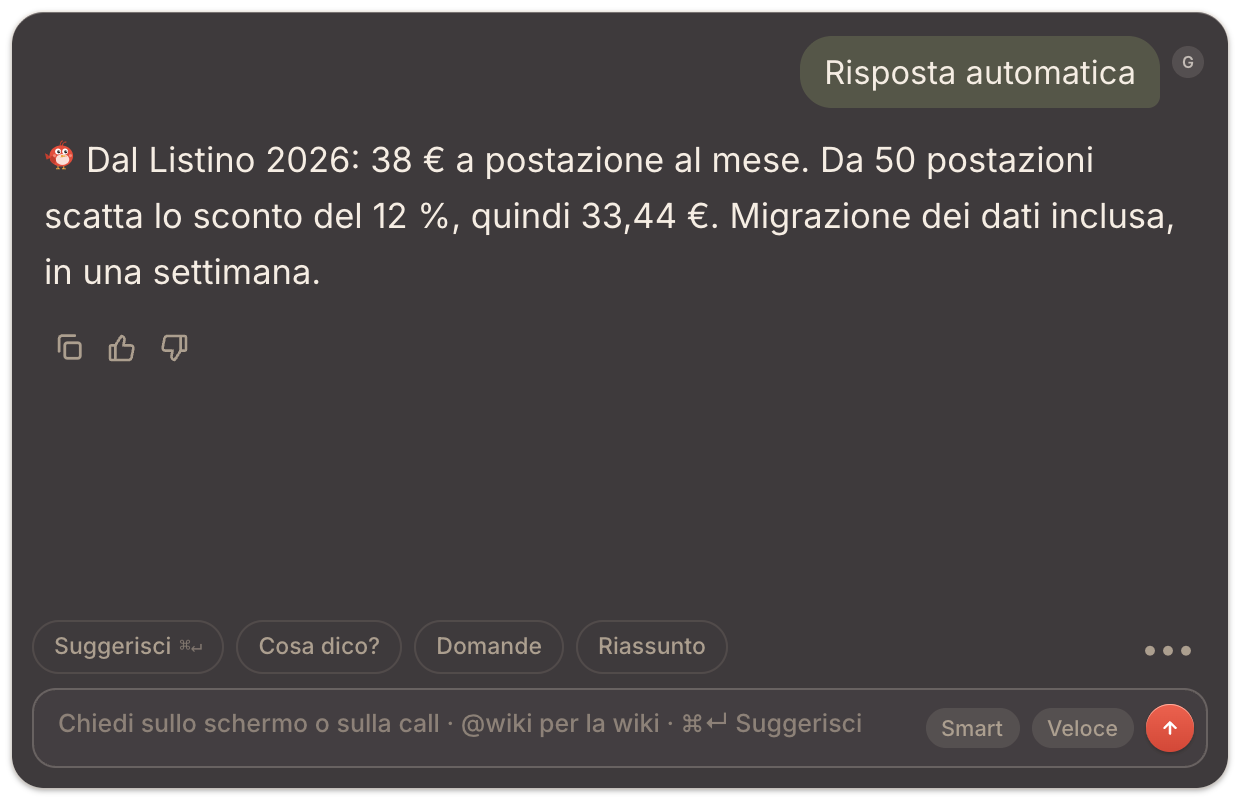
Attivale
Attivi Risposte automatiche in uno di questi due punti:
- nel menu ••• della chat, durante una call: ideale per attivarle e disattivarle mentre la call prosegue;
- in Impostazioni → Intelligenza, dove trovi anche tutte le opzioni di regolazione.
Una volta attivate, restano operative anche nelle call successive, finché non decidi diversamente.
Un intervento discreto, al momento giusto
Pip interviene quando la conversazione ti coinvolge davvero, con discrezione, così la chat resta ordinata e la tua attenzione sulla call. Con I tuoi nomi nelle call, che imposti in Impostazioni → Account, Pip riconosce quando qualcuno si rivolge a te.
Quando interviene Pip
In Impostazioni → Intelligenza, Frequenza stabilisce quanto spesso Pip interviene:
- Bassa: solo le domande rivolte a te, con il tuo nome o subito dopo che hai parlato. L’impostazione più discreta.
- Media (di base): anche le domande a tutti sui temi del tuo lavoro, quando sei tu la persona giusta per rispondere. Il punto di partenza ideale.
- Alta: anche quando puoi aggiungere qualcosa di utile senza che te lo chiedano, al massimo una volta ogni due minuti. Perfetta per le call di vendita e le trattative.
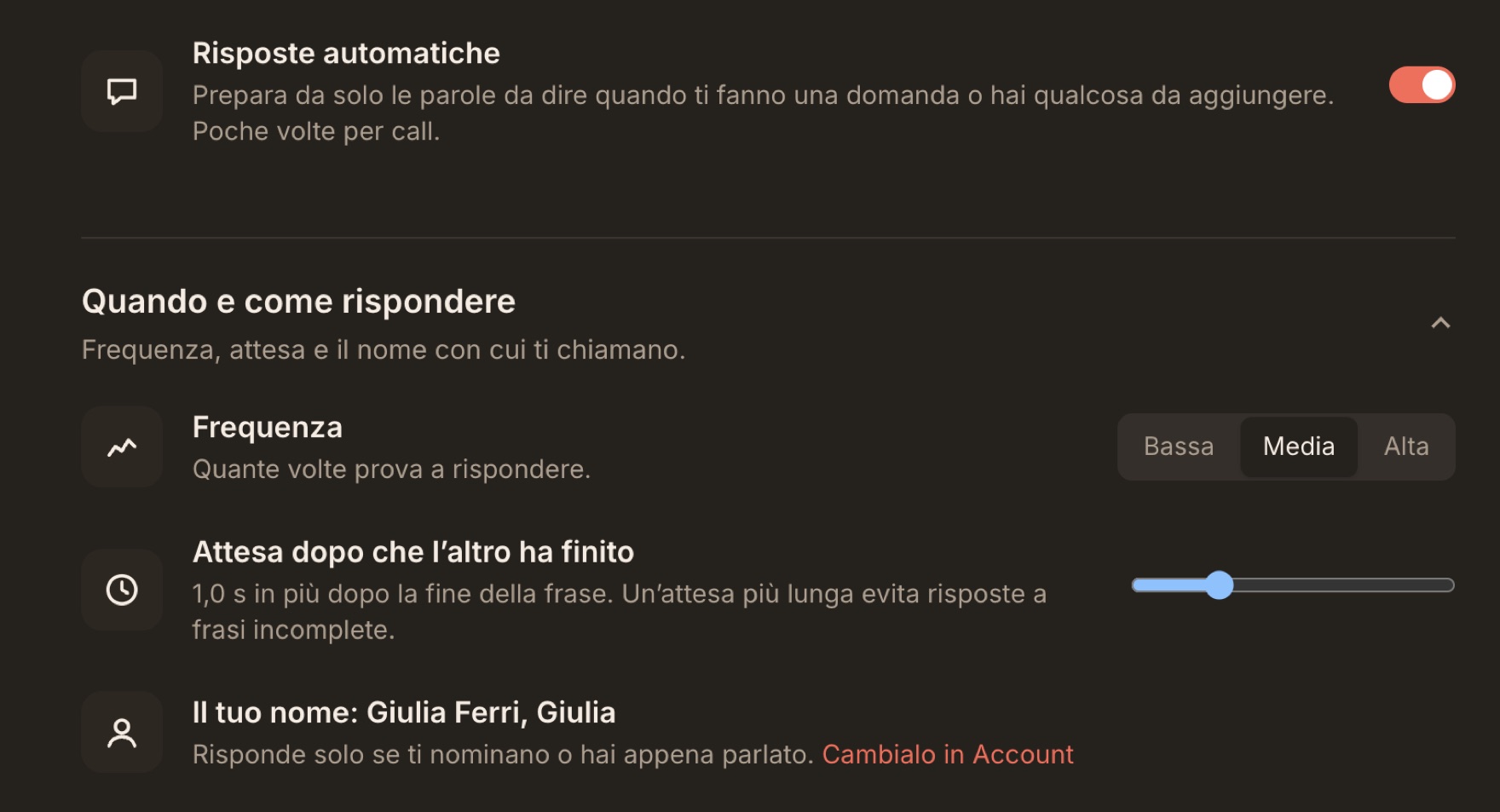
Quanto aspetta Pip
Attesa dopo che l’altro ha finito stabilisce quanto Pip attende, dopo che l’interlocutore ha smesso di parlare, prima di proporre la risposta: da 0 a 4 secondi, 1 di base.
- Aumentala se nelle tue call le persone amano fare pause per riflettere a metà frase.
- Riducila se desideri la risposta il prima possibile, per esempio nelle call con scambi molto rapidi.
Consigli per iniziare
- Parti da Media e affina le impostazioni dopo un paio di call.
- Compila I tuoi nomi nelle call in Impostazioni → Account: Pip riconoscerà con precisione quando qualcuno si rivolge a te.
- Abbinale all’invisibilità quando condividi lo schermo: le risposte compaiono solo per te.
- Scegli la modalità giusta prima della call: le risposte attingono ai suoi documenti e seguono le sue istruzioni.
Regola Pip sul tuo stile
- Per interventi più selettivi. Sposta Frequenza di un passo verso Bassa, aumenta l’attesa, oppure aggiungi una regola come «Rispondi solo alle domande rivolte a me».
- Per interventi più frequenti. Spostati verso Alta e riduci l’attesa. Assicurati anche che il permesso per l’audio di sistema sia attivo, così Pip ascolta tutti i partecipanti. Vedi Fai sentire a Pip tutti i partecipanti.
- Per risposte ancora più mirate. Scegli la modalità giusta e aggiungi i documenti di cui Pip ha bisogno: una modalità ben costruita è il modo più efficace per ottenere risposte precise.
In quali piani ci sono
Le risposte in tempo reale sono incluse in Tutto compreso, nel pacchetto 5 ore, nella prova gratuita e in Enterprise, e sono una funzione extra del piano Solo. Vedi Piani, prova gratuita e funzioni extra.
Related articles
Need anything else? We’re here for you.
Write to us