 TellPip
Delete your data
Remove a session, a memory, a document or everything TellPip keeps on your computer: you are always in control.
Updated 30 October 2026
Contents
Your data, your control
Everything TellPip knows about your calls is kept on your computer, so you decide what to keep and what to delete. You can remove a single item, a whole category or everything, in a few clicks. It's all managed from TellPip's main window (⌘ ⇧ T, Open TellPip), where the sidebar brings together Sessions, Memory, Connected sources and Modes. In this guide you'll find every step, section by section. For the full list of what TellPip keeps, read What stays on your computer.
Before you delete: keep what you need
Deleting is permanent: the data really disappears from your computer. Before a general clean-up, we suggest two things:
- open the sessions you care about and use Copy notes, Copy transcript or Copy email to paste them into your management software, a case file or a shared document;
- keep in mind that TellPip never touches your original documents and folders: removing them from TellPip only deletes its copy and its index.
Delete sessions
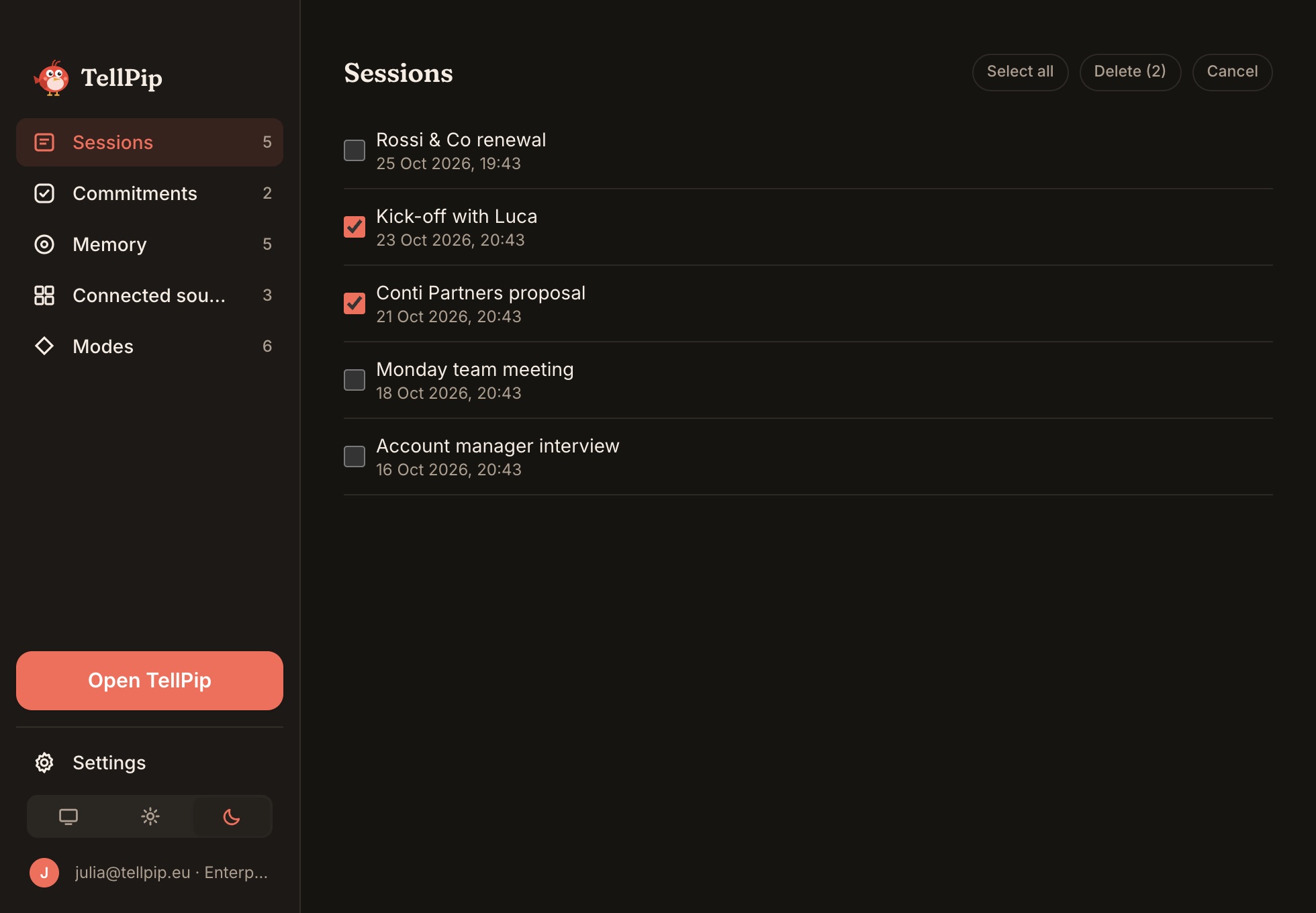
- Open the main window and choose Sessions in the sidebar: you'll find the list of all your calls.
- Open the ••• menu of a session → Delete, and confirm.
- To delete several in one go, click Select, tick the sessions you want to remove and delete them together.
Deleting a session removes, in one go, the transcript, notes and follow-up email of that call, together with the memories Pip had learned only from it. Memories confirmed in other calls too stay in the memory. Pages you approved with Propose to the wiki stay in your knowledge base folder: they are your documents, and you manage them.
Manage the memory
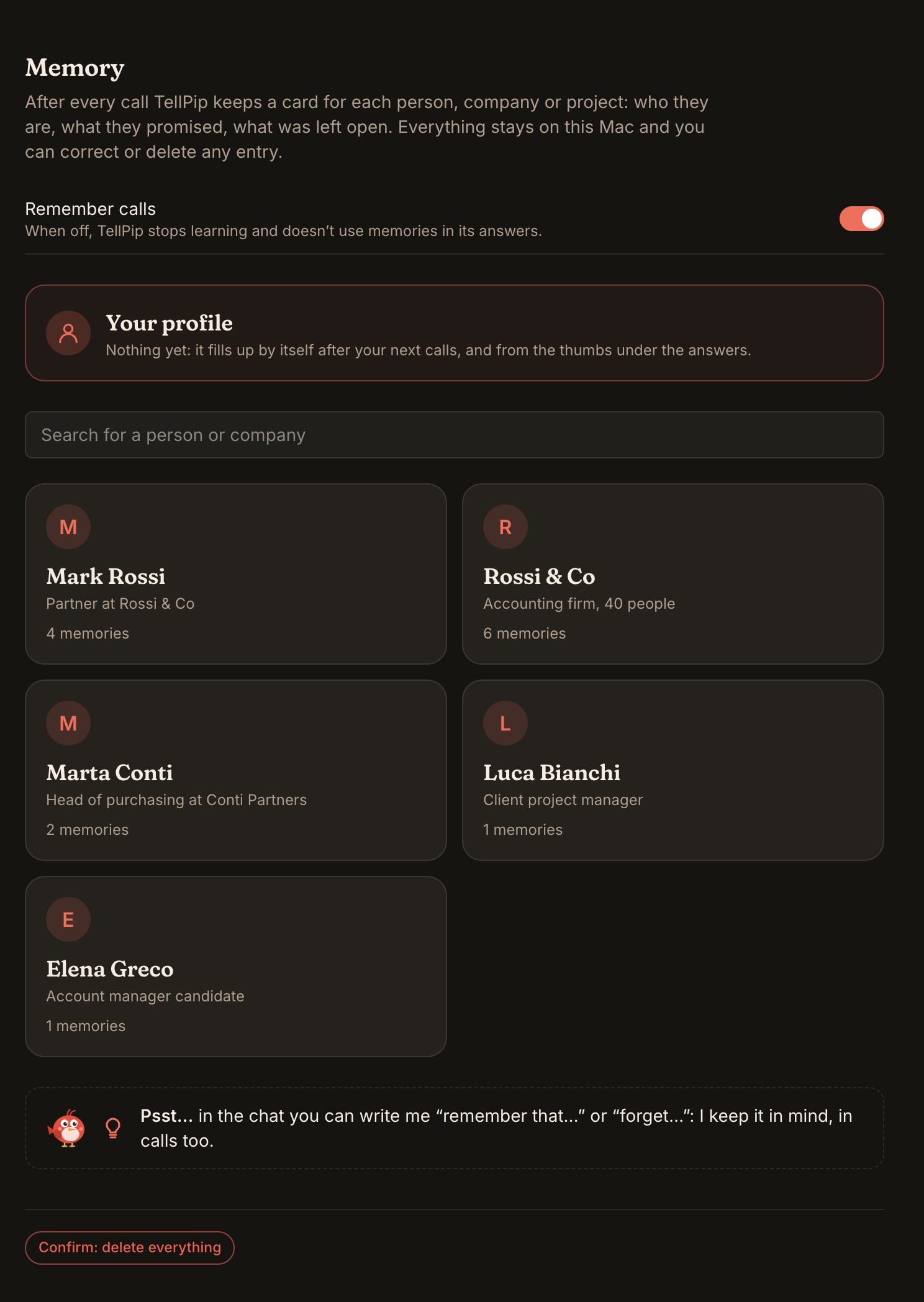
Open Memory in the main window's sidebar:
- A single item: open the memory and choose Delete this memory.
- A person, company or project: Forget followed by the name.
- All of the memory: Delete all memory, then confirm to start again from zero.
- Your preferences: you can look at them at any time in your preferences card, on the Memory page.
- What came from a specific call: Don’t remember this call, during the call from the chat's ••• menu or from the session.
Find out more in Client memory.
Remove documents and sources
- Reference files: remove them from a mode on the main window's Modes page, in the Reference files section.
- Connected sources: open Connected sources in the main window and remove the source. The copy of your Notion, Drive, OneDrive and SharePoint files is removed together with the source, while your original folder stays untouched.
- Notion, Google and Microsoft accounts: in Settings → Connectors, press Revoke to disconnect them from TellPip.
- Vocabulary: delete the lines you no longer need in Settings → Audio & language → Vocabulary.
Remove everything from your computer
- Quit TellPip from the menu-bar icon → Quit TellPip.
- Move TellPip from Applications to the Bin.
- In Finder, choose Go → Go to Folder…, type
~/Library/Application Support/TellPipand delete that folder. It holds your sessions, memory, documents, settings and the local models. - Open Keychain Access and delete the entry TellPip Safe Storage.
- If you like, remove TellPip from the microphone and screen recording lists in System Settings → Privacy & Security.
Delete your account
Your account holds only the essentials: your email, your computers, your trial or subscription, the names you’re called by in calls, the name shown to the people you invite and the code or page that brought you. To delete it, open Settings → Account → Delete account in the app, or write to hello@tellpip.eu from the email you sign in with: we will delete the account and all the data linked to it. If you have an active subscription, also tell us whether you want to cancel it.
Common questions
If I delete a session, is a copy left anywhere?
No: sessions live only on your computer. Deleting them from your computer deletes them for good, together with the memories that came only from that call.
Can I free up space without losing my sessions?
Yes. Most of the space is taken by the local models, in the models folder inside ~/Library/Application Support/TellPip. You can delete just that folder: TellPip will reinstall the models the next time it starts, so transcription and search are available again on your computer straight away.
If I sign out, is my data deleted?
No. When you sign out, your sessions, notes and memory stay safe on your computer, ready for when you sign back in.
Next steps
I tuoi dati, il tuo controllo
Tutto ciò che TellPip sa delle tue call è custodito sul tuo computer, quindi sei tu a decidere cosa conservare e cosa eliminare. Puoi rimuovere una singola voce, un’intera categoria oppure ogni cosa, in pochi clic. Tutto si gestisce dalla finestra principale di TellPip (⌘ ⇧ T, Apri TellPip), dove la barra laterale raccoglie Sessioni, Memoria, Fonti collegate e Modalità. In questa guida trovi tutti i passaggi, sezione per sezione. Per l’elenco completo di ciò che TellPip custodisce, leggi Cosa resta sul tuo computer.
Prima di eliminare: conserva ciò che ti serve
L’eliminazione è definitiva: i dati spariscono davvero dal tuo computer. Prima di una pulizia generale, ti consigliamo due accorgimenti:
- apri le sessioni che ti interessano e usa Copia note, Copia trascrizione o Copia email per incollarle nel tuo gestionale, in un fascicolo o in un documento condiviso;
- tieni presente che TellPip non tocca mai i tuoi documenti e le tue cartelle originali: rimuoverli da TellPip elimina soltanto la sua copia e il suo indice.
Elimina le sessioni
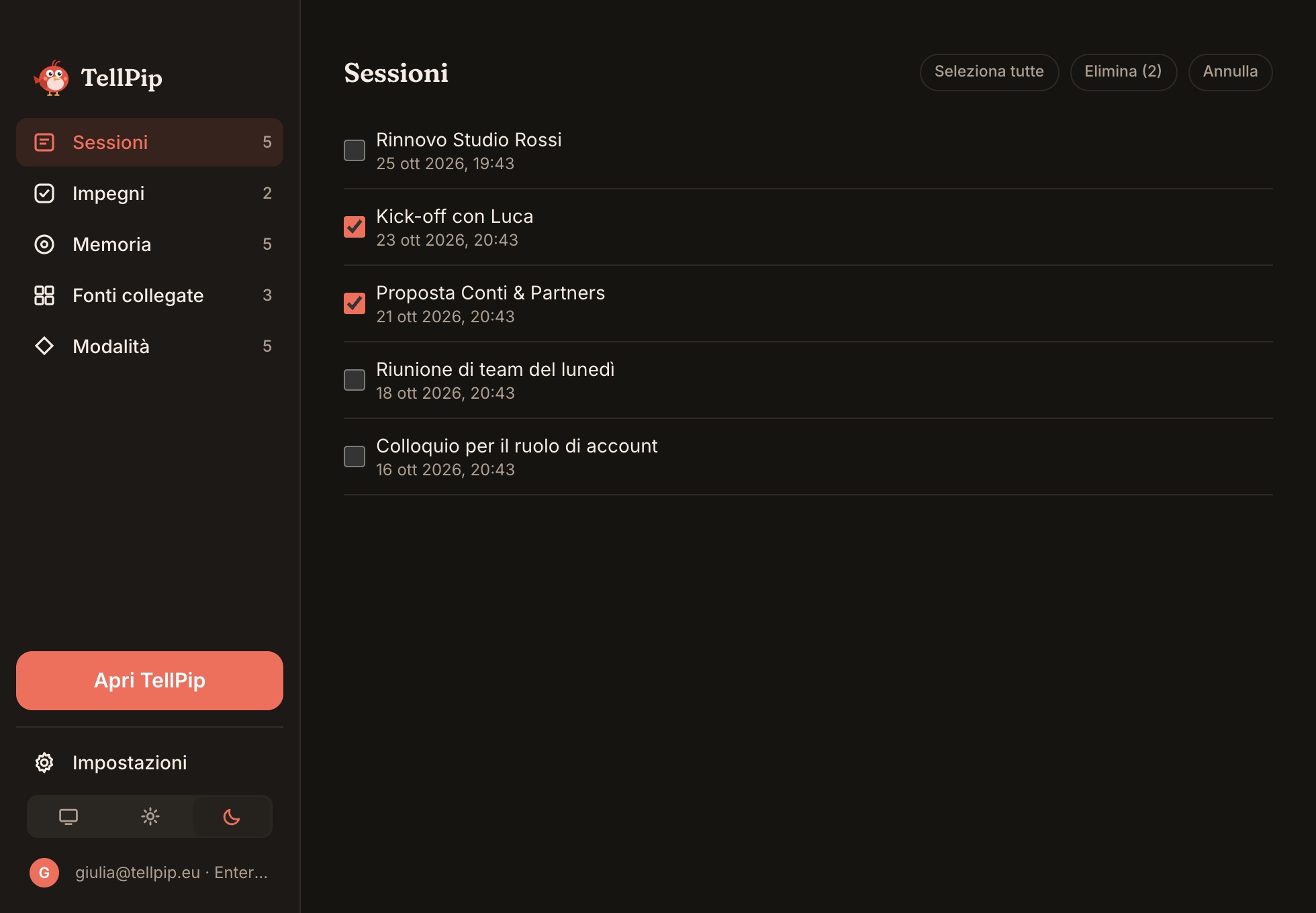
- Apri la finestra principale e scegli Sessioni nella barra laterale: trovi l’elenco di tutte le tue call.
- Apri il menu ••• di una sessione → Elimina, e conferma.
- Per eliminarne diverse in un colpo solo, premi Seleziona, spunta le sessioni che vuoi rimuovere ed eliminale insieme.
Eliminando una sessione rimuovi in un solo gesto la trascrizione, le note e l’email di follow-up di quella call, insieme ai ricordi che Pip aveva imparato soltanto da lì. I ricordi confermati anche in altre call restano nella memoria. Le pagine che avevi approvato con Proponi alla wiki restano nella cartella della tua knowledge base: sono documenti tuoi, e li gestisci tu.
Gestisci la memoria
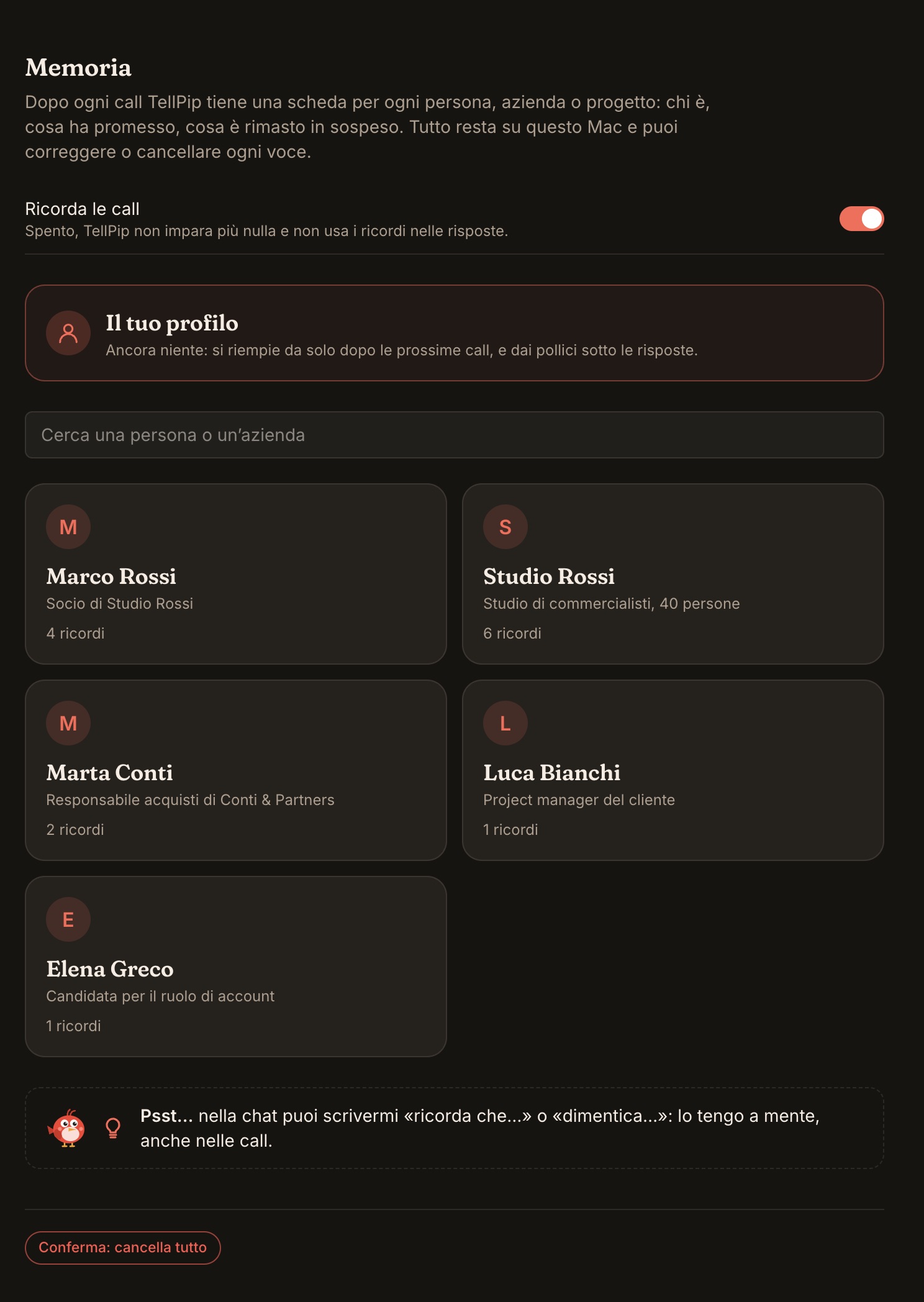
Apri Memoria nella barra laterale della finestra principale:
- Una singola voce: apri il ricordo e scegli Elimina questo ricordo.
- Una persona, un’azienda o un progetto: Dimentica seguito dal nome.
- Tutta la memoria: Cancella tutta la memoria, poi conferma per ripartire da zero.
- Le tue preferenze: le consulti in ogni momento nella scheda delle tue preferenze, nella pagina Memoria.
- Ciò che proviene da una call specifica: Non ricordare questa call, durante la call dal menu ••• della chat oppure dalla sessione.
Scopri di più in Memoria dei clienti.
Rimuovi documenti e fonti
- File di riferimento: rimuovili da una modalità nella pagina Modalità della finestra principale, alla sezione File di riferimento.
- Fonti collegate: apri Fonti collegate nella finestra principale e rimuovi la fonte. La copia dei file di Notion, Drive, OneDrive e SharePoint viene rimossa insieme alla fonte, mentre la tua cartella originale resta intatta.
- Account Notion, Google e Microsoft: in Impostazioni → Connettori premi Revoca per scollegarli da TellPip.
- Vocabolario: elimina le righe che non ti servono più in Impostazioni → Audio e lingua → Vocabolario.
Rimuovi tutto dal tuo computer
- Chiudi TellPip dall’icona nella barra dei menu → Esci da TellPip.
- Sposta TellPip da Applicazioni al Cestino.
- Nel Finder scegli Vai → Vai alla cartella…, scrivi
~/Library/Application Support/TellPiped elimina quella cartella. Contiene sessioni, memoria, documenti, impostazioni e i modelli locali. - Apri Accesso Portachiavi ed elimina la voce TellPip Safe Storage.
- Se lo desideri, rimuovi TellPip dagli elenchi di microfono e registrazione schermo in Impostazioni di Sistema → Privacy e sicurezza.
Elimina il tuo account
Il tuo account contiene solo l’essenziale: l’email, i tuoi computer, la prova o l’abbonamento, i nomi con cui ti chiamano nelle call, il nome che vedono le persone che inviti e il codice o la pagina da cui sei arrivato. Per eliminarlo, apri Impostazioni → Account → Elimina account nell’app, oppure scrivi a hello@tellpip.eu dall’email con cui accedi: cancelleremo l’account e tutti i dati a esso associati. Se hai un abbonamento attivo, indicaci anche se desideri disdirlo.
Domande frequenti
Se elimino una sessione, ne resta una copia da qualche parte?
No: le sessioni vivono solo sul tuo computer. Eliminarle dal computer significa eliminarle per sempre, insieme ai ricordi nati soltanto da quella call.
Posso liberare spazio senza perdere le sessioni?
Sì. La parte più consistente dello spazio è occupata dai modelli locali, nella cartella models dentro ~/Library/Application Support/TellPip. Puoi eliminare solo quella cartella: TellPip reinstallerà i modelli al prossimo avvio, così trascrizione e ricerca torneranno subito disponibili sul tuo computer.
Se esco dall’account, i miei dati vengono cancellati?
No. Uscendo, sessioni, note e memoria restano al sicuro sul tuo computer, pronte per quando rientri.
Prossimi passi
Related articles
Need anything else? We’re here for you.
Write to us