 TellPip
Using TellPip on another computer
How to use your licence on the computer you prefer, move it in a moment and sign out of your account.
Updated 30 October 2026
Contents
Your licence follows your account
With Solo, Everything and the free trial, your licence is active on one computer at a time. There are no licence keys to keep: the licence follows your account. You sign in with your email and a 6-digit code, and TellPip activates itself automatically on that computer.
Once you’ve signed in, TellPip stays connected and manages your licence in the background. You don’t need to sign in again every day: open the app and you’re ready to go.
Signing in from a new computer
- Install TellPip on the new computer and open it.
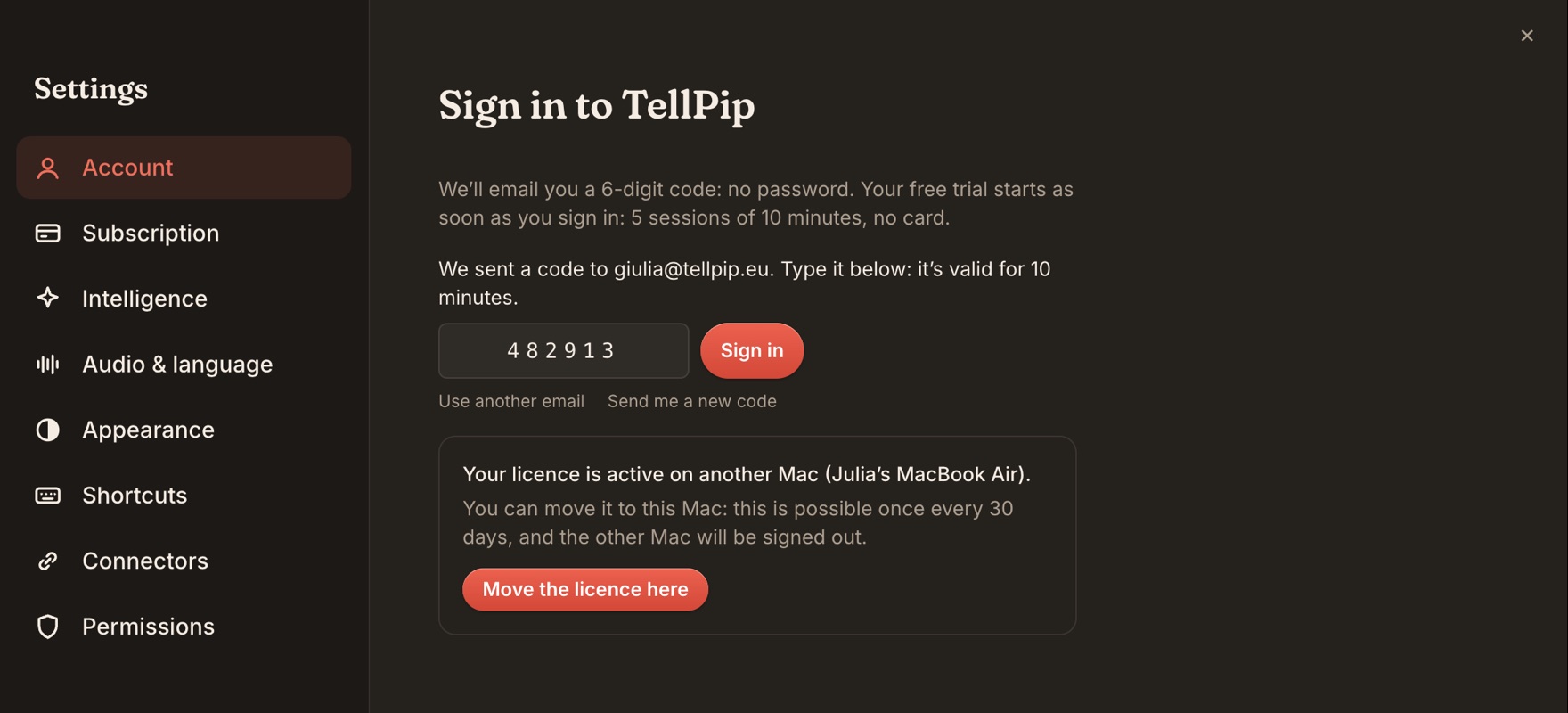
- Open Settings → Account, enter Your email and press Send me the code.
- Type the 6-digit code you received and press Sign in.
The code stays valid for 10 minutes. If you can’t find it in your inbox, check your spam folder or press Send me a new code. To use a different address, press Use another email.
Moving your licence
If your licence is active on another computer, TellPip tells you, with that computer’s name: Your licence is active on another Mac (Anna’s MacBook).
- Press Move the licence here.
- The licence moves to this computer immediately.
- The other computer is signed out. Next time it opens, it lets you know the licence was moved to another computer.
You can move the licence once every 30 days. It’s the perfect solution when you switch to a new computer: one click and you’re ready to go. If you usually work on several computers, we suggest choosing one computer for your calls.
What moves and what stays
Your plan moves with the licence. The content you create stays safely on the computer where it was made, to keep it private:
- sessions, transcripts and notes;
- client memory;
- modes, reference files and connected sources;
- the local models (the new computer installs its own, only once, the first time it starts).
On the new computer, set up your modes again from the main window’s Modes page, starting from one of the nine ready-made templates if you like, and add your reference files: it only takes a few minutes. See modes and reference files.
Your signed-in computers
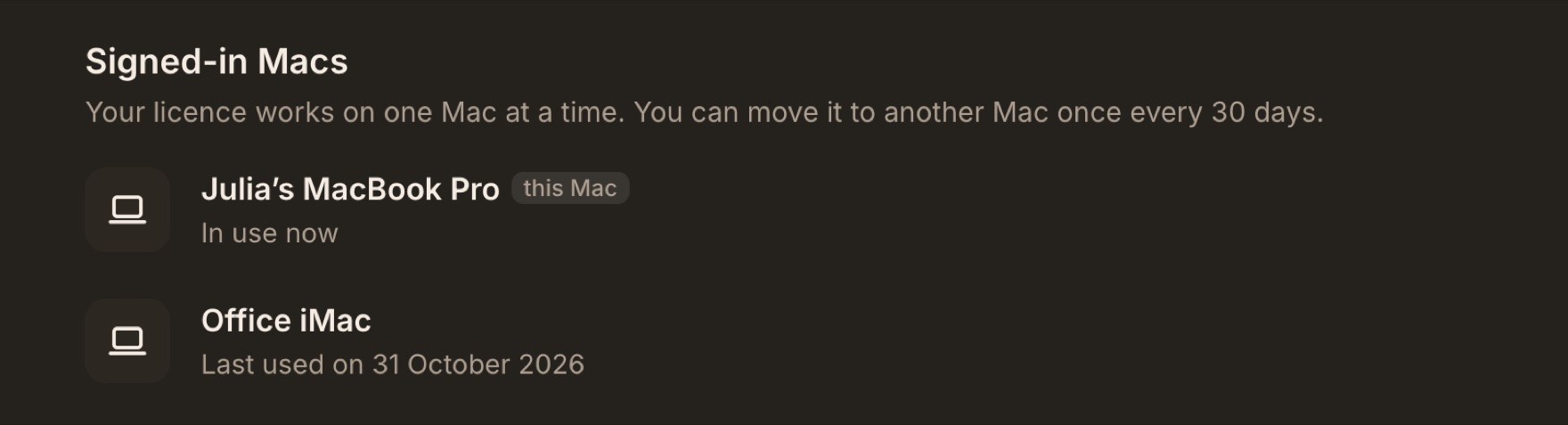
Open Settings → Account: the Signed-in Macs list shows where your account is in use. If you need our help, open the About TellPip window and choose Contact support: the technical report that goes with your message already tells us which computer you are working on.
Signing out of your account
In Settings → Account, press Sign out. TellPip pauses on this computer until you sign in again, and your data stays exactly where it is. To pick up again, sign in with your email and a new code.
The sign-in code, in detail
- Attempts. TellPip tells you how many tries are left. Always use the code from the latest email: each new code replaces the one before.
- Five tries per code. After the fifth, press Send me a new code to get a new one.
- Validity. Each code stays valid for 10 minutes; after that, ask for a new one.
- Frequency. If you ask for many codes in a short time, TellPip tells you how many minutes to wait before asking for another.
- Delivery. If the email is slow to arrive, check spam and any filters, and double-check the address. Some company mailboxes take a few minutes to deliver messages from new senders.
Common questions
Can I use TellPip on two computers at the same time?
With Solo, Everything and the trial, your licence is active on one computer at a time, and you can move it once every 30 days. For teams working from several workstations there’s Enterprise, with seats managed by an administrator.
I changed or lost my computer. What do I do?
Sign in from the new computer and press Move the licence here. The previous computer is signed out, so your plan stays yours alone.
Does my plan move with the licence?
Yes. Your plan belongs to your account: trial, Solo with its add-ons, or Enterprise follow you to the new computer.
Next steps
La tua licenza segue il tuo account
Con Solo, Tutto compreso e la prova gratuita, la licenza è attiva su un computer alla volta. Non ci sono chiavi di licenza da conservare: la licenza segue il tuo account. Entri con la tua email e un codice di 6 cifre, e TellPip si attiva automaticamente su quel computer.
Una volta effettuato l’accesso, TellPip resta collegato e gestisce la licenza in sottofondo. Non devi rientrare ogni giorno: apri l’app e sei subito operativo.
Accedere da un nuovo computer
- Installa TellPip sul nuovo computer e aprilo.
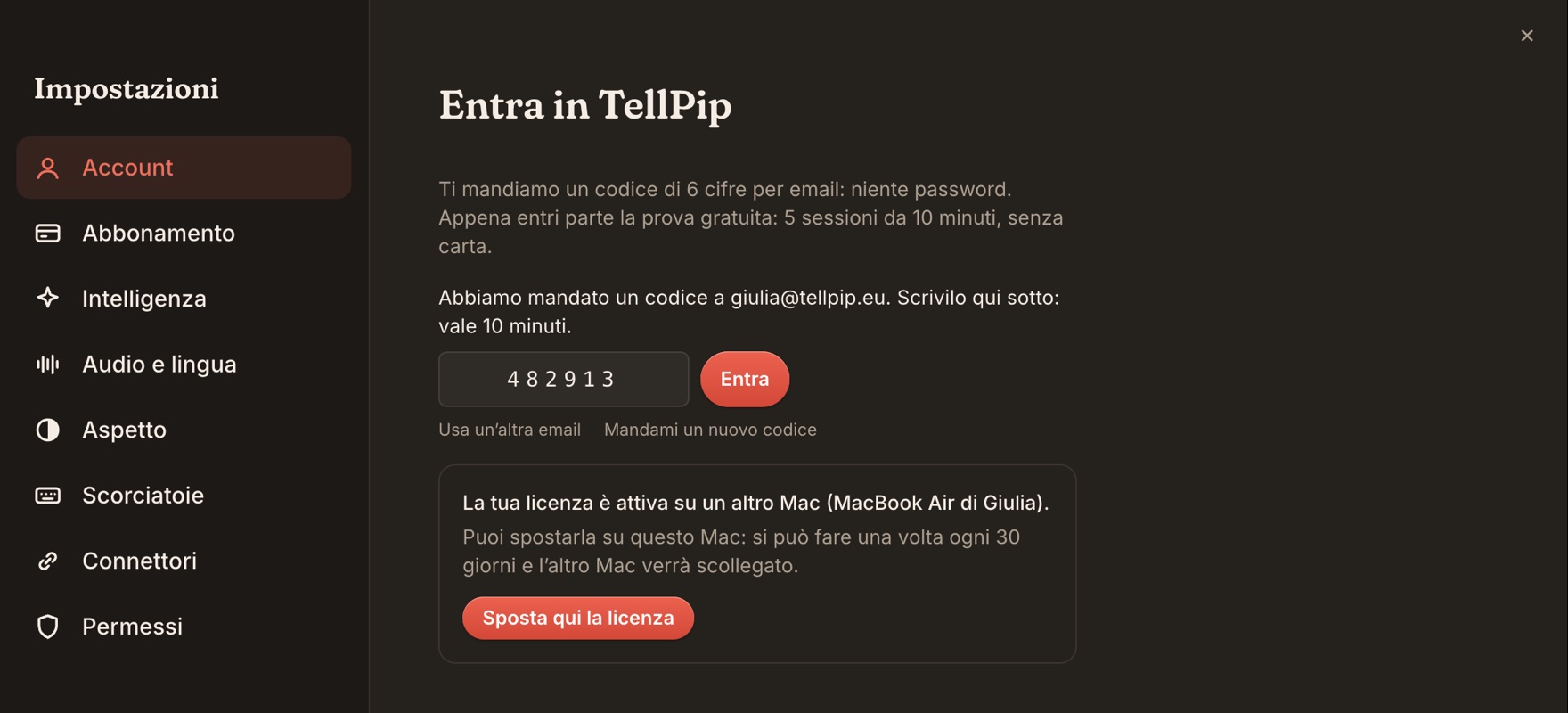
- Apri Impostazioni → Account, scrivi La tua email e premi Mandami il codice.
- Scrivi il Codice di 6 cifre che hai ricevuto e premi Entra.
Il codice resta valido 10 minuti. Se non lo trovi nella posta in arrivo, controlla la posta indesiderata oppure premi Mandami un nuovo codice. Per usare un indirizzo diverso, premi Usa un’altra email.
Spostare la licenza
Se la tua licenza è attiva su un altro computer, TellPip te lo indica con il nome di quel computer: La tua licenza è attiva su un altro Mac (MacBook di Anna).
- Premi Sposta qui la licenza.
- La licenza passa immediatamente su questo computer.
- L’altro computer viene disconnesso. Alla prossima apertura, ti informerà che la licenza è stata spostata su un altro computer.
La licenza si può spostare una volta ogni 30 giorni. È la soluzione perfetta quando passi a un nuovo computer: un clic e sei operativo. Se lavori abitualmente su più computer, ti consigliamo di scegliere un computer dedicato alle call.
Cosa si sposta e cosa resta
Con la licenza si sposta il tuo piano. I contenuti che crei restano custoditi sul computer in cui sono nati, a garanzia della loro riservatezza:
- sessioni, trascrizioni e note;
- la memoria dei clienti;
- modalità, file di riferimento e fonti collegate;
- i modelli locali (il nuovo computer installa i propri, una sola volta, al primo avvio).
Sul nuovo computer, ricrea le tue modalità dalla pagina Modalità della finestra principale, partendo anche da uno dei nove modelli pronti, e aggiungi i file di riferimento: bastano pochi minuti. Vedi le modalità e i file di riferimento.
I computer collegati
Apri Impostazioni → Account: l’elenco Mac collegati mostra dove è in uso il tuo account. Se hai bisogno del nostro aiuto, apri la finestra Informazioni su TellPip e scegli Contatta l’assistenza: il rapporto tecnico che accompagna il tuo messaggio ci dice già su quale computer stai lavorando.

Uscire dall’account
In Impostazioni → Account premi Esci. TellPip si mette in pausa su questo computer finché non rientri, e i tuoi dati restano esattamente dove sono. Per riprendere, entra con la tua email e un nuovo codice.
Il codice di accesso, nel dettaglio
- Tentativi. TellPip ti indica quanti tentativi restano. Usa sempre il codice dell’ultima email: ogni nuovo codice sostituisce il precedente.
- Cinque tentativi per codice. Dopo il quinto, premi Mandami un nuovo codice per riceverne uno nuovo.
- Validità. Ogni codice resta valido 10 minuti; dopo, chiedine uno nuovo.
- Frequenza. Se richiedi molti codici in poco tempo, TellPip ti indica dopo quanti minuti puoi chiederne un altro.
- Ricezione. Se l’email tarda ad arrivare, controlla la posta indesiderata e gli eventuali filtri, e verifica l’indirizzo. Alcune caselle aziendali impiegano qualche minuto a recapitare i messaggi dei mittenti nuovi.
Domande frequenti
Posso usare TellPip su due computer insieme?
Con Solo, Tutto compreso e la prova la licenza è attiva su un computer alla volta, e puoi spostarla una volta ogni 30 giorni. Per i team che lavorano su più postazioni c’è Enterprise, con licenze gestite da un amministratore.
Ho cambiato o smarrito il computer. Come procedo?
Entra dal nuovo computer e premi Sposta qui la licenza. Il computer precedente viene disconnesso, così il tuo piano resta solo tuo.
Il piano si sposta con la licenza?
Sì. Il piano appartiene al tuo account: prova, Solo con le sue funzioni extra o Enterprise ti seguono sul nuovo computer.
Per proseguire
Related articles
Need anything else? We’re here for you.
Write to us