 TellPip
Install TellPip and sign in
Download the app, sign in with your email and start your free trial in an instant: 5 sessions, no card needed.
Updated 30 October 2026
Contents
Getting TellPip ready takes a few minutes: you download the app, sign in with your email and your free trial starts: 5 free sessions, with no card and no licence keys to enter. This guide walks you through every step, from installing to your first sign-in, with all the details you need to get going without hesitation.
1. Check your Mac
TellPip is built to make the most of recent Macs. Before you download it, make sure your Mac meets these requirements:
- Apple Silicon: a Mac with an M1 chip or later. It’s the power of Apple’s chips that lets TellPip transcribe your calls right on your computer, in real time.
- macOS 14.2 or later. This is the version that lets TellPip hear the other people in a call through your Mac’s audio, whatever app you use.
- About 700 MB of free space for the transcription and search models TellPip installs at first launch, which from then on work entirely on your computer, even offline (see The first-launch download).
2. Download and install the app
- Go to the download page and download the TellPip .dmg file.
- Open the file you downloaded: a window opens with the TellPip icon and the Applications folder.
- Drag the TellPip icon onto the Applications folder.
- Open TellPip from the Applications folder or from Launchpad.
TellPip is signed and notarized by Apple, so macOS opens it safely. At first launch, macOS may ask you to confirm that you want to open an app downloaded from the internet: choose Open and you’re done.
When it opens, the start screen welcomes you: Pip says hello and shows you the progress of the local models’ installation. Then a small bar appears at the top of your screen, and the chat opens next to it.
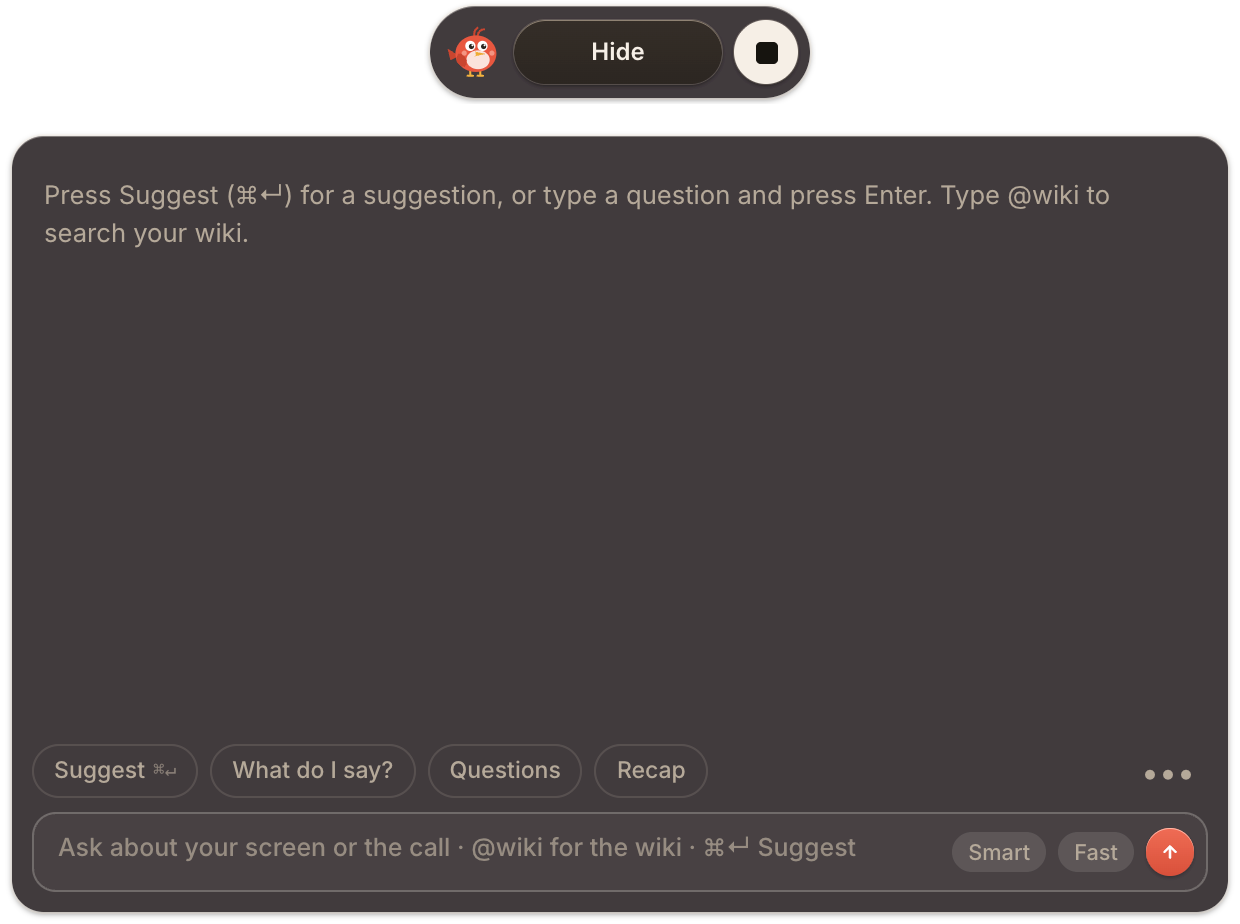
You can choose the app language at any time in Settings → Audio & language → App language: English, Italian, French or Spanish. The language of your calls, on the other hand, you don’t need to set: TellPip recognises it by itself.
3. Sign in with your email
With TellPip there are no passwords to remember. You sign in with a 6-digit code you receive by email, and your first sign-in creates your account automatically: no separate sign-up, no form to fill in.
Until you’ve signed in, the chat invites you to sign in with your email and start your free trial. Press Sign in: Settings opens on the Account tab, under Sign in to TellPip.
- Type your address in the Your email field and press Send me the code.
- Open the email from TellPip and copy the 6-digit code.
- Paste it in the 6-digit code field and press Sign in. You’re in.

The code, in detail
- Validity. Each code stays valid for 10 minutes. If more time has passed, press Send me a new code and you’ll get another one straight away.
- Attempts. You have 5 attempts per code, and TellPip shows you how many are left. After that, you can ask for a new code in a moment.
- Another address. To sign in with a different email, press Use another email and repeat the step.
- Can’t find the email? Have a look in your spam or promotions folder. You can ask for up to 5 codes per address per hour; if you’ve already asked for all of them, TellPip tells you how many minutes until you can ask for another.
4. Your free trial starts
Your first sign-in starts a free trial of 5 sessions, each with up to 10 minutes of Pip listening to your call. No card and no licence key: the app activates itself on this computer and keeps the licence up to date in the background. You only add a card when you decide to buy.
The trial includes everything in the Everything plan: client memory, invisibility, real-time answers and Smart answers. A session counts as used as soon as it starts, and the sessions don’t expire, so you can try Pip on your real calls at your own pace. The company knowledge base, with connected sources like Notion, Google Drive, OneDrive, SharePoint or a shared folder, is included in Enterprise. See Plans, free trial and add-ons.
5. Next steps
- Give TellPip the macOS permissions it needs: microphone, screen recording and system audio. It takes just a few clicks.
- Let the first-launch download finish in the background: the chat is already ready in the meantime.
- Take a tour of the app to get to know every part of it, then try your first call.
Preparare TellPip richiede pochi minuti: scarichi l’app, accedi con la tua email e la prova gratuita si attiva: 5 sessioni gratuite, senza carta e senza chiavi di licenza da inserire. In questa guida trovi ogni passaggio, dall’installazione al primo accesso, con tutti i dettagli per partire senza esitazioni.
1. Controlla il tuo Mac
TellPip è progettato per sfruttare al meglio i Mac più recenti. Prima di scaricarlo, verifica che il tuo Mac abbia questi requisiti:
- Chip Apple: un Mac con chip M1 o successivo. È la potenza dei chip Apple a permettere a TellPip di trascrivere le call direttamente sul tuo computer, in tempo reale.
- macOS 14.2 o successivo. È la versione che permette a TellPip di ascoltare le altre persone in call attraverso l’audio del Mac, qualunque app tu usi.
- Circa 700 MB di spazio libero per i modelli di trascrizione e di ricerca che TellPip installa al primo avvio, e che da quel momento lavorano interamente sul tuo computer, anche offline (vedi Il download al primo avvio).
2. Scarica e installa l’app
- Vai alla pagina di download e scarica il file .dmg di TellPip.
- Apri il file scaricato: si apre una finestra con l’icona di TellPip e la cartella Applicazioni.
- Trascina l’icona di TellPip sulla cartella Applicazioni.
- Apri TellPip dalla cartella Applicazioni o dal Launchpad.
TellPip è firmato e verificato da Apple, quindi macOS lo apre in totale sicurezza. Al primo avvio macOS può chiederti di confermare l’apertura di un’app scaricata da internet: scegli Apri e il gioco è fatto.
All’apertura ti accoglie la schermata di avvio: Pip ti saluta e ti mostra l’avanzamento dell’installazione dei modelli locali. Poi in cima allo schermo compare una piccola barra, e accanto si apre la chat.
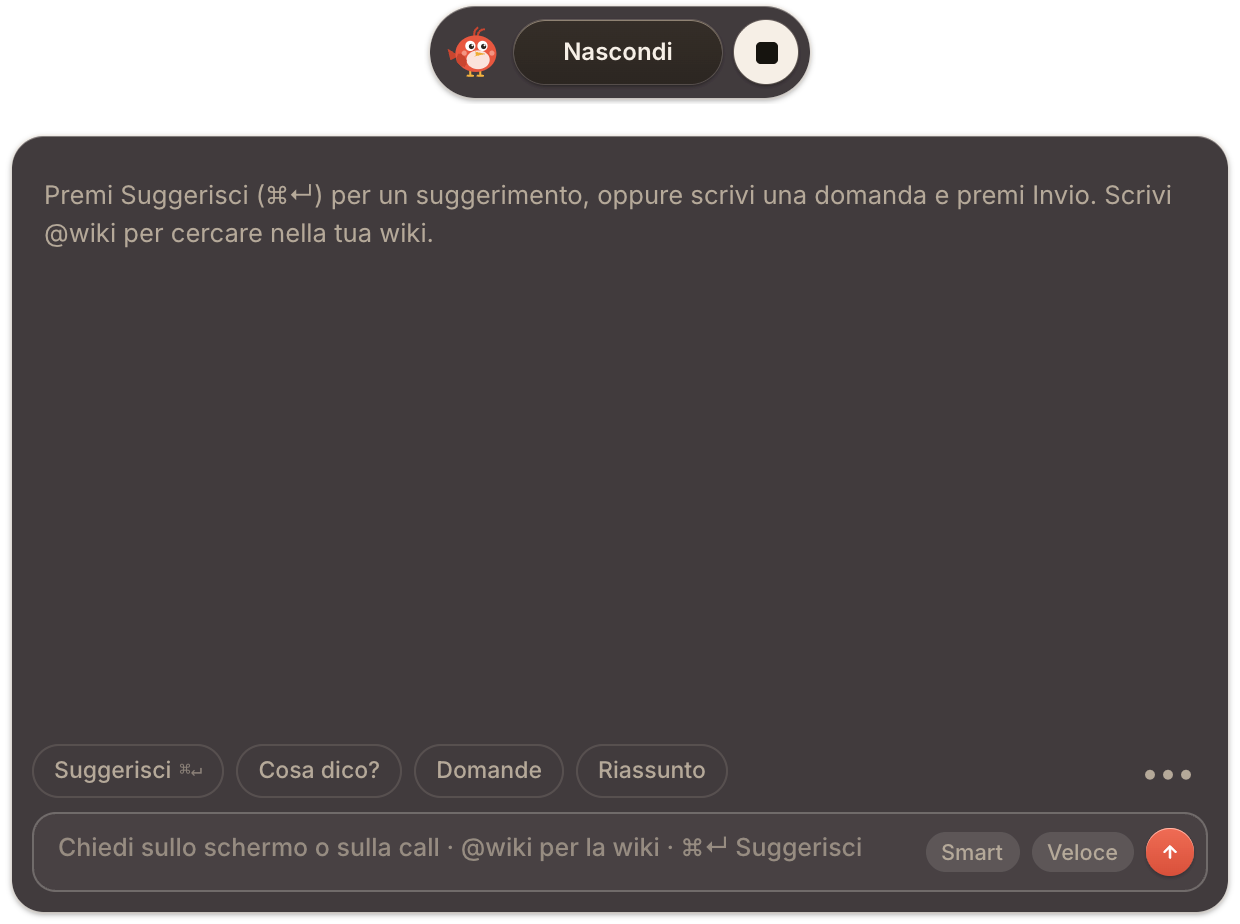
Puoi scegliere la lingua dell’app in qualsiasi momento in Impostazioni → Audio e lingua → Lingua dell’app: italiano, inglese, francese o spagnolo. La lingua delle tue call, invece, non devi impostarla: TellPip la riconosce da solo.
3. Entra con la tua email
Con TellPip non ci sono password da ricordare. Accedi con un codice di 6 cifre che ricevi per email, e il primo accesso crea automaticamente il tuo account: nessuna registrazione separata, nessun modulo da compilare.
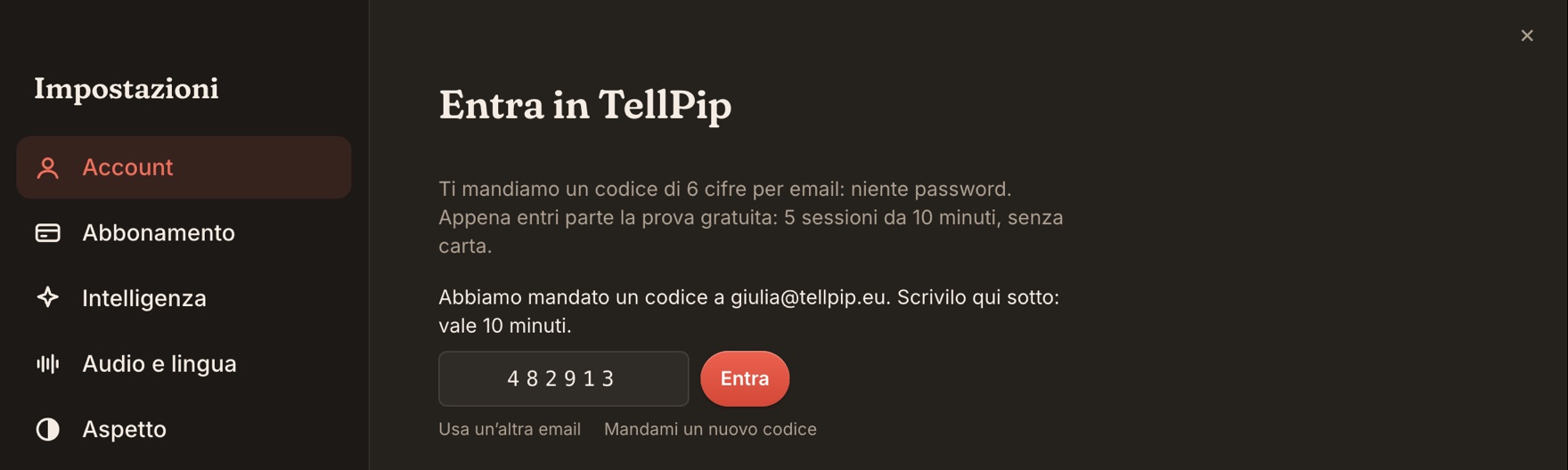
Finché non hai effettuato l’accesso, la chat ti invita a entrare con la tua email e a iniziare la prova gratuita. Premi Entra: si aprono le Impostazioni sulla scheda Account, alla voce Entra in TellPip.
- Scrivi il tuo indirizzo nel campo La tua email e premi Mandami il codice.
- Apri l’email di TellPip e copia il codice di 6 cifre.
- Incollalo nel campo Codice di 6 cifre e premi Entra. Sei dentro.
Il codice, nel dettaglio
- Validità. Ogni codice resta valido 10 minuti. Se è trascorso più tempo, premi Mandami un nuovo codice e ne ricevi subito un altro.
- Tentativi. Per ogni codice hai a disposizione 5 tentativi, e TellPip ti indica quanti ne restano. Al termine, puoi richiedere un nuovo codice in un attimo.
- Un altro indirizzo. Per accedere con un’email diversa, premi Usa un’altra email e ripeti il passaggio.
- Non trovi l’email? Dai un’occhiata alla cartella spam o promozioni. Puoi richiedere fino a 5 codici per indirizzo ogni ora; se li hai già richiesti tutti, TellPip ti indica tra quanti minuti puoi chiederne un altro.
4. Parte la prova gratuita
Il primo accesso attiva una prova gratuita di 5 sessioni: in ognuna Pip ascolta la call per 10 minuti al massimo. Niente carta e nessuna chiave di licenza: l’app si attiva automaticamente su questo computer e mantiene la licenza sempre aggiornata in sottofondo. La carta la lasci solo quando decidi di acquistare.
La prova include tutto quello che c’è in Tutto compreso: la memoria dei clienti, l’invisibilità, le risposte in tempo reale e le risposte Smart. Una sessione conta come usata appena parte, e le sessioni non scadono: puoi provare Pip sulle tue call reali con i tuoi tempi. La knowledge base aziendale, con le fonti collegate come Notion, Google Drive, OneDrive, SharePoint o una cartella condivisa, è inclusa in Enterprise. Vedi Piani, prova gratuita e funzioni extra.
5. I prossimi passi
- Concedi a TellPip i permessi di macOS che gli servono: microfono, registrazione schermo e audio di sistema. Bastano pochi clic.
- Lascia che il download al primo avvio si completi in sottofondo: nel frattempo la chat è già pronta.
- Fai un giro nell’app per conoscerne ogni parte, poi prova la tua prima call.
Related articles
Need anything else? We’re here for you.
Write to us