 TellPip
The first-launch download
How TellPip installs, just once, the models that transcribe and search right on your computer, even offline.
Updated 30 October 2026
Contents
The first time you open TellPip, the app installs two local models: they are the heart of transcription and search, and they work entirely on your computer. The download happens just once, in the background, and in the meantime the chat is already ready. Here’s what gets installed, why it matters so much and how to follow its progress.
1. Why TellPip installs local models
TellPip transcribes your calls and looks through your documents right on your computer. Your audio never leaves the computer to be turned into text, and your documents are indexed and searched locally. To give you all this, TellPip relies on two models that live on your computer:
- the speech model, about 470 MB, which turns the call into text in real time and recognises the spoken language by itself, among 25 European languages, even when it changes mid-call;
- the search model, about 200 MB, which finds the right passages in your documents by meaning, not just by identical words.
That’s about 700 MB, installed just once. From then on, both work even without a connection: your transcription and your search are always available, wherever you are.
2. The start screen
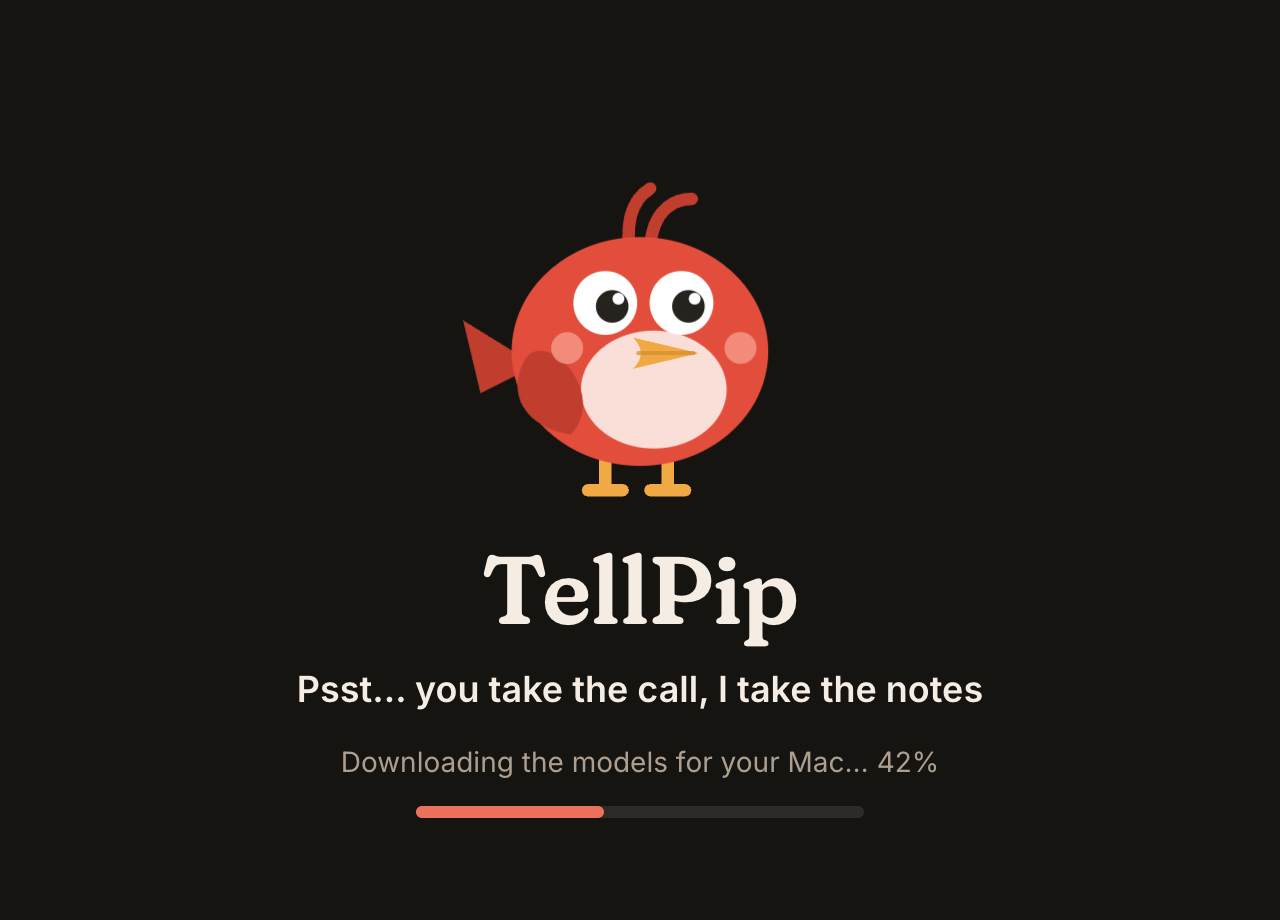
When it opens, the start screen welcomes you: Pip greets you with a line and shows you the progress of the models’ download and, when there are any, of app updates. The download starts on its own, and the chat is ready straight away: you can start exploring TellPip while the installation continues in the background.
3. What you can do while the download continues
- The chat is ready straight away. You can write Pip your questions about your screen and your documents. See Write to Pip.
- Transcription switches on with the speech model. If you start a call, the chat shows you the progress with the message Transcription starts when the model download ends and the percentage. As soon as the model is ready, transcription starts automatically.
- Search already works by keywords. While the search model finishes, Pip finds passages by the words they contain (Meanwhile search uses keywords.). Once it’s ready, it also understands meaning and synonyms.
4. Follow the progress
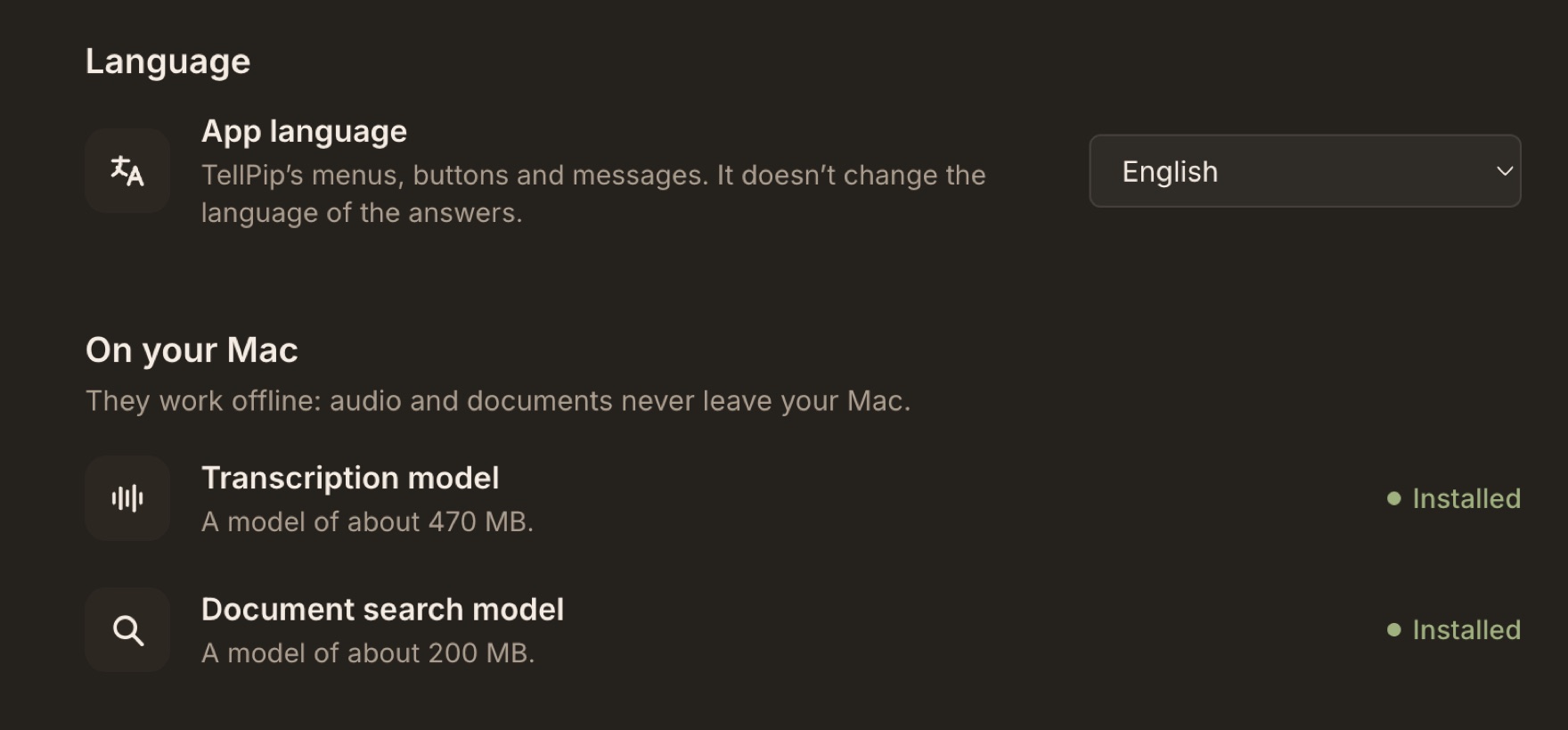
Besides the start screen, you can follow the download in Settings → Audio & language. Each model has its own row:
- while downloading, the percentage and the total size;
- when finished, a confirmation that the model is ready and also works without internet.
5. Resuming and managing the download
- Closed TellPip or the computer went to sleep? The download picks up by itself the next time you open TellPip, exactly where it left off.
- If the row shows Download failed, check your connection and press Try again.
- If a Download button appears next to a model, press it to start the installation.
- Make sure you have about 700 MB of free space, then press Try again.
6. Questions people ask
Can I use TellPip offline?
Yes, for most of the work. Once the models are installed, transcription and document search work even without internet. Writing answers, the notes and the follow-up email needs a connection, because that part is done by the AI.
Do I have to do anything when it’s finished?
No, it’s all automatic. TellPip switches to the full models by itself: transcription is ready for your next call, and search starts understanding meaning straight away.
I’m on a metered connection, or I’m not at the office.
You can finish the download when you’re on a network you prefer, for example at the office. It always picks up where it left off, so nothing is lost.
7. Next steps
Once the speech model is ready, you’re ready for your first call. To know exactly what stays on your computer, read What stays on your computer, and what the AI needs.
La prima volta che apri TellPip, l’app installa due modelli locali: sono il cuore della trascrizione e della ricerca, e lavorano interamente sul tuo computer. Il download avviene una volta sola, in sottofondo, e nel frattempo la chat è già pronta. Ecco cosa viene installato, perché è così prezioso e come seguirne l’avanzamento.
1. Perché TellPip installa dei modelli locali
TellPip trascrive le tue call e consulta i tuoi documenti direttamente sul tuo computer. Il tuo audio non lascia mai il computer per diventare testo, e i tuoi documenti vengono indicizzati e cercati in locale. Per offrirti tutto questo, TellPip si affida a due modelli che vivono sul tuo computer:
- il modello vocale, circa 470 MB, che trasforma la call in testo in tempo reale e riconosce da solo la lingua parlata, tra 25 lingue europee, anche quando cambia a metà call;
- il modello di ricerca, circa 200 MB, che trova i passaggi giusti nei tuoi documenti in base al significato, non solo alle parole identiche.
In tutto circa 700 MB, installati una sola volta. Da quel momento lavorano entrambi anche senza connessione: la tua trascrizione e la tua ricerca sono sempre disponibili, ovunque tu sia.
2. La schermata di avvio
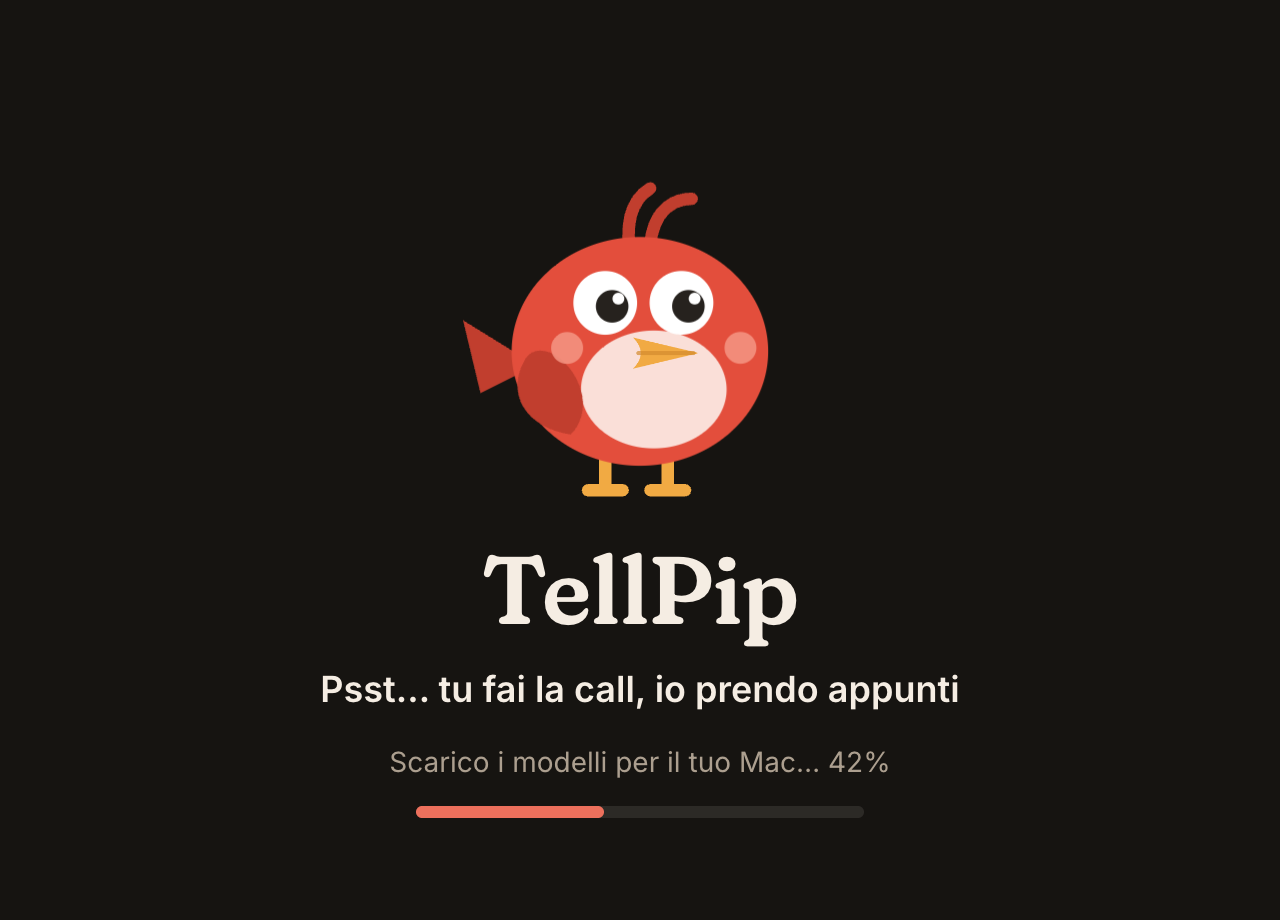
All’apertura ti accoglie la schermata di avvio: Pip ti saluta con una frase e ti mostra l’avanzamento del download dei modelli e, quando ce ne sono, degli aggiornamenti dell’app. Il download parte da solo, e la chat è subito pronta: puoi iniziare a esplorare TellPip mentre l’installazione prosegue in sottofondo.
3. Cosa puoi fare mentre il download prosegue
- La chat è subito pronta. Puoi scrivere a Pip le tue domande sul tuo schermo e sui tuoi documenti. Vedi Scrivi a Pip.
- La trascrizione si attiva con il modello vocale. Se avvii una call, la chat ti mostra l’avanzamento con il messaggio La trascrizione parte quando finisce il download del modello e la percentuale. Appena il modello è pronto, la trascrizione parte automaticamente.
- La ricerca è già attiva per parole chiave. Mentre il modello di ricerca si completa, Pip trova i passaggi in base alle parole che contengono (Nel frattempo la ricerca usa le parole chiave.). Quando è pronto, comprende anche il significato e i sinonimi.
4. Segui l’avanzamento
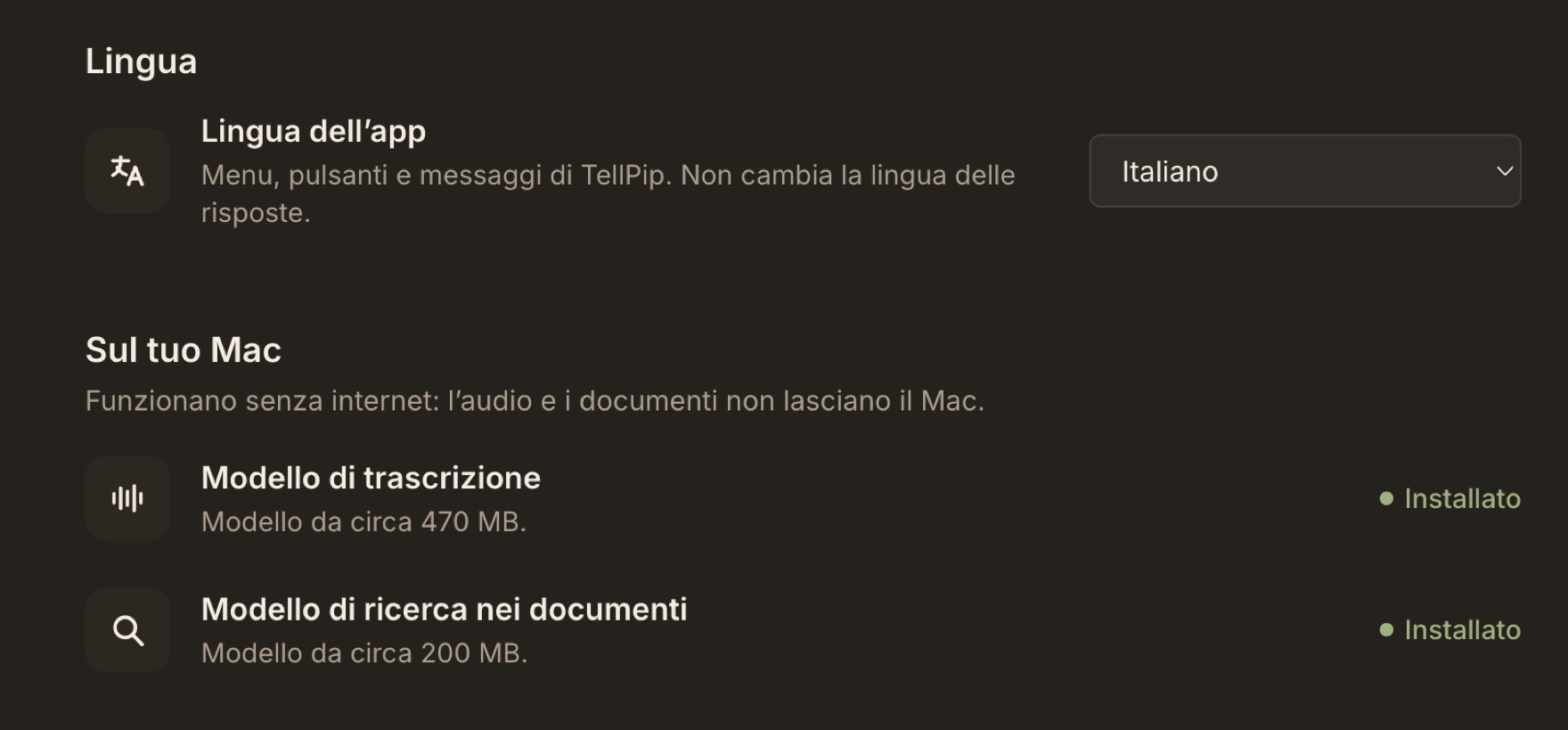
Oltre che nella schermata di avvio, puoi seguire il download in Impostazioni → Audio e lingua. Ogni modello ha la sua riga:
- durante il download, la percentuale e la dimensione totale;
- al termine, una conferma che il modello è pronto e funziona anche senza internet.
5. Riprendere e gestire il download
- Hai chiuso TellPip o il computer è andato in stop? Il download riprende da solo la prossima volta che apri TellPip, esattamente da dove si era fermato.
- Se la riga mostra Download non riuscito, verifica la connessione e premi Riprova.
- Se accanto a un modello compare il pulsante Scarica, premilo per avviare l’installazione.
- Assicurati di avere circa 700 MB di spazio libero, poi premi Riprova.
6. Le domande più frequenti
Posso usare TellPip offline?
Sì, per buona parte del lavoro. Una volta installati i modelli, trascrizione e ricerca nei documenti funzionano anche senza internet. Per formulare le risposte, le note e l’email di follow-up serve la connessione, perché quella parte la svolge l’AI.
Devo fare qualcosa quando ha finito?
No, è tutto automatico. TellPip passa da solo ai modelli completi: la trascrizione è pronta per la prossima call e la ricerca inizia subito a comprendere il significato.
Ho una connessione a consumo o non sono in ufficio.
Puoi completare il download quando sei su una rete che preferisci, per esempio in ufficio. Riprende sempre da dove si era fermato, quindi nulla va perso.
7. I prossimi passi
Appena il modello vocale è pronto, sei pronto per la tua prima call. Per sapere esattamente cosa resta sul tuo computer, leggi Cosa resta sul tuo computer, e cosa serve all’AI.
Related articles
Need anything else? We’re here for you.
Write to us