 TellPip
Reference files
Give Pip your price lists, contracts and procedures: they are read, indexed and searched on your computer, and Pip uses only what each answer needs.
Updated 30 October 2026
Contents
What reference files are for
Reference files are the quickest way to get Pip speaking your language. On top of the conversation, your screen and general knowledge, Pip answers with your prices, your products, your clauses and your procedures. This is what turns a suggestion into the answer you would have given yourself, on your best day.
Reference files belong to a mode. A sales mode might hold the price list and the product sheets; a consultation mode the standard contract and the fee schedule. That way every call has exactly the documents it needs.
Add files to a mode
- Open TellPip's main window with ⌘ ⇧ T and select Modes in the sidebar, then pick the mode you want to build up.
- Under Reference files, add the documents Pip should look at in that kind of call.
- TellPip reads and indexes them in a few moments, right on your computer. As soon as they appear in the list, they are ready for your next question.
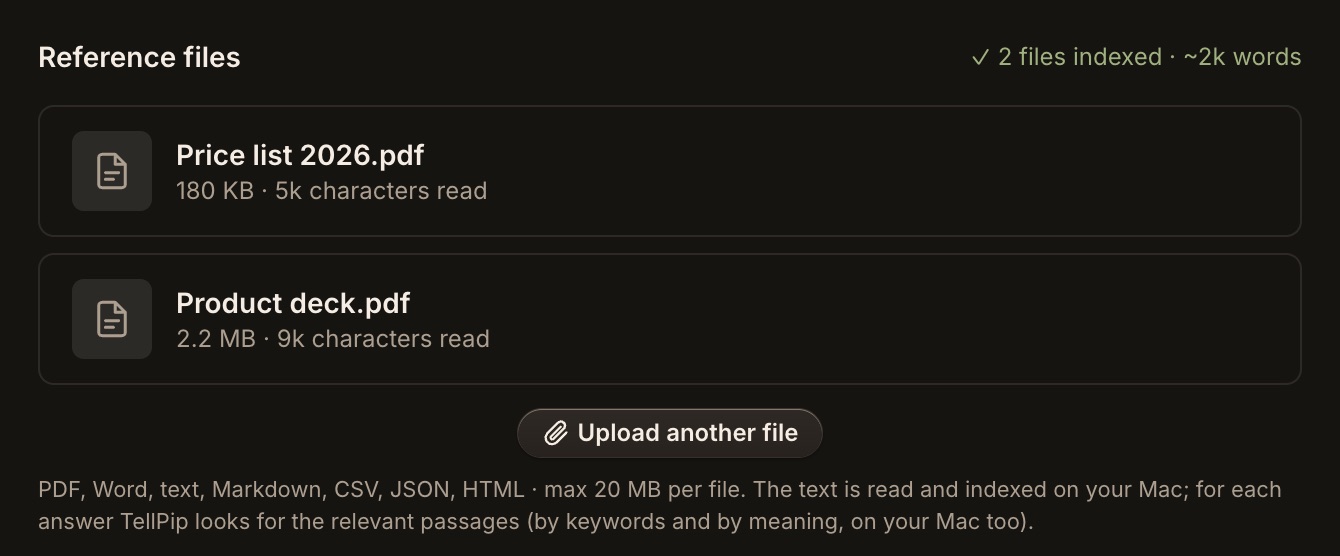
Keeping your documents up to date is simple: to remove a file, delete it from the list; to update it, replace the old version with the new one.
Formats and sizes
- Formats: PDF, Word (.docx), plain text, Markdown, CSV, JSON, HTML and RTF.
- Size: up to 20 MB per file. For each document Pip looks at up to 400,000 characters of text: for very long manuals we suggest splitting them into chapters, so Pip finds the right passage even more precisely.
- How many: on the Solo plan you can have up to 15 documents, counting all your modes. On Enterprise, documents are unlimited.
When you reach 15 documents on Solo, TellPip offers to replace one, or to move to Enterprise for a knowledge base without limits.
Tips for the best upload
- Use one of the formats listed above. If your document is in another format, export it as PDF or Word and add it in a moment.
- Keep each file within 20 MB: split larger documents into parts, or export them without images.
- Prefer documents with selectable text, like PDFs exported from the original: Pip reads them with the greatest precision. If you only have a scanned version, run it through a text recognition (OCR) program first.
How Pip uses them
Your files are read and indexed on your computer, by a local model that also works offline, and they stay safely there.
When you ask something, TellPip judges whether your documents are needed and picks the best way to use them:
- if the mode's documents are short, Pip reads them in full together with the question: it has the whole picture in front of it and answers with the greatest precision;
- if they are longer, Pip searches them on your computer, by keywords and by meaning, and picks the few passages that really answer (to put them in order, the most relevant passages may be sent to our server): only those go with the question;
- with Smart, Pip always works on the most relevant passages, to focus its reasoning on what matters.
Searching by meaning is one of TellPip's strengths: Pip finds the right passage even when the client uses different words from the ones in the document.
Tips for great answers
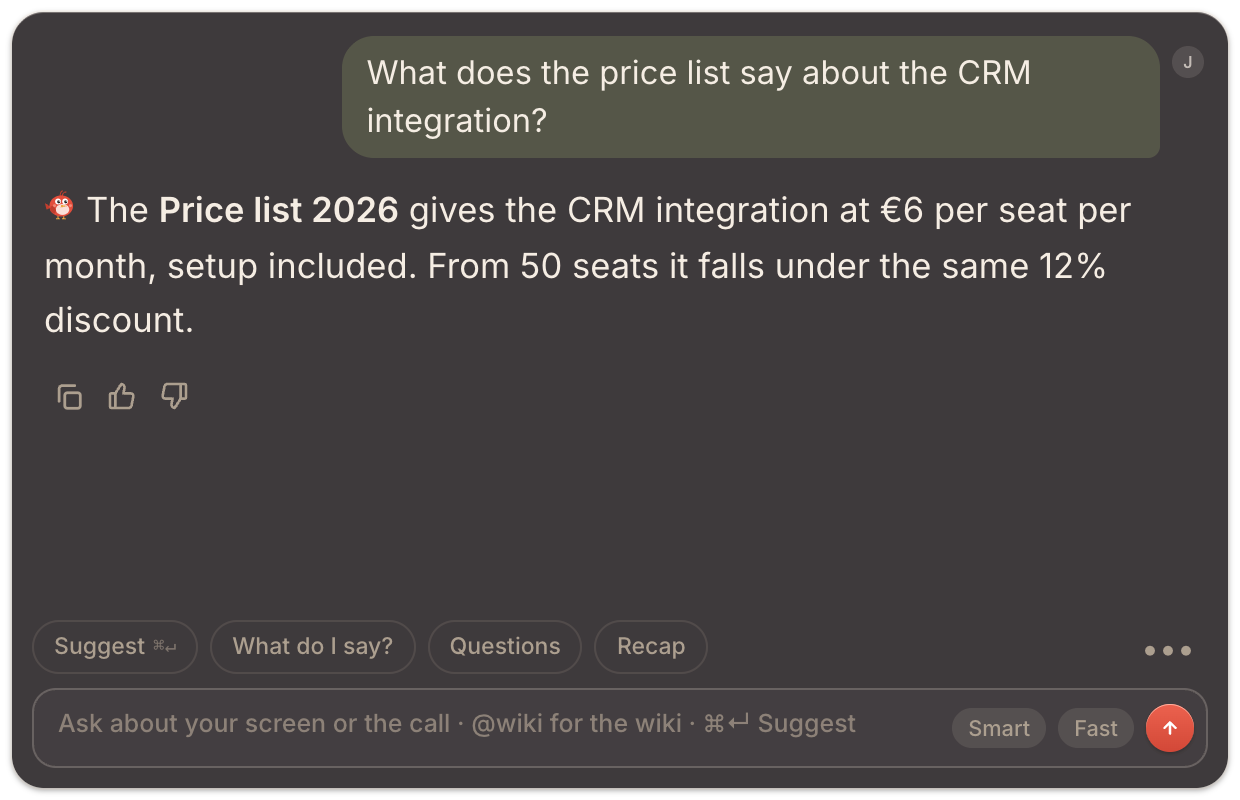
- Give files clear names, like "Price list 2026": Pip can quote them in its answers, and you recognise them at a glance.
- Prefer documents with text and tables over slides made mostly of images.
- Put each document in the modes where it is really needed.
- Product and client names in your files also improve the transcription: TellPip learns terms from your documents. See Vocabulary.
Example: a sales mode
A sales team might give its "First call" mode three files: the current price list, a two-page product overview and the answers to the ten most common objections. When the client asks "Is there a discount for fifty seats?", Pip finds the volume pricing in the price list and suggests the answer, quoting the document. The salesperson answers confidently, without searching for anything and without losing the thread of the conversation.
Next steps
Want to answer from your whole knowledge base? On Enterprise you can connect a whole folder, Notion, Google Drive, OneDrive or SharePoint, and share it with your team. See Connected sources.
A cosa servono i file di riferimento
I file di riferimento sono il modo più rapido per far parlare Pip la tua lingua. Oltre alla conversazione, al tuo schermo e alle conoscenze generali, Pip risponde con i tuoi prezzi, i tuoi prodotti, le tue clausole e le tue procedure. È questo che trasforma un suggerimento nella risposta che avresti dato tu, nella tua giornata migliore.
I file di riferimento appartengono a una modalità. Una modalità di vendita può contenere il listino e le schede prodotto; una di consulenza il contratto tipo e il tariffario. Così ogni call ha a disposizione esattamente i documenti che le servono.
Aggiungi file a una modalità
- Apri la finestra principale di TellPip con ⌘ ⇧ T e seleziona Modalità nella barra laterale, poi scegli la modalità che vuoi arricchire.
- In File di riferimento, aggiungi i documenti che Pip deve consultare in quel tipo di call.
- TellPip li legge e li indicizza in pochi istanti, direttamente sul tuo computer. Appena compaiono nell’elenco sono pronti per la tua prossima domanda.
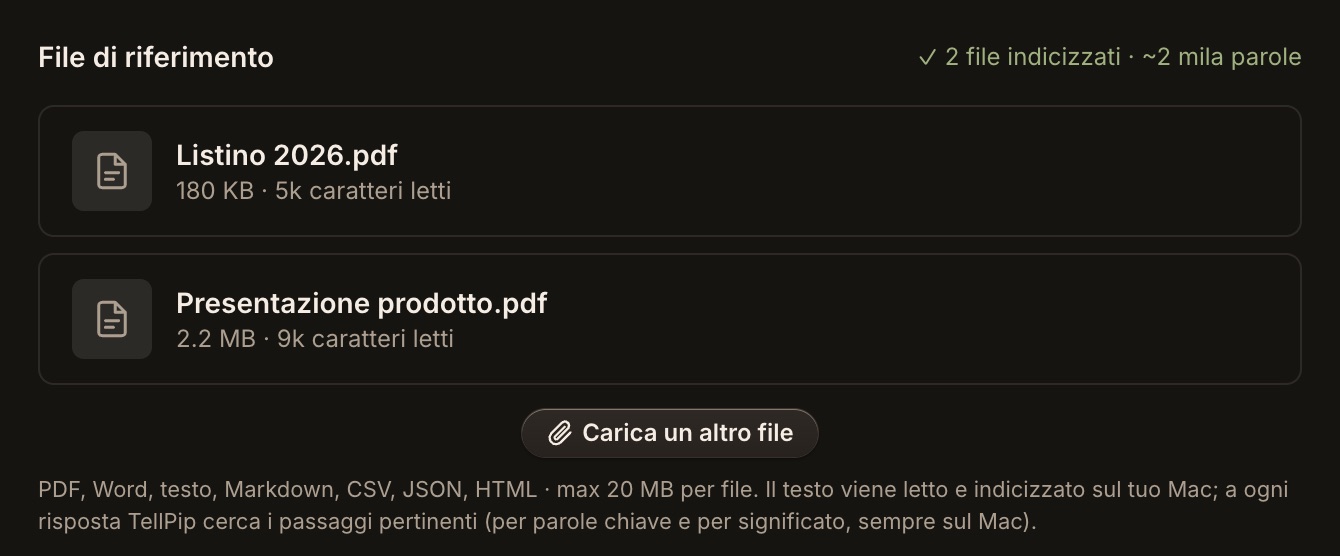
Mantenere i documenti aggiornati è semplicissimo: per rimuovere un file, eliminalo dall’elenco; per aggiornarlo, sostituisci la vecchia versione con la nuova.
Formati e dimensioni
- Formati: PDF, Word (.docx), testo semplice, Markdown, CSV, JSON, HTML e RTF.
- Dimensione: fino a 20 MB per file. Per ogni documento Pip consulta fino a 400.000 caratteri di testo: per manuali particolarmente voluminosi, ti consigliamo di suddividerli in capitoli, così Pip individua il passaggio giusto con ancora più precisione.
- Quanti: con il piano Solo puoi gestire fino a 15 documenti, contando tutte le modalità. Con Enterprise i documenti sono illimitati.
Quando con Solo raggiungi i 15 documenti, TellPip ti propone di sostituirne uno oppure di passare a Enterprise, per una knowledge base senza limiti.
Consigli per un caricamento ottimale
- Usa uno dei formati elencati sopra. Se il tuo documento è in un altro formato, esportalo in PDF o Word e aggiungilo in un attimo.
- Mantieni ogni file entro i 20 MB: per i documenti più corposi, dividili in parti o esportali senza immagini.
- Preferisci documenti con testo selezionabile, come i PDF esportati dall’originale: Pip li consulta con la massima precisione. Se hai solo una versione scansionata, passala prima in un programma di riconoscimento del testo (OCR).
Come li usa Pip
I tuoi file vengono letti e indicizzati sul tuo computer, grazie a un modello locale che lavora anche offline, e restano custoditi lì.
Quando fai una domanda, TellPip valuta se servono i tuoi documenti e sceglie il modo migliore per usarli:
- se i documenti della modalità sono brevi, Pip li legge per intero insieme alla domanda: ha davanti il quadro completo e risponde con la massima precisione;
- se sono più ampi, Pip li consulta sul tuo computer, per parole chiave e per significato, e seleziona i pochi passaggi che rispondono davvero (per metterli in ordine, i passaggi più pertinenti possono essere inviati al nostro server): solo quelli accompagnano la domanda;
- con Smart, Pip lavora sempre sui passaggi più pertinenti, per concentrare il ragionamento su ciò che conta.
La ricerca per significato è uno dei punti di forza di TellPip: Pip trova il passaggio giusto anche quando il cliente usa parole diverse da quelle scritte nel documento.
Consigli per risposte eccellenti
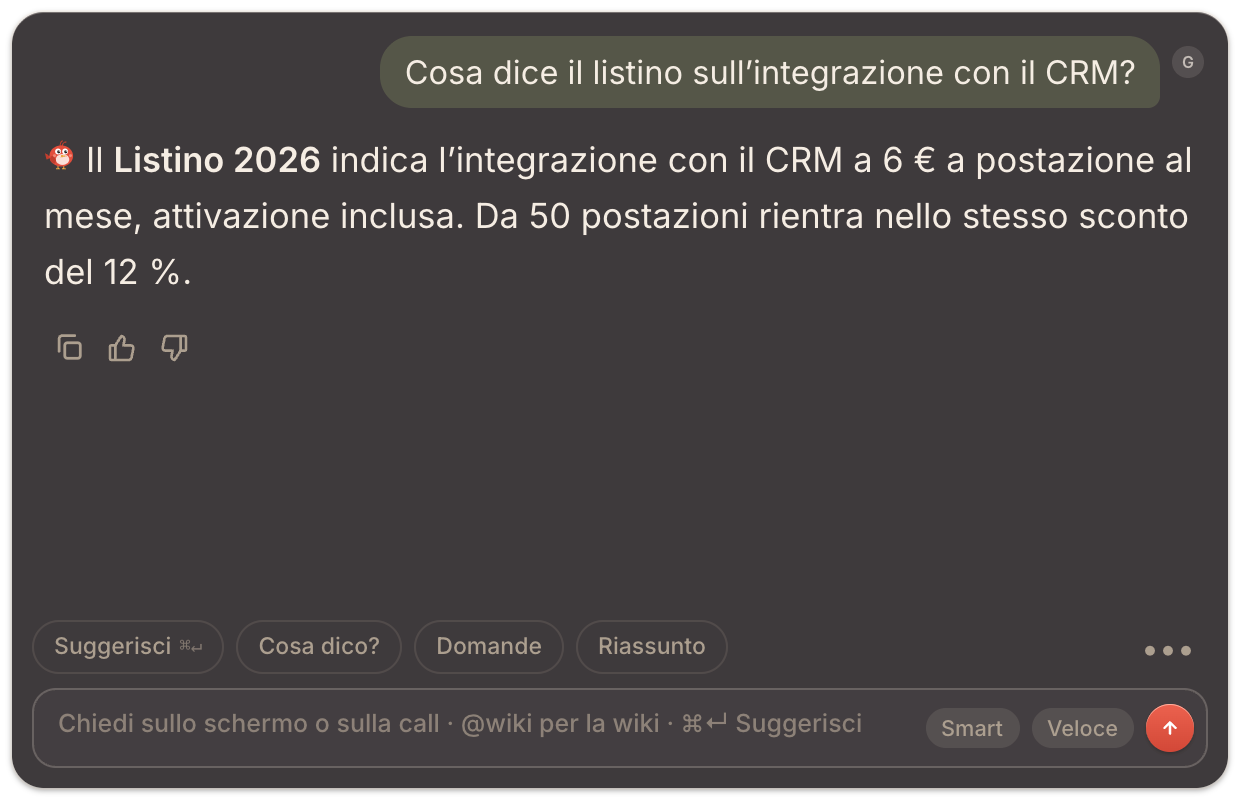
- Dai ai file nomi chiari, come «Listino 2026»: Pip può citarli nelle risposte, e tu li riconosci a colpo d’occhio.
- Preferisci documenti con testo e tabelle alle slide composte soprattutto da immagini.
- Associa ogni documento alle modalità in cui serve davvero.
- I nomi di prodotti e clienti nei tuoi file arricchiscono anche la trascrizione: TellPip impara i termini dai tuoi documenti. Vedi Vocabolario.
Esempio: una modalità di vendita
Un team commerciale potrebbe affidare alla sua modalità «Prima call» tre file: il listino in vigore, una presentazione del prodotto di due pagine e le risposte alle dieci obiezioni più frequenti. Quando il cliente chiede «C’è uno sconto per cinquanta licenze?», Pip trova i prezzi a volume nel listino e suggerisce la risposta, citando il documento. Il commerciale risponde con sicurezza, senza cercare nulla e senza perdere il filo della conversazione.
Prossimi passi
Vuoi rispondere da tutta la tua knowledge base? Con Enterprise puoi collegare un’intera cartella, Notion, Google Drive, OneDrive o SharePoint, e condividerla con il team. Vedi Fonti collegate.
Related articles
Need anything else? We’re here for you.
Write to us