 TellPip
Keyboard shortcuts
Everything you can do without touching the mouse, so you stay focused on the call.
Updated 30 October 2026
Contents
During a call, your hands and your attention are precious. With a handful of shortcuts you can open the chat, ask Pip for help and end the call without ever leaving the app you’re in. In this guide you’ll find every combination, grouped by context, and three sequences to learn right away.
Always available
These work from any app, even when TellPip is in the background or invisible.
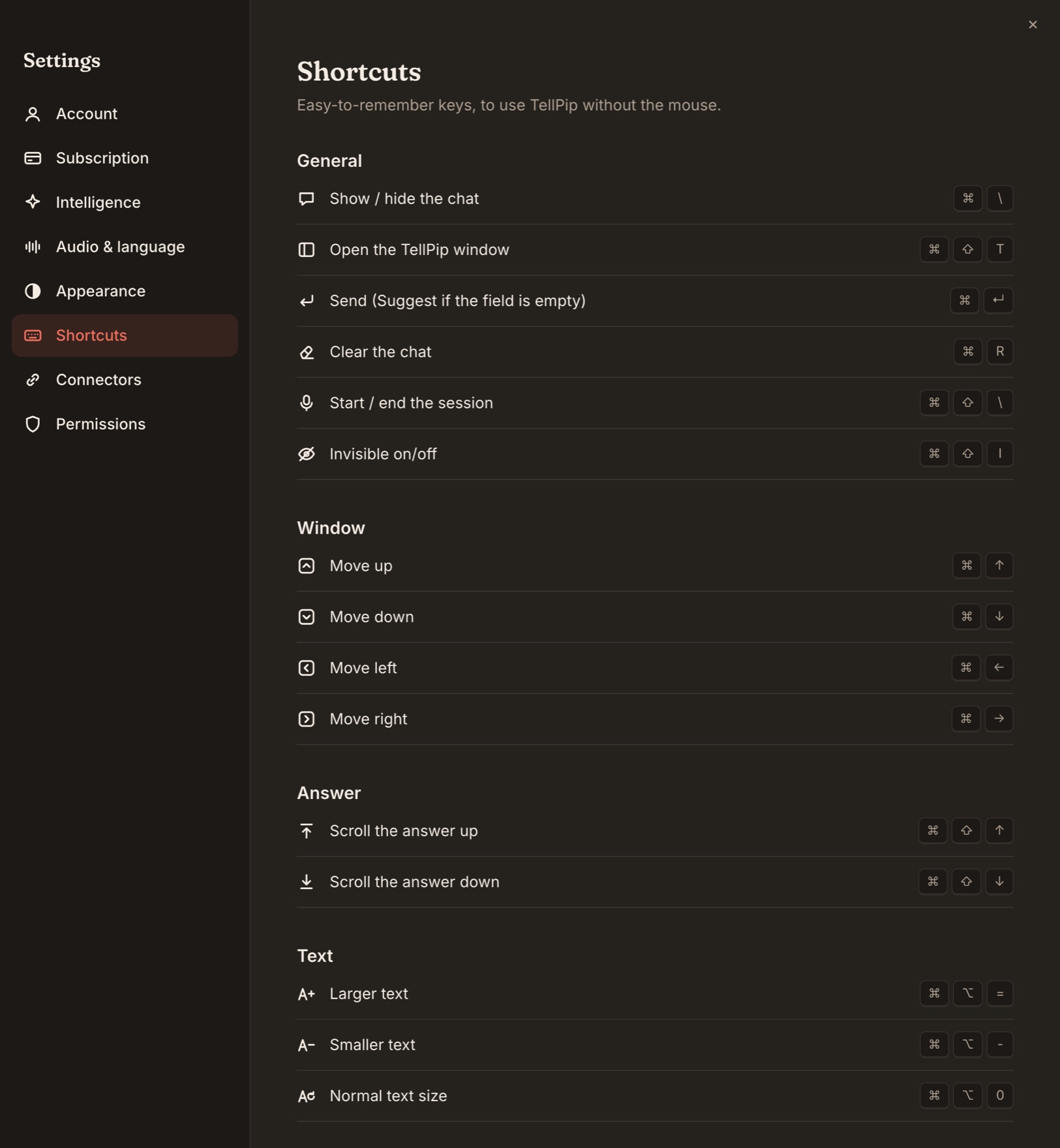
- ⌘\ Show or hide the chat. Opening the chat also starts listening.
- ⌘⇧\ Start or end the session. When you end it, the main window opens on the session, with the notes being prepared.
- ⌘⇧T Open TellPip: the main window, with Sessions, Memory, Connected sources and Modes.
- ⌘ + arrow keys: move the bar precisely, a little at a time.
- ⌘⇧I Turn invisibility on or off.
While the chat is open
- ⌘↵ Send what you typed. With an empty field, it runs Suggest: the right answer for that moment of the call.
- ⌘R Clear the chat.
- ⌘⇧↑ / ⌘⇧↓ Scroll the answer up or down, without touching the mouse.
- ⌘⌥= Larger text.
- ⌘⌥− Smaller text.
- ⌘⌥0 Back to normal text size.
In the text field
- ↵ Send the question you typed.
- ⇧↵ New line, to write a longer question.
- Esc Hide the chat.
With the mouse
- Drag the bar to place it wherever you like.
- Drag the edges of the chat to resize it.
Three combinations worth learning
Help in two keys
Someone asks you an unexpected question: ⌘\ to open the chat, then ⌘↵ for Suggest. The answer arrives without you typing a word.
Before sharing your screen
Check that the chat has its dashed outline: it means TellPip is invisible. If it doesn’t, press ⌘⇧I. See Keep TellPip out of screen sharing.
At the end of the call
⌘⇧\ ends the session and opens the main window on the call you just finished, with the notes ready to read and copy.
Tips for getting the most out of it
- Chat shortcuts. ⌘↵, ⌘R and the text-size keys act on the visible chat: open it first with ⌘\ and they’re ready straight away.
- Global shortcuts. The always-available shortcuts are reserved for TellPip while it’s open. If another app uses the same combinations, quit it and reopen TellPip: the shortcuts go back to TellPip.
- Typing in the chat while invisible. With Don’t steal focus (when invisible) on, the chat leaves the keyboard to the app you’re working in: use the quick actions and the global shortcuts, or turn the option off in Settings → Appearance when you want to type.
- Repositioning the bar. After unplugging a monitor, drag the bar wherever you like or move it with ⌘ + arrows.
Next steps
Put them to work in your first call, and discover everything Pip can do in Ask Pip during a call.
Durante una call le tue mani e la tua attenzione sono preziose. Con poche scorciatoie apri la chat, chiedi aiuto a Pip e chiudi la call senza mai lasciare l’app in cui ti trovi. In questa guida trovi tutte le combinazioni, organizzate per contesto, e tre sequenze da memorizzare subito.
Sempre attive
Funzionano da qualsiasi app, anche quando TellPip è in secondo piano o invisibile.
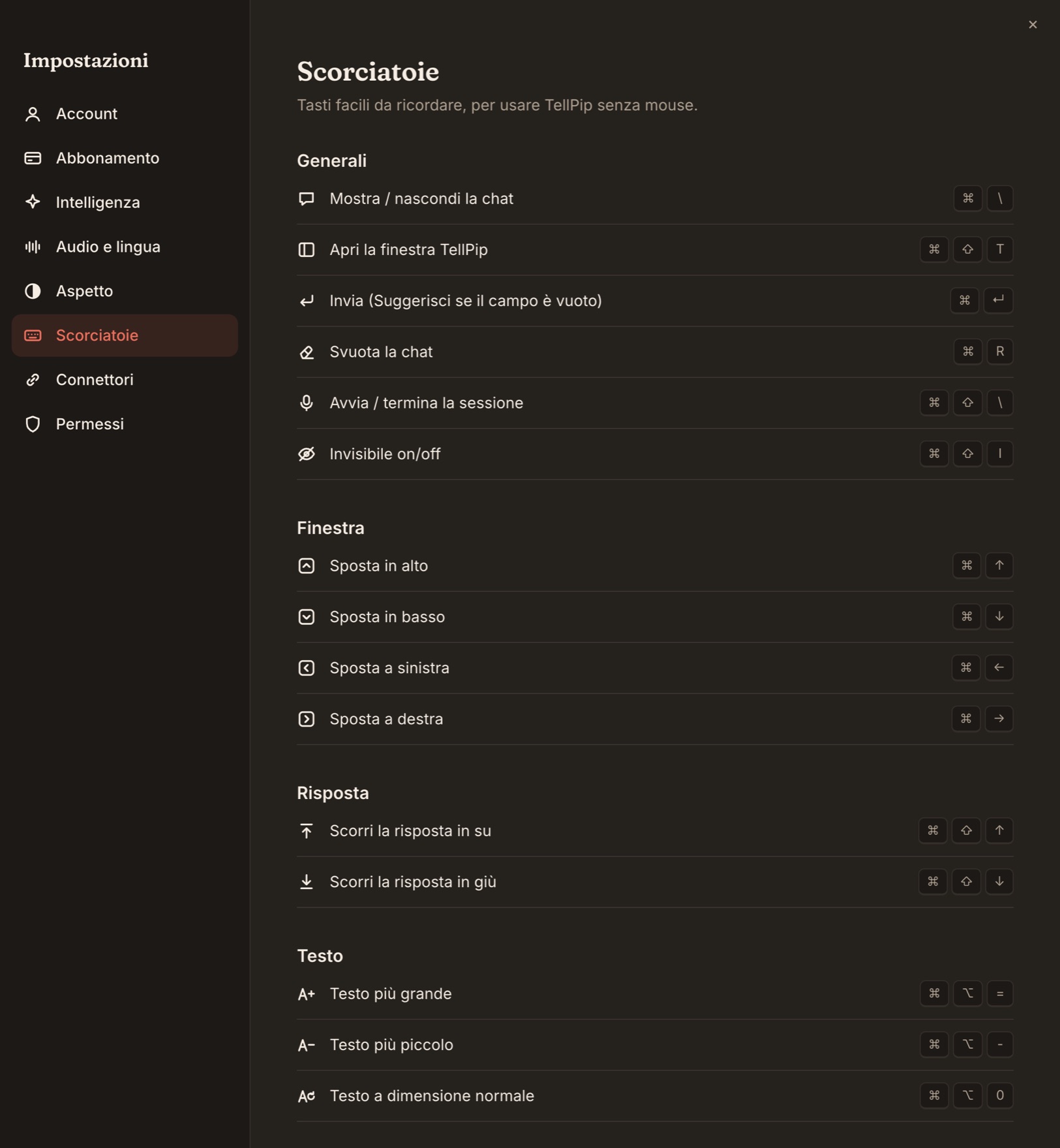
- ⌘\ Mostra o nascondi la chat. Aprire la chat avvia anche l’ascolto.
- ⌘⇧\ Avvia o termina la sessione. Quando la termini, si apre la finestra principale sulla sessione, con le note in preparazione.
- ⌘⇧T Apri TellPip: la finestra principale, con Sessioni, Memoria, Fonti collegate e Modalità.
- ⌘ + le frecce: sposta la barra con precisione, un po’ alla volta.
- ⌘⇧I Attiva o disattiva l’invisibilità.
Con la chat aperta
- ⌘↵ Invia ciò che hai scritto. Con il campo vuoto, avvia Suggerisci: la risposta giusta per quel momento della call.
- ⌘R Svuota la chat.
- ⌘⇧↑ / ⌘⇧↓ Scorri la risposta verso l’alto o verso il basso, senza toccare il mouse.
- ⌘⌥= Testo più grande.
- ⌘⌥− Testo più piccolo.
- ⌘⌥0 Torna alla dimensione normale.
Nel campo di testo
- ↵ Invia la domanda che hai scritto.
- ⇧↵ Vai a capo, per scrivere una domanda più lunga.
- Esc Nascondi la chat.
Con il mouse
- Trascina la barra per posizionarla dove preferisci.
- Trascina i bordi della chat per ridimensionarla.
Tre combinazioni da imparare
Aiuto in due tasti
Qualcuno ti pone una domanda inattesa: ⌘\ per aprire la chat, poi ⌘↵ per Suggerisci. La risposta arriva senza che tu scriva una parola.
Prima di condividere lo schermo
Verifica che la chat abbia il bordo tratteggiato: significa che TellPip è invisibile. In caso contrario, premi ⌘⇧I. Vedi Tieni TellPip fuori dalla condivisione schermo.
A fine call
⌘⇧\ chiude la sessione e apre la finestra principale sulla call appena conclusa, con le note pronte da leggere e copiare.
Consigli per un uso ottimale
- Le scorciatoie della chat. ⌘↵, ⌘R e i tasti per il testo agiscono sulla chat visibile: aprila prima con ⌘\ e sono subito pronte.
- Le scorciatoie globali. Le scorciatoie sempre attive sono riservate a TellPip quando è aperto. Se un’altra app usa le stesse combinazioni, chiudila e riapri TellPip: le scorciatoie tornano a TellPip.
- Scrivere nella chat in modalità invisibile. Con Non rubare il focus (quando invisibile) attivo, la chat lascia la tastiera all’app in cui stai lavorando: usa le azioni rapide e le scorciatoie globali, oppure disattiva l’opzione in Impostazioni → Aspetto quando vuoi scrivere.
- Riposizionare la barra. Dopo aver scollegato un monitor, trascina la barra dove preferisci oppure spostala con ⌘ + le frecce.
I prossimi passi
Mettile alla prova nella tua prima call, e scopri tutto ciò che può fare Pip in Chiedi a Pip durante una call.
Related articles
Need anything else? We’re here for you.
Write to us