 TellPip
Quitting and uninstalling TellPip
How to quit TellPip, remove the app, or remove it together with your data, which always stays on your computer and under your control.
Updated 30 October 2026
Contents
1. Quitting
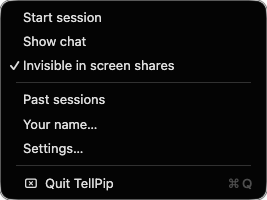
TellPip works discreetly and lives in the menu bar, at the top right.
- Click TellPip’s icon in the menu bar.
- Choose Quit TellPip.
A session in progress is saved automatically before quitting, together with its notes.
If an update is ready, TellPip installs it right at this moment, as it quits: when you reopen it, you already have the new version.
2. Hiding, quitting and opening again
Hide, don’t quit, between calls
You don’t need to quit TellPip after a call. Hide the chat with ⌘ \ or Hide on the bar: TellPip stays ready, and the next call starts in a second.
Opening TellPip again
Open TellPip from Applications or Spotlight (⌘ Space, then type “TellPip”). A short launch screen with Pip keeps you company while the app gets ready, then the bar appears at the top of the screen and TellPip is ready to listen. If you had left a session open, its notes are completed at that moment: find them in Sessions, in the main window (⌘ ⇧ T).
Keeping TellPip up to date
TellPip updates itself: it checks for updates at launch and every 30 minutes, downloads the update in the background and installs it when you quit the app, never during a call. When an update is ready, you can install it straight away with Restart to update. For an instant check, open the About TellPip window and press Check for updates.
Ending a call or quitting TellPip
To end a call, use ⌘ ⇧ \: the main window opens on the session, and the notes are ready a few seconds later, because Pip prepared them during the call. If you quit TellPip during a call, the call is still saved and the notes are waiting for you when you reopen it.
3. Uninstalling the app
- Quit TellPip.
- Open Applications and move TellPip to the Bin.
- Empty the Bin.
This removes the app, while your data stays safely on the computer: if you install TellPip again, you’ll find everything exactly as it was.
4. Before you uninstall: keep what you need
All your data lives on your computer and is fully under your control: uninstalling the app doesn’t touch it, while removing everything deletes it. If you want to keep some meetings, copy them first:
- Open the main window with ⌘ ⇧ T, choose Sessions in the sidebar and open a session.
- Use Copy notes, Copy transcript or Copy email, and paste the content into your notes app or a document.
Do the same for any client memory you want to keep: open Memory in the sidebar and copy what matters. Pages approved with Propose to the wiki are already safe in your knowledge base folder.
5. Removing everything
Because everything is on your computer, removing your data is simple and final:
- In Finder, choose Go → Go to Folder… and type
~/Library/Application Support/TellPip. - Move the whole TellPip folder to the Bin. It contains sessions, notes, memory, modes, reference files and the local models.
- Optionally, open Keychain Access and delete the entry TellPip Safe Storage.
- Optionally, remove TellPip from Microphone and Screen & System Audio Recording in System Settings → Privacy & Security.
Want to come back to TellPip later? Install it again from the download page and sign in with your email: if you kept the data folder, you’ll find your sessions, notes and memory.
6. Next steps
1. Chiudere
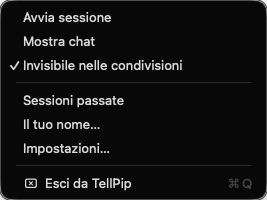
TellPip lavora in modo discreto e vive nella barra dei menu, in alto a destra.
- Clicca sull’icona di TellPip nella barra dei menu.
- Scegli Esci da TellPip.
Una sessione in corso viene salvata automaticamente prima di uscire, insieme alle sue note.
Se è pronto un aggiornamento, TellPip lo installa proprio in questo momento, alla chiusura: alla riapertura trovi già la nuova versione.
2. Nascondere, chiudere e riaprire
Tra una call e l’altra, nascondi invece di chiudere
Dopo una call non serve chiudere TellPip. Nascondi la chat con ⌘ \ o con Nascondi sulla barra: TellPip resta pronto, e la call successiva parte in un secondo.
Riaprire TellPip
Apri TellPip da Applicazioni o da Spotlight (⌘ Spazio, poi scrivi «TellPip»). Una breve schermata di avvio con Pip ti accompagna mentre l’app si prepara, poi la barra compare in cima allo schermo e TellPip è pronto ad ascoltare. Se avevi lasciato una sessione aperta, le sue note vengono completate in quel momento: le trovi in Sessioni, nella finestra principale (⌘ ⇧ T).
Tenere TellPip aggiornato
TellPip si aggiorna da solo: controlla le novità all’avvio e ogni 30 minuti, scarica l’aggiornamento in sottofondo e lo installa quando chiudi l’app, mai durante una call. Quando un aggiornamento è pronto, puoi installarlo subito con Riavvia per aggiornare. Per una verifica immediata, apri la finestra Informazioni su TellPip e premi Controlla aggiornamenti.
Terminare una call o chiudere TellPip
Per terminare una call usa ⌘ ⇧ \: si apre la finestra principale sulla sessione, e le note sono pronte pochi secondi dopo, perché Pip le ha preparate durante la call. Se chiudi TellPip con una call in corso, la call viene comunque salvata e le note ti aspettano alla riapertura.
3. Disinstallare l’app
- Chiudi TellPip.
- Apri Applicazioni e sposta TellPip nel Cestino.
- Svuota il Cestino.
In questo modo rimuovi l’app, mentre i tuoi dati restano custoditi sul computer: se reinstalli TellPip, ritrovi tutto esattamente com’era.
4. Prima di disinstallare: conserva ciò che ti serve
Tutti i tuoi dati vivono sul tuo computer e sono sotto il tuo pieno controllo: disinstallare l’app non li tocca, rimuovere tutto invece li elimina. Se vuoi conservare qualche meeting, copialo prima:
- Apri la finestra principale con ⌘ ⇧ T, scegli Sessioni nella barra laterale e apri una sessione.
- Usa Copia note, Copia trascrizione o Copia email, e incolla il contenuto nella tua app di note o in un documento.
Fai lo stesso con la memoria dei clienti che desideri conservare: apri Memoria nella barra laterale e copia ciò che conta. Le pagine approvate con Proponi alla wiki sono già al sicuro nella cartella della tua knowledge base.
5. Rimuovere tutto
Poiché tutto è sul tuo computer, rimuovere i tuoi dati è semplice e definitivo:
- Nel Finder scegli Vai → Vai alla cartella… e scrivi
~/Library/Application Support/TellPip. - Sposta l’intera cartella TellPip nel Cestino. Contiene sessioni, note, memoria, modalità, file di riferimento e i modelli locali.
- Se vuoi, apri Accesso Portachiavi ed elimina la voce TellPip Safe Storage.
- Se vuoi, rimuovi TellPip da Microfono e Registrazione schermo e audio di sistema in Impostazioni di Sistema → Privacy e sicurezza.
Vuoi tornare a TellPip più avanti? Reinstallalo dalla pagina di download ed entra con la tua email: se hai conservato la cartella dei dati, ritrovi sessioni, note e memoria.
6. Per continuare
Related articles
Need anything else? We’re here for you.
Write to us