 TellPip
Always get Pip’s answers
What each message in the chat means and how to get Pip’s answers in every call.
Updated 30 October 2026
Contents
1. Start from the message
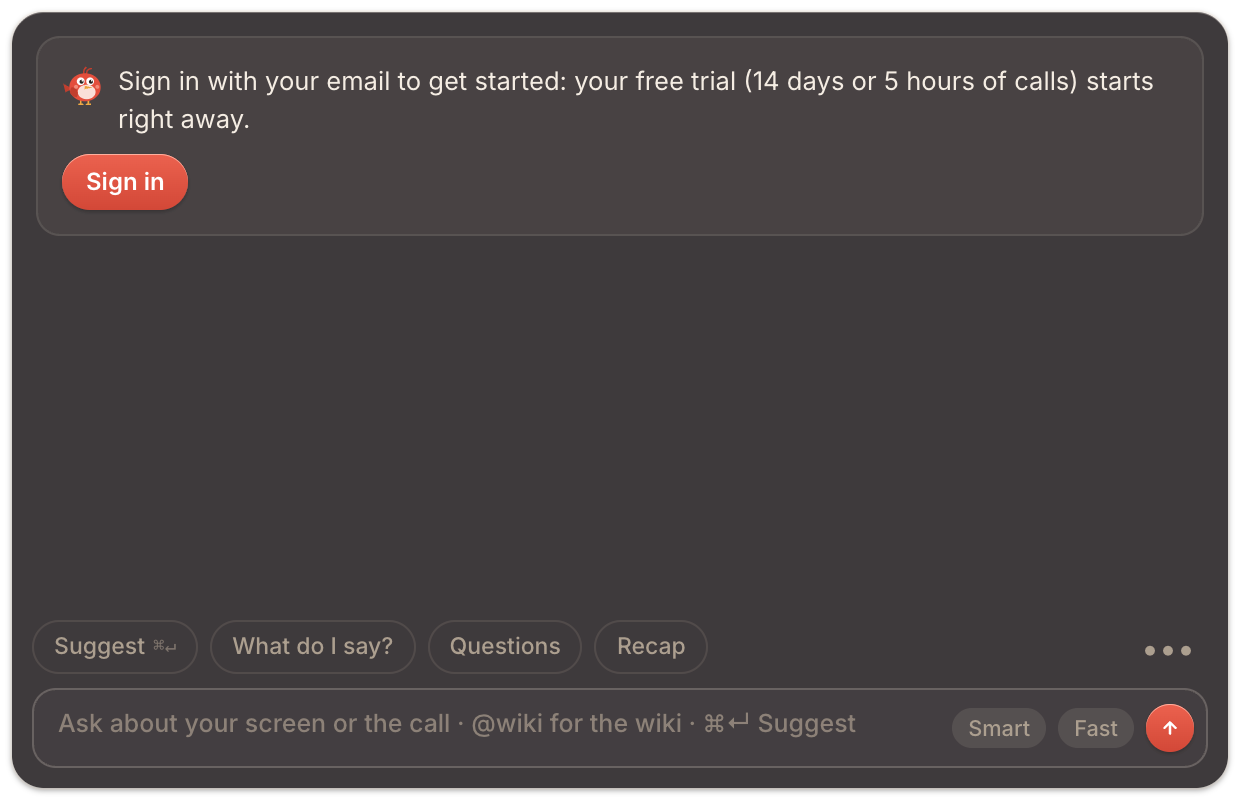
TellPip always keeps you informed: when an answer needs you to step in, the chat tells you exactly why. Find the message you see below and follow the steps. If no message appears, go to section 6.
2. Sign in to your account
Message: Sign in to TellPip to get answers (Settings → Account).
- Open Settings → Account.
- Enter your email, press Send me the code, then type the 6-digit code and press Sign in. In a few seconds Pip is ready.
If you moved your licence to another computer, read using TellPip on another computer.
3. Your plan
Activate your plan
Message: No active trial or subscription: subscribe to continue. Open Settings → Subscription and choose the plan that suits you best. See plans and the free trial.
If you’ve used all the sessions of your free trial, Pip stops listening until you buy the 5-hour pack or a plan. Your memory, notes and past calls stay there, ready to read.
Smart answers
Message: Smart answers aren’t in your plan. Turn off the Smart button in the chat, or choose Fast, and ask again: Pip answers right away.
4. Connection
Answers are written by the AI, so they need an internet connection. Transcription and document search, on the other hand, work on your computer thanks to the local model and are always available, even offline.
- If the chat tells you TellPip can’t connect, check your Wi-Fi or network, open a web page to confirm, then ask again.
- If the chat asks you to wait a moment, wait a minute and ask again.
- If TellPip can’t check your plan because you’re offline, it keeps working with the last known state and updates itself as soon as the connection is back. You don’t need to do anything.
5. Rephrasing a question
If the AI would rather not answer a specific question, rephrase it or ask something more precise: Pip answers the new wording.
6. No message in the chat
- Nothing new in the chat after Suggest? If there’s nothing new in the conversation, Pip tells you with Nothing to add right now. In that case, write a direct question and press ⌘ ↵.
- Waiting for automatic answers? Check that Automatic answers is on in the chat’s ••• menu. Pip steps in on its own when the conversation really involves you. In Settings → Account, Your names in calls holds the name people call you in the call: that way Pip recognises when someone is talking to you. With Frequency on Low, Pip only answers questions put to you: choose Medium or High for more frequent answers.
- Did you press Stop? An interrupted answer stops there: ask again.
- To start from scratch, quit TellPip from the menu-bar icon and open it again.
7. Answers from your documents
- Is the right mode active? Each mode has its own reference files. Check the mode in the chat ••• menu → Modes. See modes.
- Does the file contain selectable text? Pip works best with documents whose text can be selected. See reference files.
- Is the search model installed? The first time it starts, TellPip installs the local model that finds passages by meaning; in the meantime, search works by keywords. See the first-launch download.
- Want to use the company knowledge base? Type @wiki in your question and Pip will search your connected sources.
8. Write to us
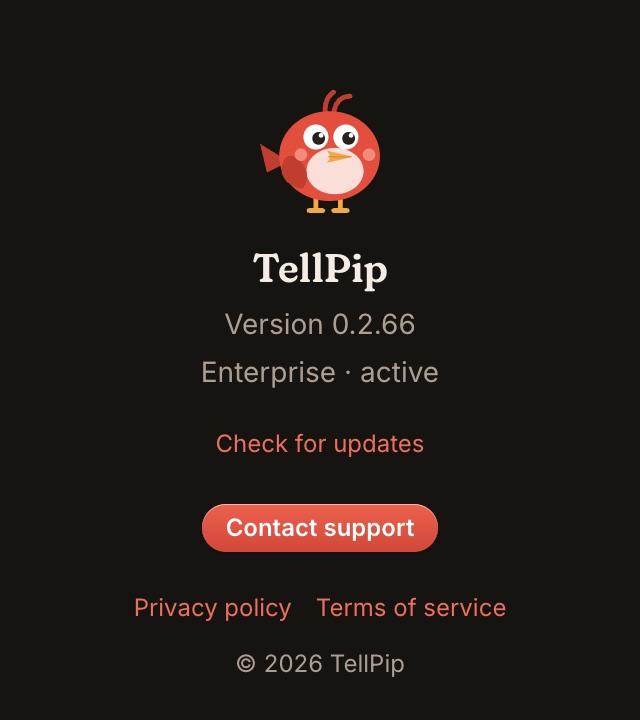
Open the About TellPip window from the TellPip menu and choose Contact support.
- Write in a few lines what happened and the message you saw.
- Press See what we send: you’ll find the technical report that goes with your message, with the computer model, the app version, the permissions, the state of the local models and the latest errors. Never transcripts, notes or documents.
- Send it: you’ll get an email confirmation with a reference number, and someone from our team will reply.
In the same window you’ll also find Check for updates: TellPip updates itself, but you can check at any time that you have the latest version.
1. Parti dal messaggio
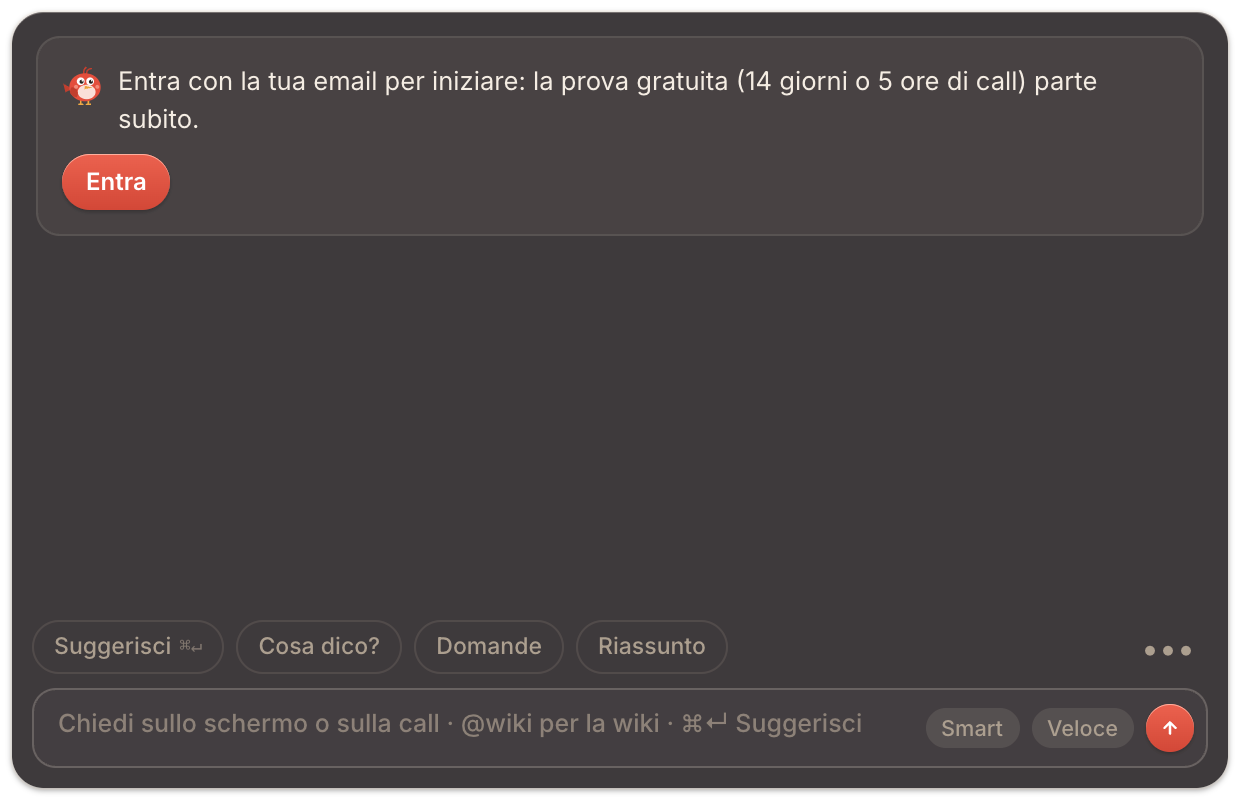
TellPip ti tiene sempre informato: quando una risposta richiede un tuo intervento, la chat ti dice esattamente perché. Trova qui sotto il messaggio che vedi e segui i passaggi. Se non compare alcun messaggio, vai al punto 6.
2. Accedi al tuo account
Messaggio: Entra in TellPip per avere le risposte (Impostazioni → Account).
- Apri Impostazioni → Account.
- Scrivi la tua email, premi Mandami il codice, poi inserisci il codice di 6 cifre e premi Entra. In pochi secondi Pip è pronto.
Se hai spostato la licenza su un altro computer, leggi usare TellPip su un altro computer.
3. Il tuo piano
Attiva il tuo piano
Messaggio: Nessuna prova o abbonamento attivo: abbonati per continuare. Apri Impostazioni → Abbonamento e scegli il piano più adatto a te. Vedi piani e prova gratuita.
Se hai usato tutte le sessioni della prova gratuita, Pip smette di ascoltare finché non acquisti il pacchetto 5 ore o un piano. Memoria, note e call passate restano lì, pronte da leggere.
Le risposte Smart
Messaggio: Le risposte Smart non sono nel tuo piano. Disattiva il pulsante Smart nella chat, oppure scegli Veloce, e chiedi di nuovo: Pip ti risponde subito.
4. Connessione
Le risposte le scrive l’AI, quindi serve una connessione a internet. Trascrizione e ricerca nei documenti, invece, lavorano sul tuo computer grazie al modello locale e restano sempre disponibili, anche offline.
- Se la chat ti segnala che TellPip non riesce a collegarsi, verifica il Wi-Fi o la rete, apri una pagina web per conferma, poi chiedi di nuovo.
- Se la chat ti invita ad attendere qualche istante, aspetta un minuto e chiedi di nuovo.
- Se TellPip non può verificare il tuo piano perché sei offline, continua a lavorare con l’ultimo stato noto e si aggiorna da solo appena torna la connessione. Non devi fare nulla.
5. Riformulare una domanda
Se l’AI preferisce non rispondere a una domanda specifica, riformulala o chiedi qualcosa di più preciso: Pip ti risponde con la nuova formulazione.
6. Nessun messaggio nella chat
- Dopo Suggerisci la chat non mostra nulla di nuovo? Se nella conversazione non ci sono novità, Pip te lo dice con Niente da aggiungere per ora. In quel caso scrivi una domanda diretta e premi ⌘ ↵.
- Aspetti le risposte automatiche? Verifica che Risposte automatiche sia attivo nel menu ••• della chat. Pip interviene da solo quando la conversazione ti coinvolge davvero. In Impostazioni → Account, I tuoi nomi nelle call indica il nome con cui ti chiamano in call: così Pip riconosce quando qualcuno si rivolge a te. Con Frequenza su Bassa, Pip risponde solo alle domande rivolte a te: scegli Media o Alta per interventi più frequenti.
- Hai premuto Stop? Una risposta interrotta si ferma lì: chiedi di nuovo.
- Per ripartire da zero, chiudi TellPip dall’icona nella barra dei menu e riaprilo.
7. Risposte dai tuoi documenti
- È attiva la modalità giusta? Ogni modalità ha i suoi file di riferimento. Verifica la modalità nel menu ••• della chat → Modalità. Vedi le modalità.
- Il file contiene testo selezionabile? Pip consulta al meglio i documenti con testo selezionabile. Vedi i file di riferimento.
- Il modello di ricerca è installato? Al primo avvio TellPip installa il modello locale che trova i passaggi per significato; nel frattempo la ricerca lavora per parole chiave. Vedi il download al primo avvio.
- Vuoi consultare la knowledge base aziendale? Scrivi @wiki nella domanda e Pip cercherà nelle tue fonti collegate.
8. Scrivici
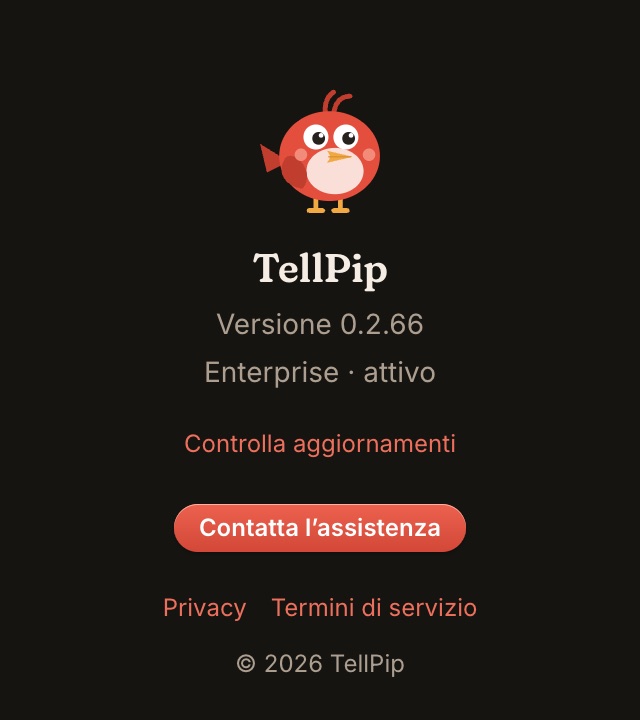
Apri la finestra Informazioni su TellPip dal menu di TellPip e scegli Contatta l’assistenza.
- Scrivi in poche righe cosa è successo e il messaggio che hai visto.
- Premi Vedi cosa inviamo: trovi il rapporto tecnico che accompagna il tuo messaggio, con il modello del computer, la versione dell’app, i permessi, lo stato dei modelli locali e gli ultimi errori. Mai trascrizioni, note o documenti.
- Invia: riceverai via email la conferma con un numero di riferimento, e una persona del nostro team ti risponderà.
Nella stessa finestra trovi anche Controlla aggiornamenti: TellPip si aggiorna da solo, ma puoi verificare in qualsiasi momento di avere l’ultima versione.
Related articles
Need anything else? We’re here for you.
Write to us