 TellPip
Seven ways to get better answers from Pip
Small tweaks, big difference: how to set Pip up so the answer on screen is exactly the one you would have given on your best day.

Pip does its best when it knows the call you are in inside out. Out of the box it already hears the conversation, looks at your screen when you ask, and consults your documents, right on your computer. And a few minutes of setup take you from a good answer to the right one: your tone, your prices, the names of the people you talk to.
Here are seven tweaks that make the difference, roughly in the order we would adopt them ourselves.
Pick the right mode before you start
A mode is Pip’s brief for one kind of call. It holds three elements: the instructions Pip follows during the call, the reference files it should consult, and the structure your notes will follow. A sales call, a client review and a weekly team meeting call for different answers, and they deserve dedicated modes.
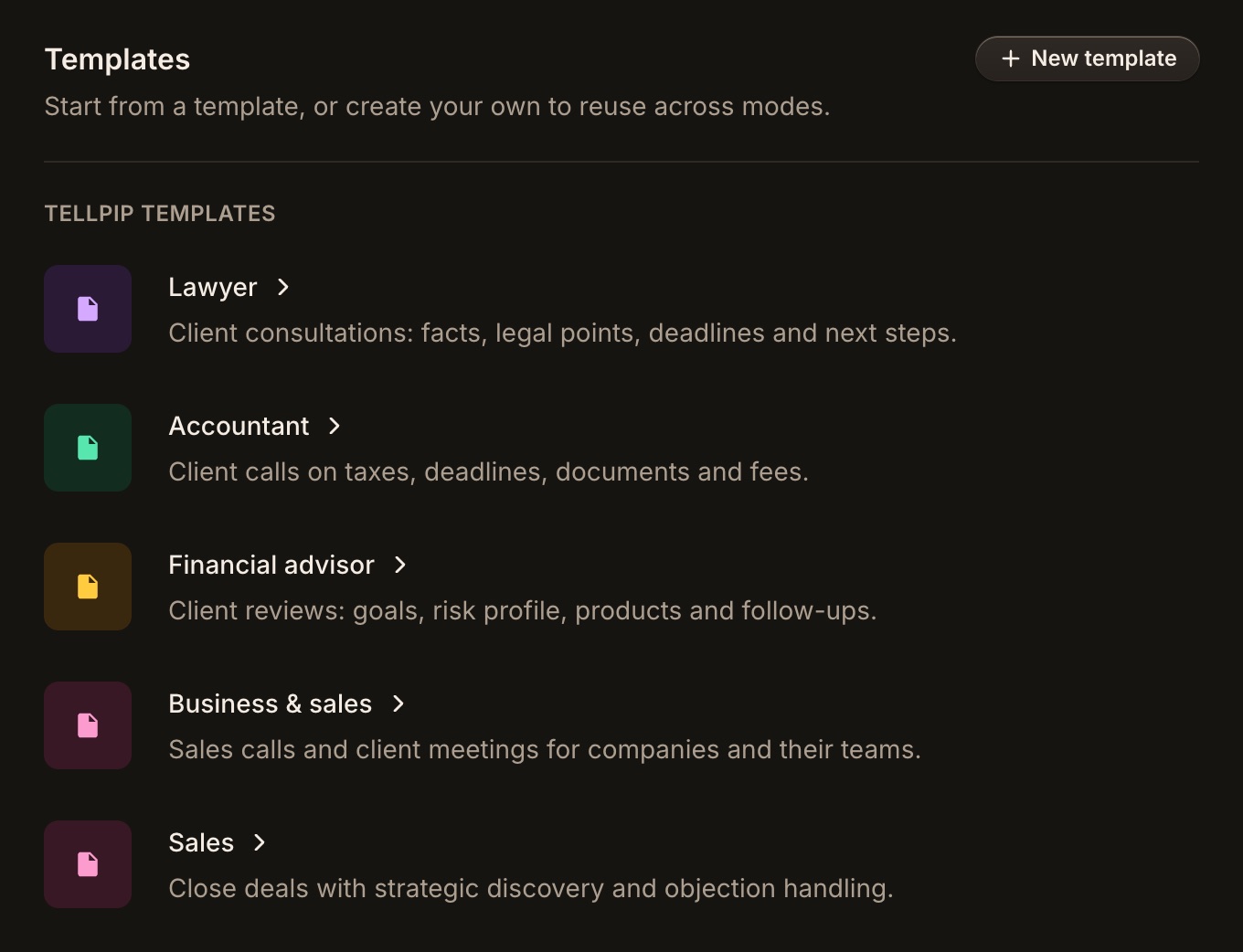
You don’t have to start from a blank page. Open TellPip with ⌘⇧T, go to the Modes page, open TellPip templates and choose the one closest to your work among the nine available: Lawyer, Accountant, Financial advisor, Business & sales, Sales, Team Meet, Lecture, Recruiting and Looking for work. Click Create a mode from this template, give it a name and tailor it to you.
Then make it active: Set as active on the Modes page, or during a call from the chat’s ••• menu → Modes. You can switch even once the call has started: Pip adopts the new brief from the next answer.
Write precise instructions
The Real-time prompt is where you tell Pip how you work. Think of it as the note you would leave a new colleague sitting in on the call: the more precise it is, the better Pip will speak your language. You have up to 20,000 characters, with a counter that keeps track as you write.
Here is an example for a software sales mode:
We sell a scheduling tool to clinics. Answer as a calm, experienced account manager. Keep answers under three sentences I can say out loud. Never quote a price that isn’t in the price list. If they ask about integrations, check the integrations sheet first. If they push for a discount, suggest the annual plan before anything else. Always end with one question that moves the call forward.
Look at what it does: it says who you are, how long the answer should be, what Pip must never invent, where to look first, and what an excellent result looks like. Five or six sentences like these do more than a page of generic advice.
Refine the prompt after a few calls: if you want shorter answers, say so; if you want Pip to avoid a certain suggestion, add “never suggest…”.
Give it the reference files that matter
Reference files are the documents Pip consults before it answers: price lists, product sheets, procedures, policies, the FAQ you send to clients. TellPip reads PDF, Word, plain text, Markdown, CSV, JSON, HTML and RTF files up to 20 MB each.
The secret is selection. Attach to each mode only what that kind of call needs: a price list and a one-page product summary let Pip find the right passage in a flash.
- Keep files current. When the price list changes, replace the file: Pip will always quote the latest version.
- Prefer documents with selectable text. Pip consults them with the greatest precision.
- Choose plain names. “Price list 2026” is clearer at a glance than “final_v3_ok.pdf”.
The documents are read and consulted on your computer. To write the answer, Pip uses the most useful passages or, when the mode’s documents are short, their full text, for even richer context. On Solo you can manage up to 15 documents across all your modes; Enterprise makes them unlimited and adds connected sources, such as Notion, Google Drive, OneDrive, SharePoint or a folder on your computer. More in Add reference files to a mode.
Teach it the names that matter
The Vocabulary makes the transcript even more precise on the most unusual names: surnames, product codes, brands with an unusual spelling. And a more precise transcript means more relevant answers.
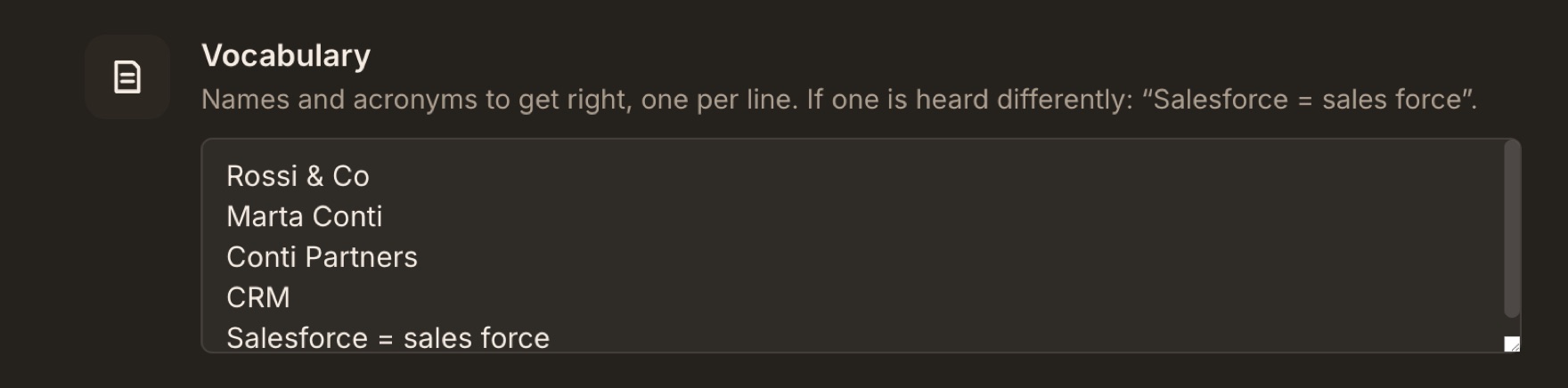
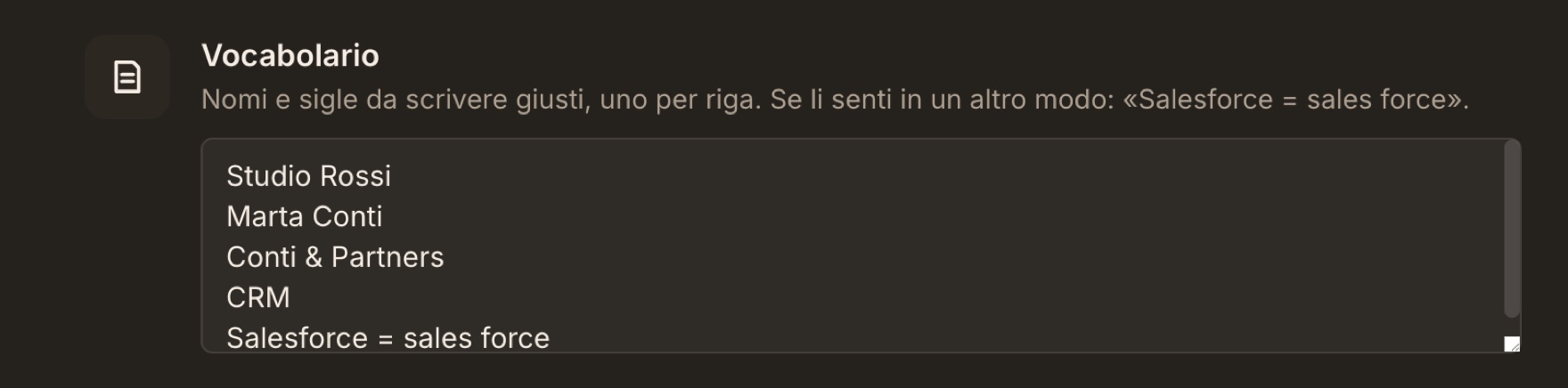
Open Settings → Audio & language → Vocabulary and add one term per line. You can also say how a word might be heard, in the format Name = how it’s heard, for example Salesforce = sales force. During a call, TellPip applies the vocabulary to the transcript in real time; hover a corrected word to see the original version.
TellPip also learns names from your documents and past meetings, and adds the ones you confirm in Refine notes and memory. The vocabulary grows on its own, and a few minutes spent on the most important names pay off from the very first call.
Turn on Smart for the questions that count
Most questions in a call need a fast, short answer. Others need more reasoning: a tricky objection, a comparison between two offers, a calculation, a question that involves several documents. For those, there is Smart.
Smart thinks more deeply before answering, and it is the ideal ally when the stakes are high. You can toggle it with the Smart pill in the chat or in Settings → Intelligence. Next to it is Fast, for immediate, direct answers: the two take turns, so you set the pace. And when neither is on, Pip decides on its own how much to think, based on the question.
Let Pip see your screen
Much of a call happens on your screen: the proposal you are sharing, the client’s email, the spreadsheet with this quarter’s numbers. With Use the screen on, every question you ask carries a screenshot of the display under the chat, so Pip answers precisely about what you are looking at. TellPip’s own windows are always left out of the picture.
It is on by default, and you can manage it at any time in Settings → Intelligence. Without the screenshot, Pip keeps answering from the conversation and your documents.
Tune Real Time to your style
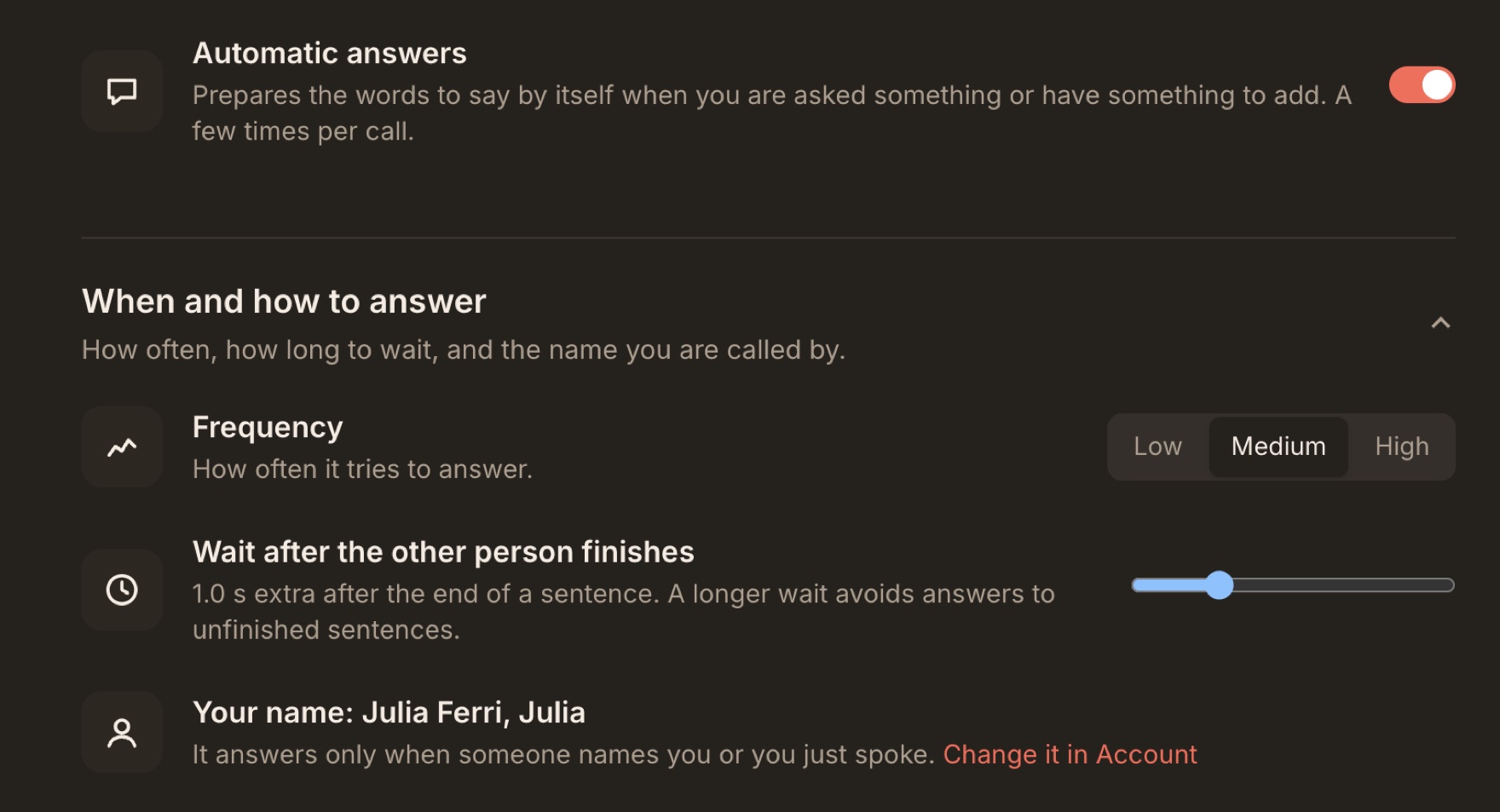
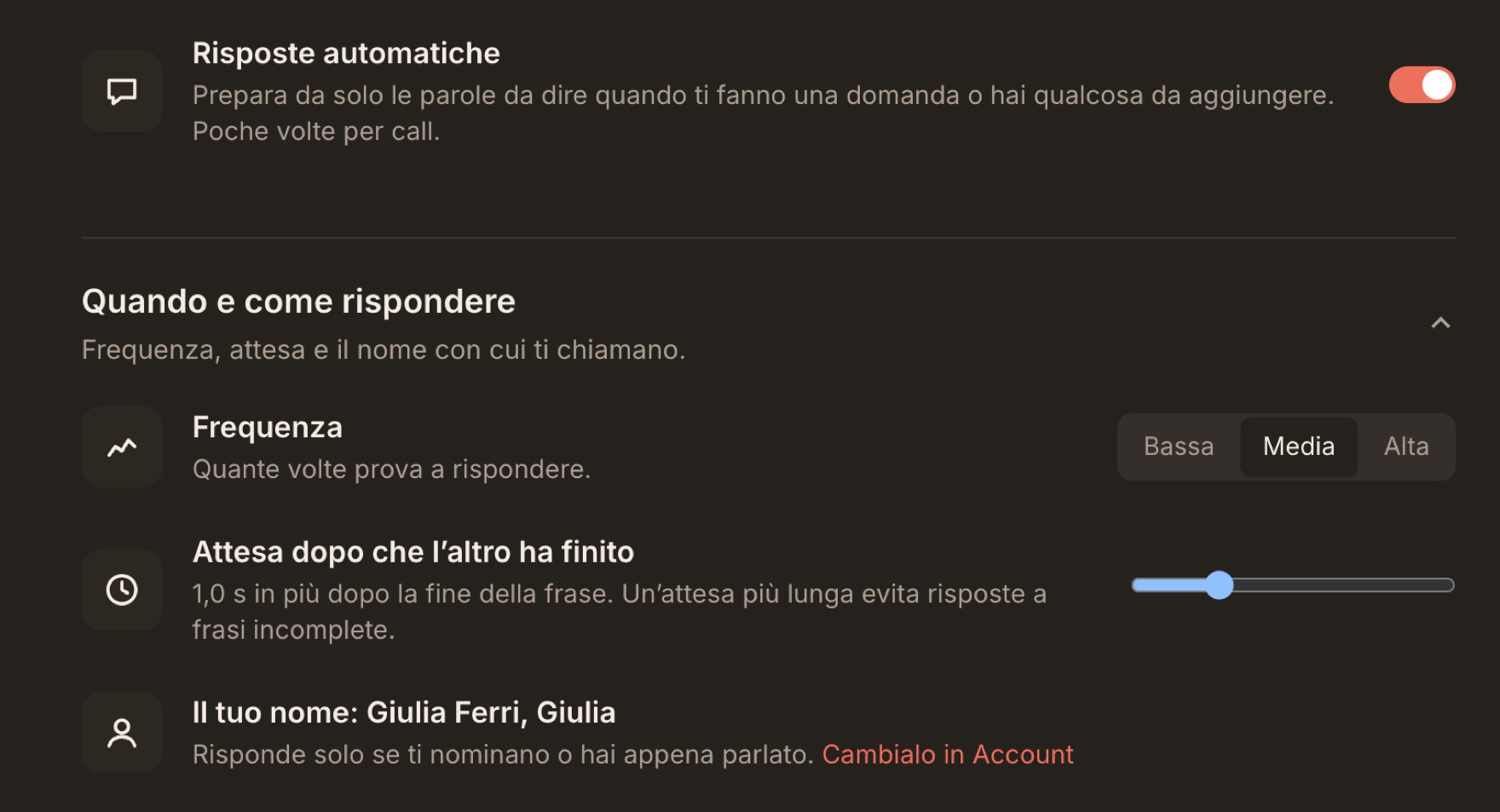
With Automatic answers (Real Time) on, you don’t need to press anything: when the other person asks something, the answer prepares itself. Pip steps in discreetly, only when the conversation calls for it. Under When and how to answer, in Settings → Intelligence, you shape how it behaves.
- Wait after the other person finishes, from 0 to 4 seconds (1 by default). Raise it if people in your calls like to pause mid-sentence.
- Frequency: Low answers only questions put to you, by name or right after you spoke; Medium also questions to everyone about your work, when you are the right person to answer; High also steps in when you can add something useful without being asked, at most once every two minutes. We suggest starting with Medium.
- Your names in calls, set in Settings → Account: they let Pip recognise when someone is talking to you.
Answers Pip prepares on its own are marked Automatic answer, so you always recognise them. The full guide is in Automatic answers (Real Time).
And there is one tip that needs no setup at all: give it a 👍 or a 👎. You’ll find the two buttons next to every answer, and each preference helps Pip build your profile, on the Memory page. Answer after answer, Pip learns the tone, length and style you like.
Putting it together
Each of these steps takes a few minutes, and you can adopt them gradually. To begin, pick a mode from a template and write a five-line prompt. Then add the documents, and finally the most important names. After a week of calls you will see Pip speaking your language more and more.
New to TellPip? Start with Your first call, or download the app and discover it with the free trial: 5 free sessions, no card needed.
Pip dà il meglio quando conosce a fondo la call in cui ti trovi. Appena installato ascolta già la conversazione, osserva il tuo schermo quando glielo chiedi e consulta i tuoi documenti, direttamente sul tuo computer. E bastano pochi minuti di preparazione per passare da una buona risposta alla risposta giusta: con il tuo tono, i tuoi prezzi, i nomi delle persone con cui parli.
Ecco sette accorgimenti che fanno la differenza, più o meno nell’ordine in cui li adotteremmo noi.
Scegli la modalità giusta prima di iniziare
Una modalità è il brief di Pip per un tipo di call. Contiene tre elementi: le istruzioni che Pip segue durante la call, i file di riferimento da consultare e la struttura che seguiranno le tue note. Una call di vendita, una revisione con un cliente e la riunione settimanale del team richiedono risposte diverse, e meritano modalità dedicate.
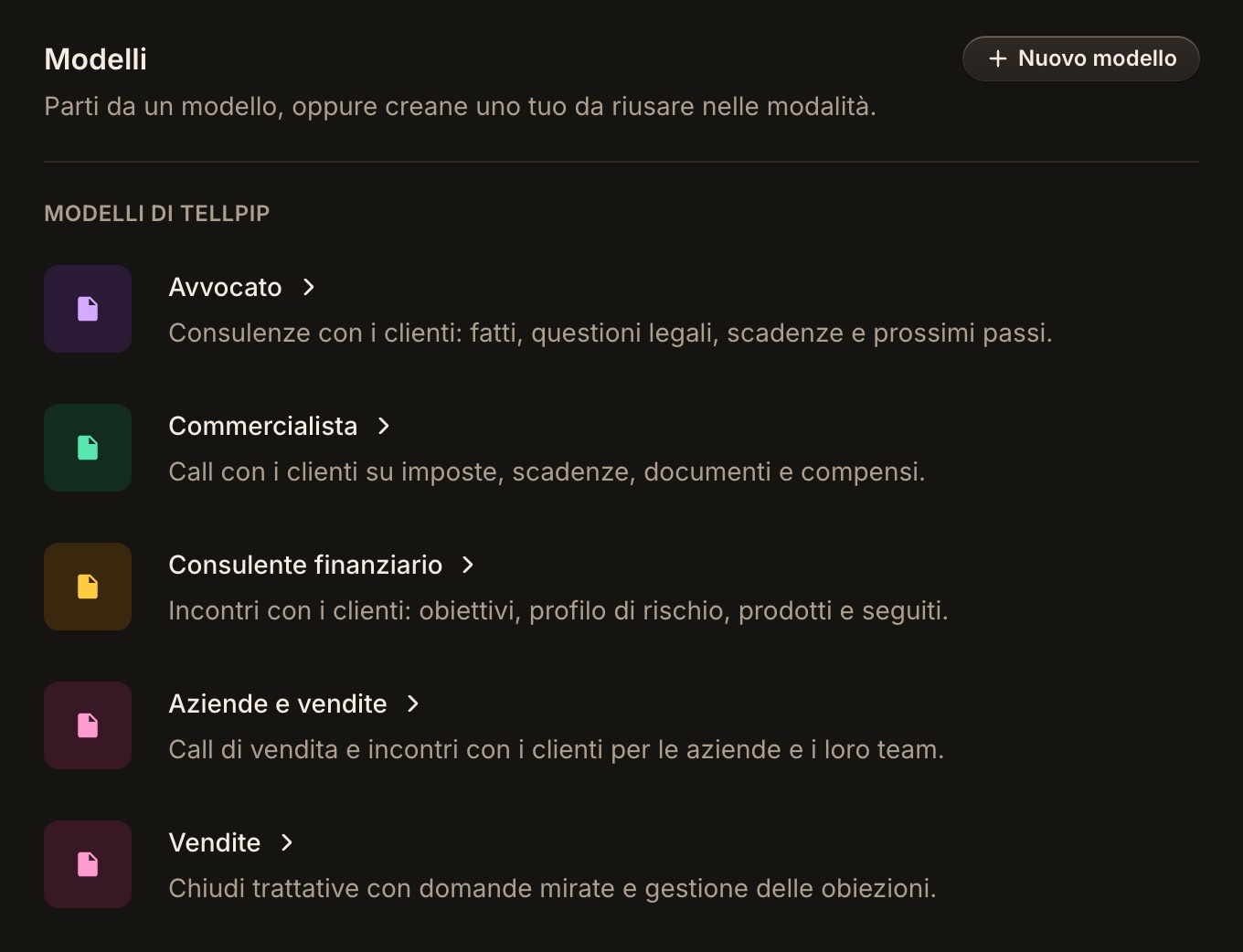
Non devi partire da zero. Apri TellPip con ⌘⇧T, vai nella pagina Modalità, apri Modelli di TellPip e scegli quello più vicino al tuo lavoro tra i nove disponibili: Avvocato, Commercialista, Consulente finanziario, Aziende e vendite, Vendite, Riunione di team, Lezione, Selezione del personale e Cerco lavoro. Clicca Crea modalità da questo modello, assegnale un nome e cucila su misura per te.
Poi rendila attiva: Imposta come attiva nella pagina Modalità, oppure durante la call dal menu ••• della chat → Modalità. Puoi cambiarla anche a call iniziata: Pip adotta il nuovo brief dalla risposta successiva.
Scrivi istruzioni precise
Il Prompt in tempo reale è dove spieghi a Pip come lavori. Pensalo come il biglietto che lasceresti a un nuovo collega che assiste alla call: più è preciso, più Pip saprà parlare la tua lingua. Hai a disposizione fino a 20.000 caratteri, con un contatore che ti accompagna mentre scrivi.
Ecco un esempio per una modalità di vendita di software:
Vendiamo un gestionale per gli appuntamenti agli studi medici. Rispondi come un account manager esperto e tranquillo. Risposte brevi, al massimo tre frasi da dire a voce. Non citare mai un prezzo che non sia nel listino. Se chiedono delle integrazioni, guarda prima la scheda integrazioni. Se insistono per uno sconto, proponi prima il piano annuale. Chiudi sempre con una domanda che faccia avanzare la call.
Osserva cosa fa: dice chi sei, quanto deve essere lunga la risposta, cosa Pip non deve mai inventare, dove guardare per primo e com’è fatto un risultato eccellente. Cinque o sei frasi così valgono più di una pagina di consigli generici.
Affina il prompt dopo qualche call: se desideri risposte più brevi, scrivilo; se vuoi che Pip eviti un certo suggerimento, aggiungi «non suggerire mai…».
Dagli i file di riferimento che contano
I File di riferimento sono i documenti che Pip consulta prima di rispondere: listini, schede prodotto, procedure, policy, le FAQ che invii ai clienti. TellPip legge file PDF, Word, testo, Markdown, CSV, JSON, HTML e RTF fino a 20 MB ciascuno.
Il segreto è la selezione. Collega a ogni modalità solo ciò che serve a quel tipo di call: un listino e una scheda prodotto di una pagina permettono a Pip di trovare il passaggio giusto in un lampo.
- Tieni i file aggiornati. Quando il listino cambia, sostituisci il file: Pip citerà sempre la versione più recente.
- Preferisci documenti con testo selezionabile. Pip li consulta con la massima precisione.
- Scegli nomi chiari. «Listino 2026» è più immediato di «definitivo_v3_ok.pdf».
I documenti vengono letti e consultati sul tuo computer. Per formulare la risposta Pip usa i passaggi più utili oppure, quando i documenti della modalità sono brevi, il loro testo completo, per un contesto ancora più ricco. Con Solo puoi gestire fino a 15 documenti su tutte le modalità; Enterprise li rende illimitati e aggiunge le fonti collegate, come Notion, Google Drive, OneDrive, SharePoint o una cartella del tuo computer. Trovi tutto in Aggiungere file di riferimento a una modalità.
Insegnagli i nomi che contano
Il Vocabolario rende la trascrizione ancora più precisa sui nomi più particolari: cognomi, codici prodotto, marchi dalla grafia insolita. E una trascrizione più precisa significa risposte più pertinenti.
Apri Impostazioni → Audio e lingua → Vocabolario e aggiungi un termine per riga. Puoi anche indicare come una parola potrebbe essere percepita, nel formato Nome = come viene sentito, per esempio Salesforce = sales force. Durante la call TellPip applica il vocabolario alla trascrizione in tempo reale; passa sopra una parola corretta per vedere la versione originale.
TellPip impara i nomi anche dai tuoi documenti e dalle call passate, e aggiunge quelli che confermi in Affina note e memoria. Il vocabolario cresce da solo, e qualche minuto dedicato ai nomi più importanti si ripaga già dalla prima call.
Attiva Smart per le domande decisive
La maggior parte delle domande in call chiede una risposta rapida e breve. Altre richiedono un ragionamento più articolato: un’obiezione insidiosa, il confronto tra due offerte, un calcolo, una domanda che coinvolge più documenti. Per queste, c’è Smart.
Smart ragiona più a fondo prima di rispondere ed è l’alleato ideale quando la posta in gioco è alta. Lo attivi con il pulsante Smart nella chat o in Impostazioni → Intelligenza. Accanto trovi Veloce, per risposte immediate e dirette: i due si alternano, così scegli tu il passo. E quando non ne attivi nessuno, Pip decide da solo quanto ragionare in base alla domanda.
Lascia che Pip veda il tuo schermo
Buona parte di una call si svolge sul tuo schermo: l’offerta che stai condividendo, l’email del cliente, il foglio con i numeri del trimestre. Con Usa lo schermo attivo, ogni domanda porta con sé uno screenshot dello schermo sotto la chat, così Pip risponde esattamente su ciò che stai guardando. Le finestre di TellPip restano sempre fuori dall’immagine.
È attivo di default, e puoi gestirlo in qualsiasi momento in Impostazioni → Intelligenza. Senza screenshot, Pip continua a rispondere dalla conversazione e dai tuoi documenti.
Regola il Real Time sul tuo stile
Con Risposte automatiche (Real Time) attivo non devi premere nulla: quando l’interlocutore ti chiede qualcosa, la risposta si prepara da sola. Pip interviene con discrezione, solo quando la conversazione lo richiede. In Quando e come rispondere, in Impostazioni → Intelligenza, ne modelli il comportamento.
- Attesa dopo che l’altro ha finito, da 0 a 4 secondi (1 di default). Aumentala se nelle tue call le persone amano le pause a metà frase.
- Frequenza: Bassa risponde solo alle domande rivolte a te, con il tuo nome o subito dopo che hai parlato; Media anche alle domande a tutti sui temi del tuo lavoro, quando sei tu la persona giusta per rispondere; Alta interviene anche quando puoi aggiungere qualcosa di utile senza che te lo chiedano, al massimo una volta ogni due minuti. Ti consigliamo di partire da Media.
- I tuoi nomi nelle call, che imposti in Impostazioni → Account: permettono a Pip di capire quando qualcuno si rivolge a te.
Le risposte che Pip prepara in autonomia sono contrassegnate come Risposta automatica, così le riconosci sempre. La guida completa è in Risposte automatiche (Real Time).
E c’è un accorgimento che non richiede alcuna configurazione: dagli un 👍 o un 👎. Accanto a ogni risposta trovi i due pulsanti, e ogni tua preferenza aiuta Pip a costruire il tuo profilo, nella pagina Memoria. Risposta dopo risposta, Pip impara il tono, la lunghezza e lo stile che ami.
Mettere tutto insieme
Ognuno di questi passi richiede pochi minuti, e puoi adottarli gradualmente. Per cominciare, scegli una modalità da un modello e scrivi un prompt di cinque righe. Poi aggiungi i documenti, e infine i nomi più importanti. Dopo una settimana di call vedrai Pip parlare sempre più la tua lingua.
Sei nuovo su TellPip? Comincia da La tua prima call, oppure scarica l’app e scoprila con la prova gratuita: 5 sessioni gratuite, senza carta.