 TellPip
Notes, transcript and follow-up email
What you get at the end of every call, how Pip polishes the notes with you, what it brings into your wiki and how to manage your sessions.
Updated 30 October 2026
Contents
At the end of the call
End the session with ⌘ ⇧ \, or from the menu-bar icon → End session. The chat quietly hides, and TellPip's main window opens, right on the session that just ended.
The notes are ready as soon as the call ends. You don't need to do anything else: the transcript, notes and follow-up email are created automatically from every call and stay safely on your computer, together with the session.
The session views
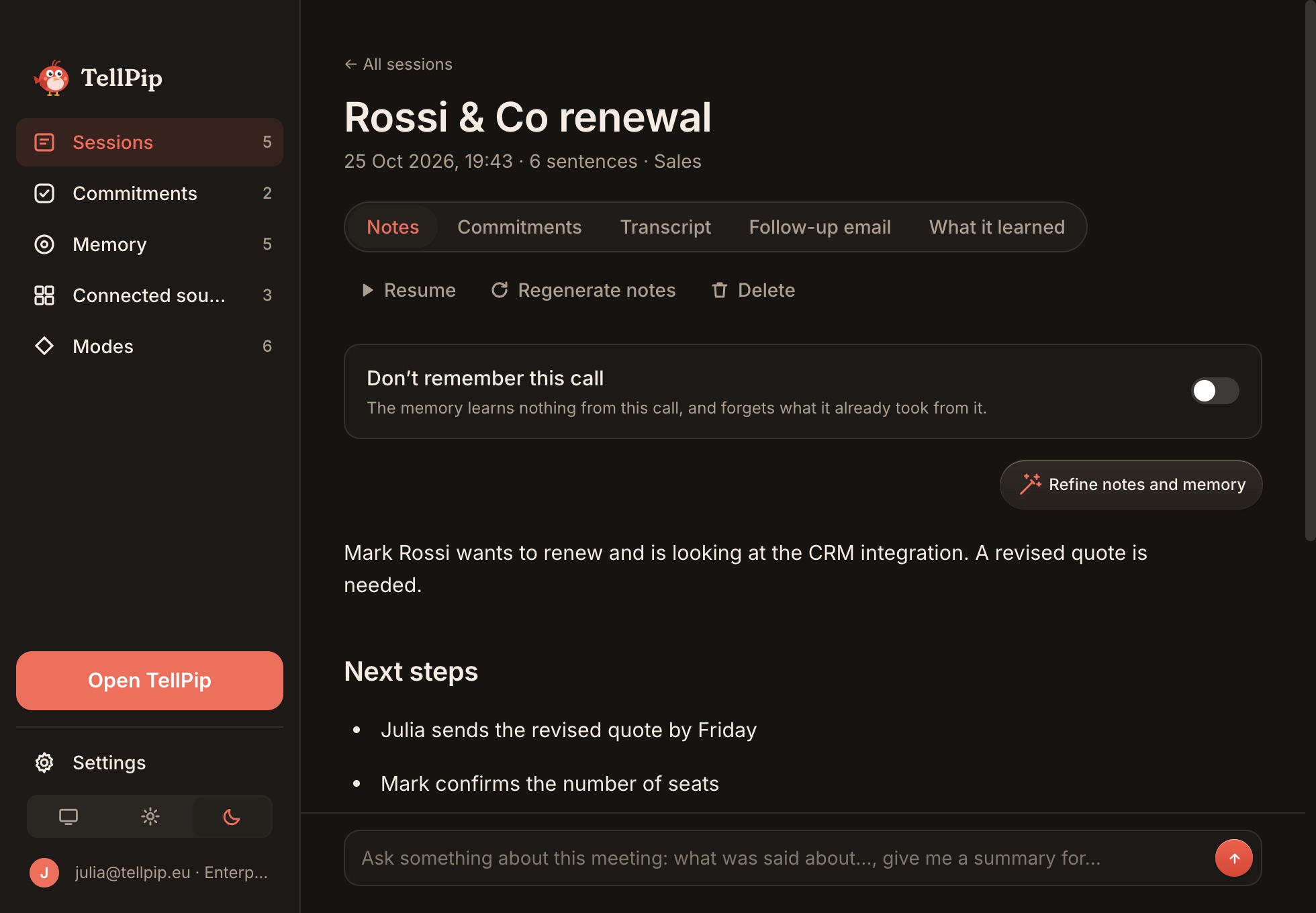
- Notes: written on your mode's Notes template, always with the Actions list at the end, ready to share.
- Transcript: everything that was said, word for word, produced right on your computer by the local model.
- Follow-up email: a polished recap, ready to send to the people you met.
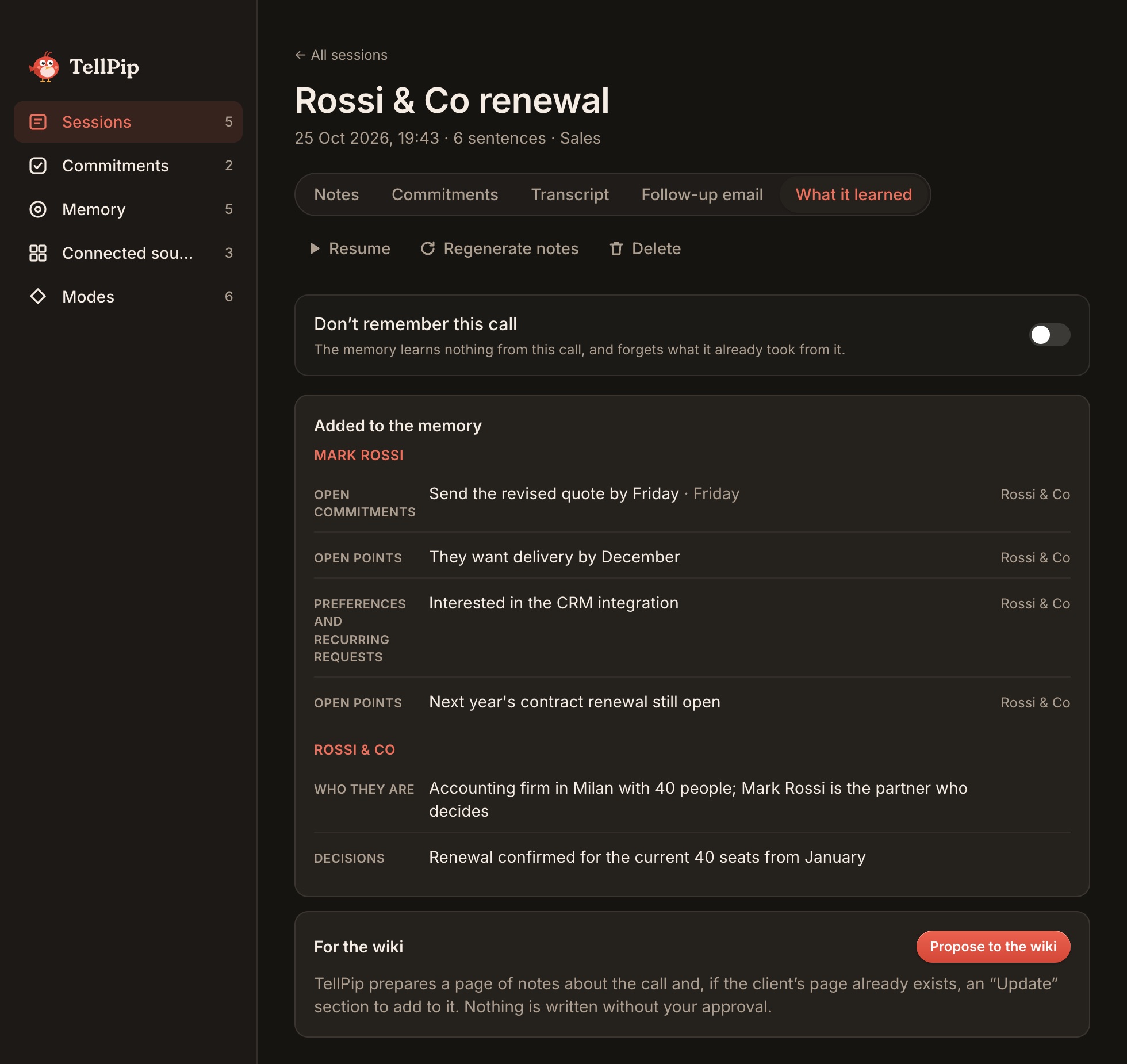
- What it learned: the memories Pip picked up from the call about people, companies and projects. See section 5.
With Copy notes, Copy transcript or Copy email you bring them into your email, CRM or a shared document in one click. Notes and email are written in the language spoken in the call: there's nothing to set.
Pip's questions: precision made to measure
Pip cares about the accuracy of your notes. After a call it may ask you to quickly confirm a detail, to make the notes and the memory even more accurate: answer in a few seconds and the job is done.
You can start the same step at any time with Refine notes and memory, for example when you reread the notes and want to fine-tune a detail.
Regenerate, resume or leave out
- Regenerate notes: rewrites the notes from the transcript, even with another mode's template, so you get the same call in the layout you need.
- ▶ Resume: reopens the meeting and keeps adding to the same session. Perfect when a conversation carries on after a break.
- Don’t remember this call: Pip's memory keeps nothing from that call, while the notes stay available to you. See Client memory.
What it learned, and your wiki
In the What it learned tab you'll find the memories Pip picked up from the call: commitments, decisions, open points, information about people. Each memory can be edited with the pencil, so your client memory reflects exactly what you want.
With Enterprise, from here you also bring the call into your company wiki with Propose to the wiki:
- Pip prepares a page with the call's notes;
- if the wiki already has the client's page, it also prepares a dated Update paragraph, with only the information that is new compared with what is already there;
- you see everything in a preview, you can edit it and you are the one who approves it.
Approved pages are saved in the knowledge base folder on your computer. If you propose the same call again, Pip updates the same page, without creating duplicates. See Connected sources.
Notes your way
The notes follow the Notes template of the mode you used. Customise the sections and their instructions, and every call in that mode gets notes exactly in your format: for example Context, What the client asked, What we promised, Open points. See Modes.
Send the follow-up email
The follow-up email recaps the call for the people you met: decisions, next steps, who does what. Click Copy email, paste it into your email app, add a personal line if you like and send it. It's a draft written for you: the last word is always yours.
Sending it a few minutes after the call is one of the things clients appreciate most: it shows attention, pins down what was agreed and moves the work forward while the conversation is still fresh.
Manage your sessions
- You'll find all your calls in the main window, under Sessions in the sidebar.
- Each session in the list has a ••• menu with Edit, Rename and Delete. Before deleting, TellPip asks you to confirm.
- To delete several sessions at once, click Select, tick them and delete them in one go.
- When you delete a session, the memories that came only from that call go with it: the memory always stays consistent with your archive. Pages you have already approved in the wiki stay where they are.
- TellPip keeps your archive tidy: sessions with no conversation aren't kept, unless you ended them with the stop button; in that case they appear as sessions with no content.
Useful tips
- Notes are written by the AI and need a connection: if you don't see them appear, check your internet and click Regenerate notes.
- After answering Pip's questions, you can keep refining the notes at any time with Refine notes and memory.
- For complete transcripts every time, make sure TellPip can hear everyone in the call: you'll find how in the Quick fixes section.
Next steps
Al termine della call
Concludi la sessione con ⌘ ⇧ \, oppure dall’icona nella barra dei menu → Termina sessione. La chat si nasconde con discrezione e si apre la finestra principale di TellPip, direttamente sulla sessione appena conclusa.
Le note sono pronte appena la call si conclude. Non devi fare altro: trascrizione, note ed email di follow-up nascono in automatico da ogni call e restano custodite sul tuo computer, insieme alla sessione.
Le viste della sessione
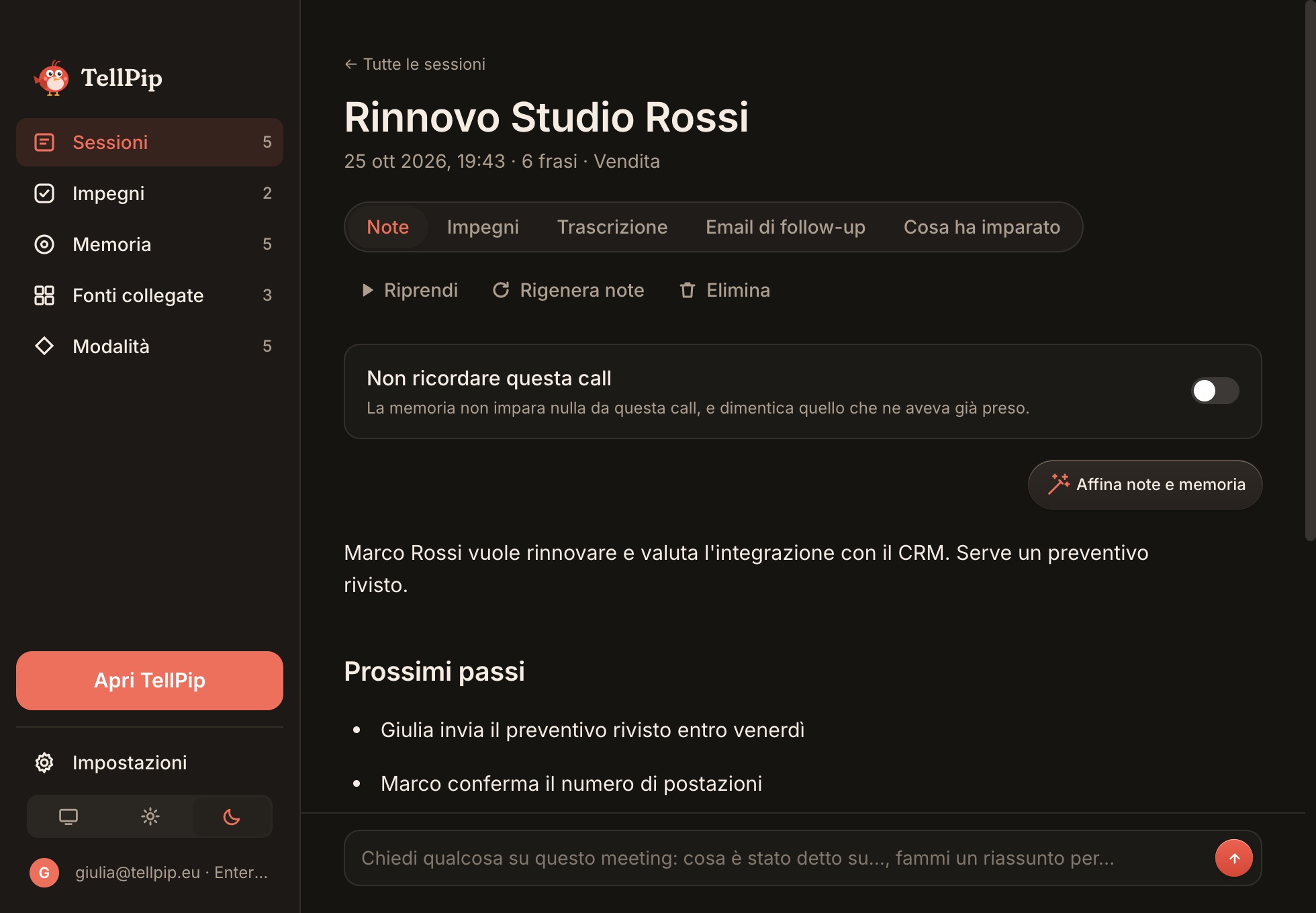
- Note: redatte secondo il Template delle note della tua modalità, sempre con l’elenco delle Azioni in fondo, pronte da condividere.
- Trascrizione: tutto ciò che è stato detto, parola per parola, realizzata direttamente sul tuo computer dal modello locale.
- Email di follow-up: un riepilogo elegante, pronto da inviare alle persone che hai incontrato.
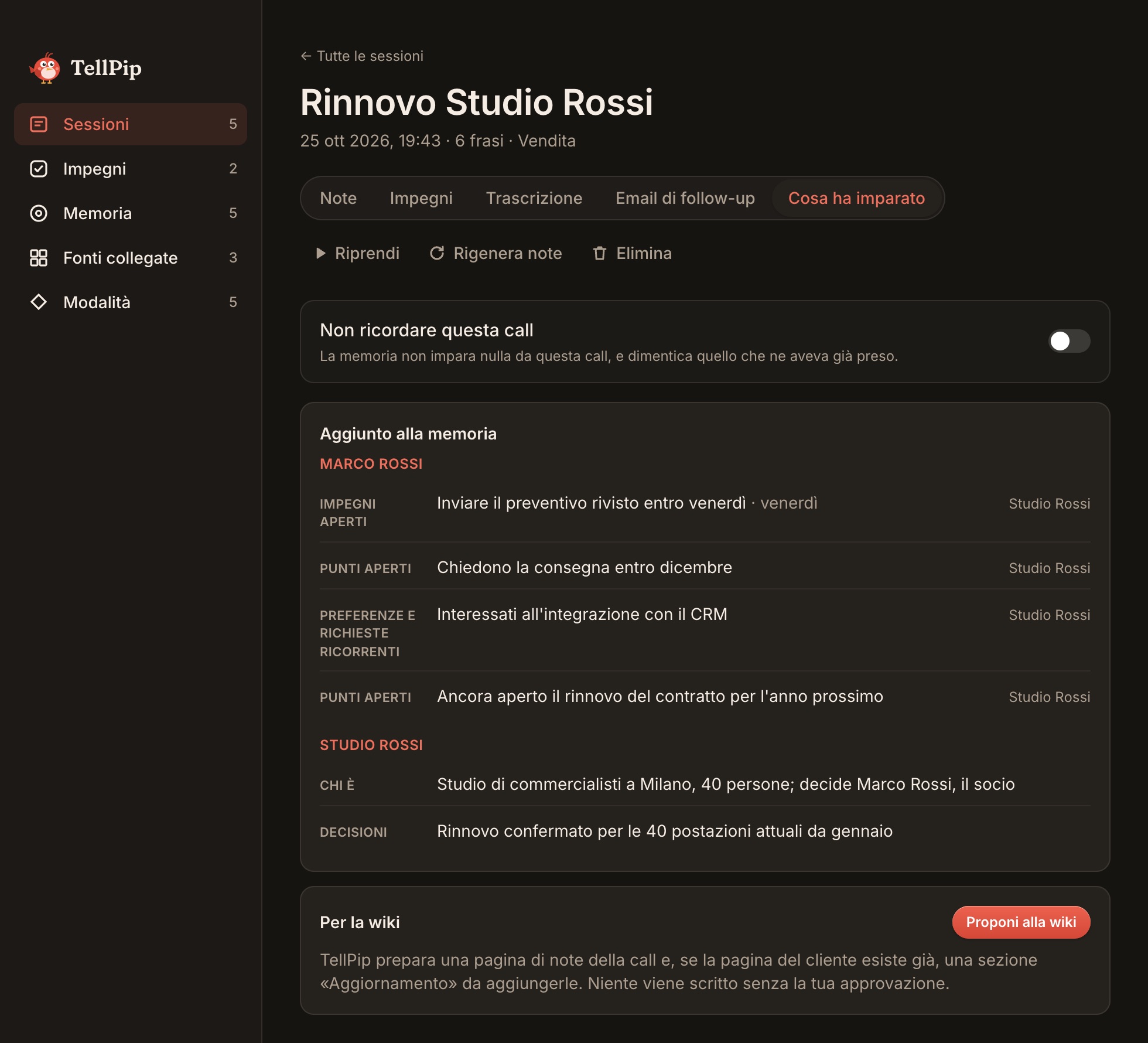
- Cosa ha imparato: i ricordi che Pip ha raccolto dalla call su persone, aziende e progetti. Vedi la sezione 5.
Con Copia note, Copia trascrizione o Copia email le porti in un clic nella tua email, nel CRM o in un documento condiviso. Note ed email sono scritte nella lingua in cui si è parlato in call: non c’è nulla da impostare.
Le domande di Pip: precisione su misura
Pip tiene alla precisione delle tue note. Dopo una call può chiederti una rapida conferma su un dettaglio, per rendere note e memoria ancora più accurate: rispondi in pochi secondi e il lavoro è fatto.
Puoi avviare lo stesso passaggio in qualsiasi momento con Affina note e memoria, per esempio quando rileggi le note e vuoi rifinire un dettaglio.
Rigenera, riprendi o escludi
- Rigenera note: riscrive le note dalla trascrizione, anche con il template di un’altra modalità, per avere la stessa call nel formato che ti serve.
- ▶ Riprendi: riapre il meeting e continua ad arricchire la stessa sessione. Perfetto quando una conversazione prosegue dopo una pausa.
- Non ricordare questa call: la memoria di Pip non trattiene nulla di quella call, mentre le note restano a tua disposizione. Vedi Memoria dei clienti.
Cosa ha imparato, e la tua wiki
Nella scheda Cosa ha imparato trovi i ricordi che Pip ha raccolto dalla call: impegni, decisioni, punti aperti, informazioni sulle persone. Ogni ricordo si modifica con la matita, così la memoria dei clienti riflette esattamente ciò che vuoi tu.
Con Enterprise, da qui porti la call anche nella tua wiki aziendale con Proponi alla wiki:
- Pip prepara una pagina con le note della call;
- se nella wiki c’è già la pagina del cliente, prepara anche un paragrafo Aggiornamento, datato, con solo le informazioni nuove rispetto a quelle già presenti;
- vedi tutto in anteprima, puoi modificarlo e sei tu ad approvarlo.
Le pagine approvate vengono salvate nella cartella della knowledge base sul tuo computer. Se riproponi la stessa call, Pip aggiorna la stessa pagina, senza creare doppioni. Vedi Fonti collegate.
Note a modo tuo
Le note seguono il Template delle note della modalità che hai usato. Personalizza le sezioni e le loro istruzioni, e ogni call in quella modalità avrà note esattamente nel tuo formato: per esempio Contesto, Cosa ha chiesto il cliente, Cosa abbiamo promesso, Punti aperti. Vedi Modalità.
Invia l’email di follow-up
L’email di follow-up riassume la call per le persone che hai incontrato: decisioni, prossimi passi, chi fa cosa. Clicca Copia email, incollala nella tua app di posta, aggiungi se vuoi una riga personale e inviala. È una bozza scritta su misura per te: l’ultima parola è sempre tua.
Inviarla pochi minuti dopo la call è uno dei gesti più apprezzati dai clienti: dimostra attenzione, fissa gli accordi e fa avanzare il lavoro mentre la conversazione è ancora fresca.
Gestisci le sessioni
- Trovi tutte le tue call nella finestra principale, alla voce Sessioni della barra laterale.
- Ogni sessione nell’elenco ha un menu ••• con Modifica, Rinomina ed Elimina. Prima di eliminare, TellPip ti chiede una conferma.
- Per eliminare più sessioni insieme, premi Seleziona, spuntale ed eliminale in un solo gesto.
- Eliminando una sessione, con lei se ne vanno anche i ricordi nati soltanto in quella call: la memoria resta sempre coerente con il tuo archivio. Le pagine che hai già approvato nella wiki restano dove sono.
- TellPip mantiene il tuo archivio ordinato: le sessioni senza conversazione non vengono conservate, a meno che tu non le abbia chiuse con il tasto di stop; in quel caso compaiono come sessioni senza contenuto.
Consigli utili
- Le note vengono redatte dall’AI e richiedono la connessione: se non le vedi comparire, verifica internet e clicca Rigenera note.
- Dopo aver risposto alle domande di Pip, puoi rifinire ancora le note in qualsiasi momento con Affina note e memoria.
- Per trascrizioni sempre complete, verifica che TellPip possa ascoltare tutti i partecipanti: trovi le indicazioni nella sezione Soluzioni rapide.
Prossimi passi
Related articles
Need anything else? We’re here for you.
Write to us