 TellPip
What stays on your computer, and what the AI needs
What TellPip keeps on your computer, what the AI needs to write each answer, and what your account stores.
Updated 30 October 2026
Contents
In short
TellPip is designed so that your calls and your documents stay on your computer. Transcription and document search happen right on your computer, thanks to local models that also work offline. To put search results in order, the most relevant passages may be sent to our server. To write each answer, only the text that answer needs leaves your computer: always text, never audio. In this article you'll find, item by item, what your computer keeps, what the AI needs and how you can adjust everything from Settings.
What stays on your computer
- The call audio. The local model turns it into text on your computer as the call goes on, recognising the spoken language on its own: the audio is never sent.
- The transcript of every call, complete and always available.
- Your documents and the index used to search them. Notion, Google Drive, OneDrive and SharePoint files are also copied to your computer, indexed and searched there, with a search that understands meaning, not just words. To put search results in order, the most relevant passages may be sent to our server.
- The sessions and notes of every call.
- Your client memory, with the cards for people, companies and projects and the history of every memory.
- Your settings, vocabulary included.
All of this is kept in the folder ~/Library/Application Support/TellPip, on your Mac. The most sensitive information is protected by the macOS Keychain, the same system your Mac uses for your passwords.
With Enterprise, when you choose Propose to the wiki, the pages you approve are saved in your knowledge base folder, on your computer.
The essentials for each answer
Answers, notes and follow-up emails come from an advanced artificial intelligence that works in the cloud. For each answer, a small, focused package of text leaves your computer, with only what that answer needs:
- your question and the instructions of the mode you are using;
- the text of the conversation, always text and never audio;
- your reference documents: the passages that answer the question or, when the mode's documents are short, their full text, so Pip has the whole picture in front of it; with Smart, only the useful passages are ever sent;
- a short briefing about the people in the call, if client memory is on, including the description that comes from your wiki;
- a short summary of your preferences, for tailored answers;
- a screenshot of your screen, if Use the screen is on.
To perfect the spelling of names during the call, TellPip may also send short pieces of transcript text: here too, always text and never audio. Your folders, the archive of past calls and the document index stay on your computer.
Manage the screenshot
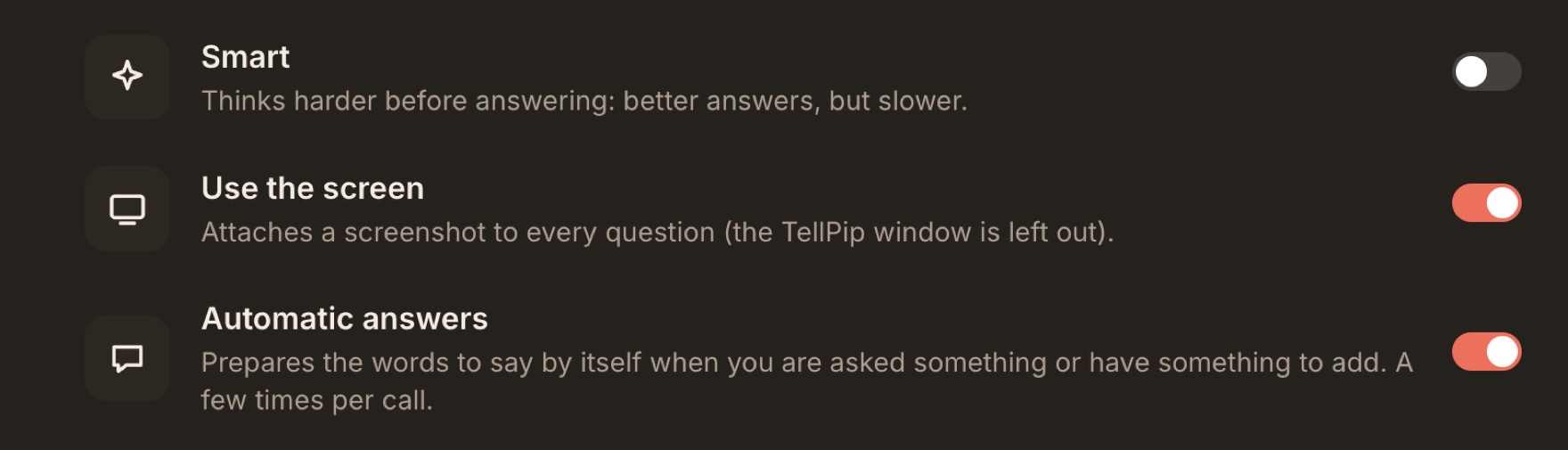
Use the screen is on by default, because seeing the screen makes answers much more relevant: the slide you are presenting, the email you are reading, the sheet with the quarter's numbers. TellPip's windows are always left out of the screenshot. You can manage it at any time in two steps:
- Open Settings → Intelligence.
- Turn Use the screen on or off, as you prefer. Without the screenshot, Pip keeps answering from the conversation and your documents.
What your account keeps
To manage your account and subscription, TellPip keeps only the essentials: your email, the computers you are signed in on, your active trial or subscription, the names you’re called by in calls, the name shown to the people you invite, and the code or page that brought you to TellPip. Your calls, transcripts, documents, notes and client memory always stay only on your computer.
When you write to us from the app with Contact support, in the About TellPip window, our team receives your message and a short technical report: computer model, app version, permissions, the state of the local models and the latest errors. Never transcripts, notes or documents. Before sending it you can read it in full with See what we send.
The local models and updates
The first time you open TellPip, it installs the local transcription and search models, just once. From then on, transcription and document search work entirely on your computer, even without a connection. You'll find all the details in The first-launch download.
TellPip keeps itself up to date: it checks for updates at launch and every 30 minutes, downloads the update in the background and installs it when you quit the app, never during a call.
Common questions
Is my call recorded?
No: the audio becomes text on your computer as the call goes on. TellPip keeps the transcript, not an audio recording.
Do the other people in the call see TellPip?
No bot joins the meeting: TellPip listens through your computer. With invisibility on, its windows are also left out of screen sharing and recordings. Find out more in Invisibility.
Does TellPip work offline?
Yes: transcription and document search work without internet too, thanks to the local models. To write answers, notes and follow-up emails, TellPip connects to the AI.
Can I use TellPip for confidential calls?
Of course, and you're fully in control: turn off Use the screen to leave out screenshots, choose Don’t remember this call to keep it out of the memory, and delete the session at the end if you don't want to keep it.
Who can see my documents?
Only you. They are read, indexed and searched on your computer; to put search results in order, the most relevant passages may be sent to our server. For each question, the AI receives only the text useful for that answer, as described in section 3.
The full details
The privacy policy explains every aspect clearly, including your rights under the GDPR. To delete your data, follow the guide Delete your data.
In sintesi
TellPip è progettato perché le tue call e i tuoi documenti restino sul tuo computer. La trascrizione e la ricerca nei documenti avvengono direttamente sul tuo computer, grazie a modelli locali che lavorano anche offline. Per mettere in ordine i risultati della ricerca, i passaggi più pertinenti possono essere inviati al nostro server. Per formulare ogni risposta, dal tuo computer parte solo il testo necessario a quella risposta: sempre testo, mai audio. In questo articolo trovi, voce per voce, cosa custodisce il tuo computer, cosa serve all’AI e come puoi regolare tutto dalle Impostazioni.
Cosa resta sul tuo computer
- L’audio della call. Il modello locale lo trasforma in testo sul tuo computer, mentre la call prosegue, riconoscendo da solo la lingua parlata: l’audio non viene mai inviato.
- La trascrizione di ogni call, completa e sempre consultabile.
- I tuoi documenti e l’indice che permette di consultarli. Anche i file di Notion, Google Drive, OneDrive e SharePoint vengono copiati sul tuo computer, indicizzati e cercati lì, con una ricerca che comprende il significato e non solo le parole. Per mettere in ordine i risultati della ricerca, i passaggi più pertinenti possono essere inviati al nostro server.
- Le sessioni e le note di ogni call.
- La memoria dei clienti, con le schede di persone, aziende e progetti e la storia di ogni ricordo.
- Le impostazioni, vocabolario compreso.
Tutto questo è custodito nella cartella ~/Library/Application Support/TellPip, sul tuo Mac. Le informazioni più delicate sono protette dal Portachiavi di macOS, lo stesso sistema che il Mac usa per le tue password.
Con Enterprise, quando scegli Proponi alla wiki, le pagine che approvi vengono salvate nella cartella della tua knowledge base, sul tuo computer.
L’essenziale per ogni risposta
Risposte, note ed email di follow-up nascono da un’intelligenza artificiale avanzata che lavora nel cloud. Per ogni risposta, dal tuo computer parte un pacchetto di testo essenziale e mirato, con solo ciò che serve a quella risposta:
- la tua domanda e le istruzioni della modalità che stai usando;
- il testo della conversazione, sempre testo e mai audio;
- i tuoi documenti di riferimento: i passaggi che rispondono alla domanda oppure, quando i documenti della modalità sono brevi, il loro testo completo, perché Pip abbia sotto gli occhi l’intero quadro; con Smart partono sempre i soli passaggi utili;
- un breve promemoria sulle persone in call, se la memoria dei clienti è attiva, compresa la descrizione che arriva dalla tua wiki;
- un breve riepilogo delle tue preferenze, per risposte su misura;
- uno screenshot dello schermo, se Usa lo schermo è attivo.
Per perfezionare la grafia dei nomi durante la call, TellPip può inviare anche brevi frammenti di testo della trascrizione: anche in questo caso, sempre testo e mai audio. Le tue cartelle, l’archivio delle call passate e l’indice dei documenti restano sul tuo computer.
Gestisci lo screenshot
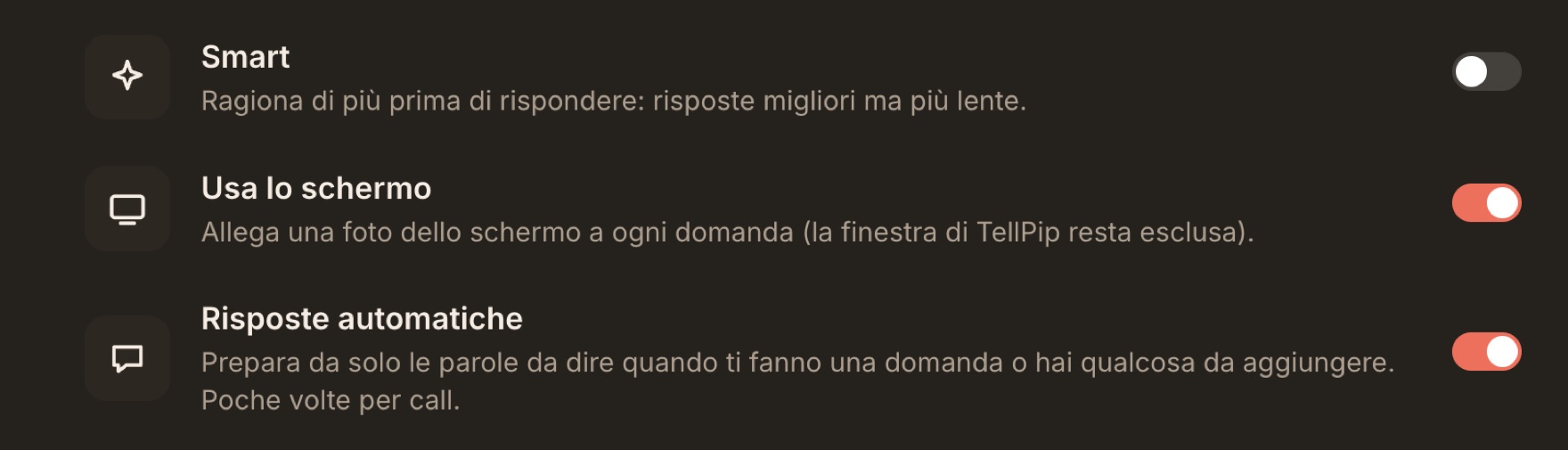
Usa lo schermo è attivo di default, perché la possibilità di vedere lo schermo rende le risposte molto più pertinenti: la slide che stai presentando, l’email che stai leggendo, il foglio con i numeri del trimestre. Le finestre di TellPip restano sempre fuori dallo screenshot. Puoi gestirlo in qualsiasi momento in due passaggi:
- Apri Impostazioni → Intelligenza.
- Attiva o disattiva Usa lo schermo, secondo le tue preferenze. Senza screenshot, Pip continua a rispondere dalla conversazione e dai tuoi documenti.
Cosa conserva il tuo account
Per gestire il tuo account e l’abbonamento, TellPip conserva solo l’essenziale: la tua email, i computer su cui hai fatto l’accesso, la prova o l’abbonamento attivo, i nomi con cui ti chiamano nelle call, il nome che vedono le persone che inviti e il codice o la pagina da cui sei arrivato a TellPip. Le tue call, le trascrizioni, i documenti, le note e la memoria dei clienti restano sempre e soltanto sul tuo computer.
Quando sei tu a scriverci dall’app con Contatta l’assistenza, nella finestra Informazioni su TellPip, il nostro team riceve il tuo messaggio e un breve rapporto tecnico: modello del computer, versione dell’app, permessi, stato dei modelli locali e ultimi errori. Mai trascrizioni, note o documenti. Prima di inviarlo puoi leggerlo per intero con Vedi cosa inviamo.
I modelli locali e gli aggiornamenti
Al primo avvio TellPip installa i modelli locali di trascrizione e ricerca, una sola volta. Da quel momento la trascrizione e la ricerca nei documenti lavorano interamente sul tuo computer, anche senza connessione. Trovi tutti i dettagli in Il download al primo avvio.
TellPip si mantiene aggiornato da solo: controlla le novità all’avvio e ogni 30 minuti, scarica l’aggiornamento in sottofondo e lo installa quando chiudi l’app, mai durante una call.
Domande frequenti
La mia call viene registrata?
No: l’audio diventa testo sul tuo computer man mano che la call prosegue. TellPip conserva la trascrizione, non una registrazione audio.
Gli altri in call vedono TellPip?
Nessun bot entra nella riunione: TellPip ascolta attraverso il tuo computer. Con l’invisibilità attiva, le sue finestre restano fuori anche dalla condivisione schermo e dalle registrazioni. Scopri di più in Invisibilità.
TellPip funziona anche offline?
Sì: trascrizione e ricerca nei documenti lavorano anche senza internet, grazie ai modelli locali. Per formulare risposte, note ed email di follow-up, TellPip si collega all’AI.
Posso usare TellPip per call riservate?
Certo, e il controllo è tutto tuo: disattiva Usa lo schermo per escludere gli screenshot, scegli Non ricordare questa call per tenerla fuori dalla memoria ed elimina la sessione al termine, se non desideri conservarla.
Chi può vedere i miei documenti?
Solo tu. Vengono letti, indicizzati e consultati sul tuo computer; per mettere in ordine i risultati della ricerca, i passaggi più pertinenti possono essere inviati al nostro server. Per ogni domanda, all’AI arriva solo il testo utile a quella risposta, come descritto al punto 3.
Tutti i dettagli
L’informativa privacy spiega ogni aspetto in modo chiaro, compresi i tuoi diritti secondo il GDPR. Per eliminare i tuoi dati, segui la guida Cancella i tuoi dati.
Related articles
Need anything else? We’re here for you.
Write to us