 TellPip
 for lawyers: client meetings without the scramble
How a lawyer can set up TellPip for client calls: the case file at hand, promises and deadlines always in view, and the utmost confidentiality on their own computer.
A client call, in a law practice, moves fast. The client asks about a clause, then a deadline, then the last hearing, then whether that email from the other side changes anything. The answers are all somewhere: in the contract, in the file, in your notes from three weeks ago. The real challenge is finding them without taking your attention off the person in front of you.
TellPip is built for exactly this. It listens to the call, consults your documents on your computer and shows you the passage you need in a small panel only you can see. Here is how we would configure it for a legal practice.
Start from the Lawyer template
Open TellPip with ⌘⇧T, go to the Modes page, open TellPip templates and choose Lawyer. Click Create a mode from this template: you get a mode with instructions and a notes template already shaped for client meetings and consultations.
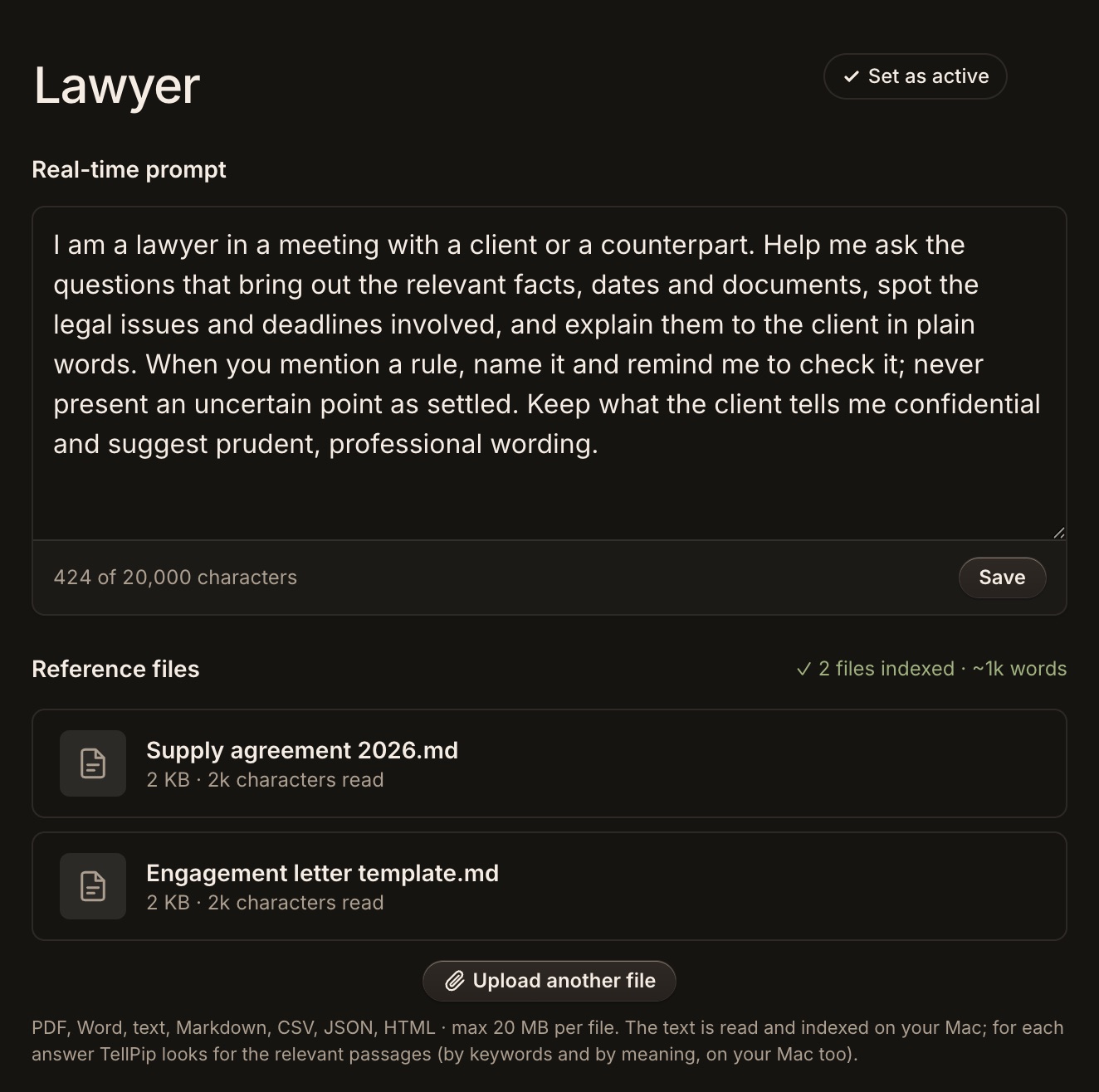
Personalise it in the Real-time prompt. A few lines about how you work make a big difference:
I’m a commercial lawyer. In client calls, give me the exact clause or passage and where it is (document and article). Keep answers short and factual. If the documents don’t say it, tell me so instead of guessing. Never phrase anything as a guarantee of outcome.
If you handle different kinds of matters, create one mode per area: a litigation mode and a contracts mode will each consult the right documents and produce the most fitting notes.
The case file as reference files
Attach to the mode the documents you reach for in calls: the contract under discussion, the engagement letter, a summary of the file, your standard terms, the procedure you follow for a particular kind of matter. TellPip reads PDF and Word files, among others, up to 20 MB each.
Everything is read, indexed and consulted on your computer. When a question comes up, TellPip finds the relevant passages locally and uses them to write the answer; when the mode’s documents are short, Pip can use their full text for an even more precise answer. Your files stay safely on your computer. On Solo you can manage up to 15 documents across your modes; for a practice that wants to connect its whole knowledge base (Notion, Google Drive, OneDrive, SharePoint, shared folders), shared across the team and without limits, there is Enterprise. With Enterprise, after each call you can also propose to the practice’s wiki, in a folder on your computer, the call’s notes page and the update to the client’s card: you see the preview, edit it and approve it yourself.
A clause lookup, live
Here is a made-up example, to show you how it works. During a call, the client asks: “how much notice do we need to give if we want to end the supply agreement?”
Press Suggest, or let Pip answer on its own with Real Time on. Something like this appears in the panel: "Notice period is 30 days in writing, clause 7.2 of the supply agreement you uploaded. Clause 7.3 allows immediate termination for material breach." A glance, a check on your screen if you like, and you answer the client in your own words.
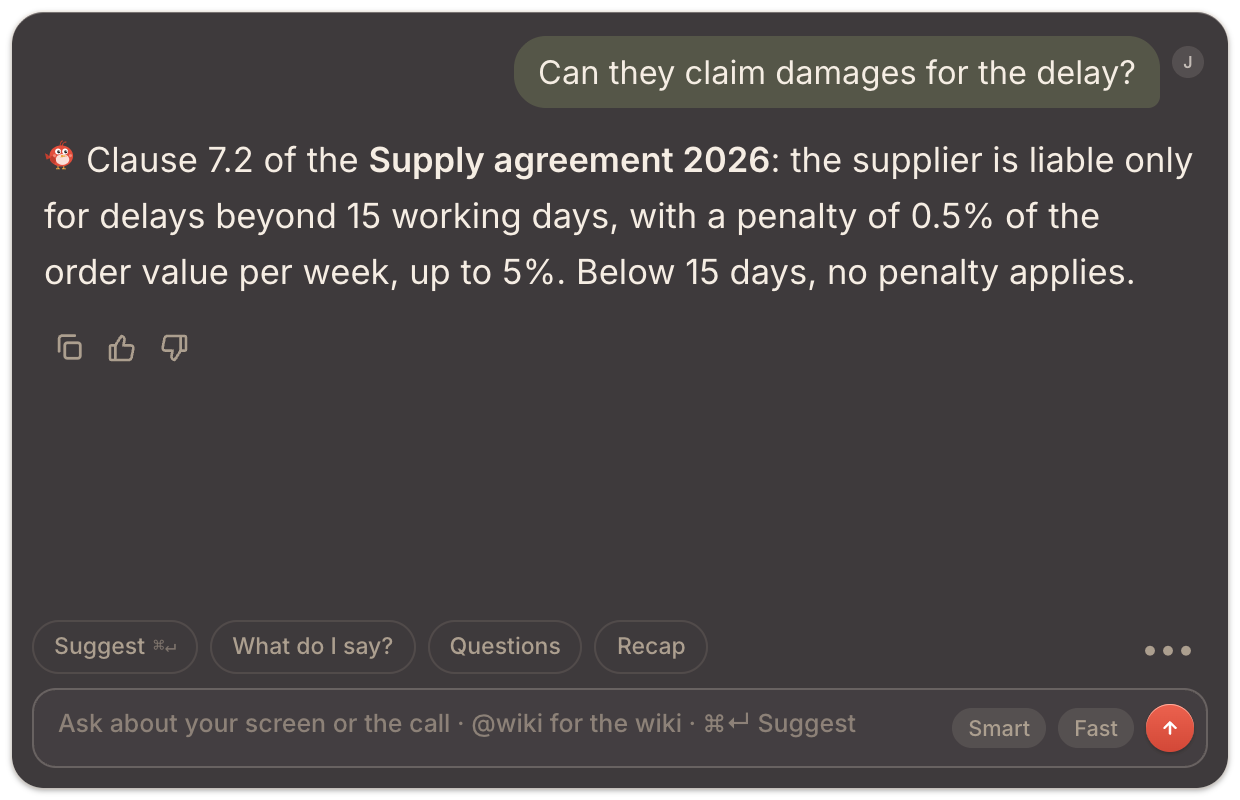
That is where the value lies: the clause you need appears in front of you in seconds, while your attention stays fully on the client.
Notes for the file
When the call ends, TellPip writes the notes following the mode’s template. For legal work, a template like this makes them invaluable:
- Facts reported by the client: what the client told us, in their words where possible.
- Questions asked: every question, answered or not.
- What we committed to: documents to send, checks to do, with dates.
- Deadlines and dates: every date mentioned, exactly as said.
- Open points: what still needs an answer, and from whom.
Copy the notes into your case management system with one click and, after reviewing it, send the client the recap from the Follow-up email draft. For even more accurate notes, Pip may ask you after the call to quickly confirm a name or a date. More in Meeting notes the way you want them.
Remembering promises and deadlines
With client memory on, TellPip keeps a card for each client, company or matter: who they are, open commitments, decisions, preferences, open points and closed matters. When that client comes back, a Psst… last time with… card reminds you what you promised and what was left open, before the client even has to ask.
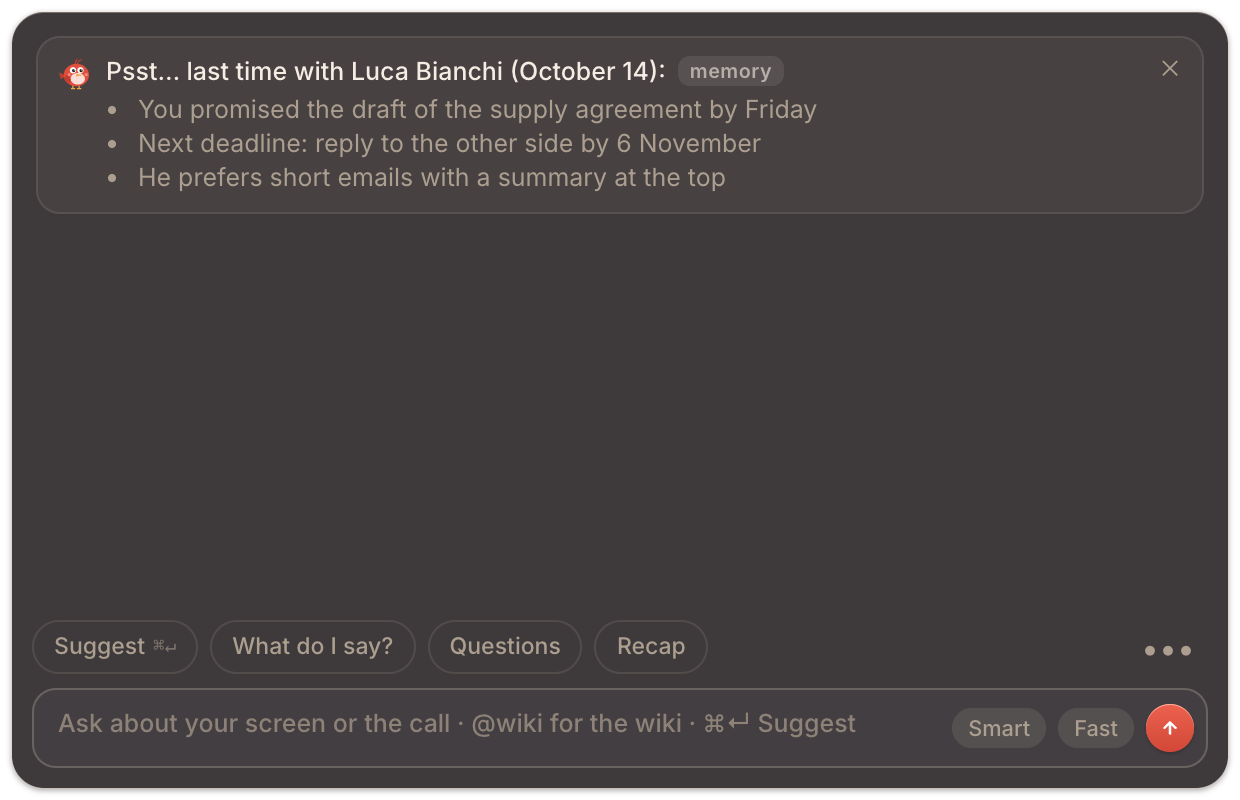
If a call should stay out of memory, choose Don’t remember this call from the chat’s menu or the session. You can edit any card, mark a commitment as done, forget a single client or delete the entire memory. More in Never forget a promise.
Confidentiality: everything on your computer
For a law practice the question is always the same: where does my clients' information go? TellPip’s answer is clear.
- Audio is transcribed on your computer by a local model and is never sent anywhere.
- Documents are read, indexed and consulted on your computer, where they stay safely stored.
- Sessions, notes and memory are kept on your computer.
- To write an answer, TellPip sends the AI only the text it needs: your question, the mode’s instructions, the relevant part of the transcript, the passages it found (or the full text of the mode’s documents, if they are short), a short reminder about the client if memory is on and, if Use the screen is on, a screenshot, which you can turn off in Settings → Intelligence.
All the details, and how to delete everything, are in What stays on your computer, and what the AI needs and in our privacy policy.
Sharing a document without sharing Pip
Many client calls involve sharing a draft on screen. With Invisible when sharing your screen on (it is by default), TellPip’s bar and panel stay out of the shared picture and out of recordings. The client sees the contract; you see the contract and Pip. Turn it on and off in an instant with ⌘⇧I. More in Stay invisible when you share your screen.
Getting started
Download TellPip, sign in with your email and start the free trial: 5 free sessions of up to 10 minutes, with everything included and no card needed. Create your Lawyer mode, attach three or four documents you use often, and put it to the test on your next client call.
Una call con un cliente, in uno studio legale, corre veloce. Il cliente chiede di una clausola, poi di una scadenza, poi dell’ultima udienza, poi se quell’email della controparte cambia qualcosa. Le risposte ci sono tutte: nel contratto, nel fascicolo, nei tuoi appunti di tre settimane fa. La vera sfida è trovarle senza distogliere l’attenzione dalla persona che hai davanti.
TellPip nasce per questo. Ascolta la call, consulta i tuoi documenti sul tuo computer e ti mostra il passaggio che ti serve in un piccolo pannello che vedi solo tu. Ecco come lo configureremmo per uno studio legale.
Parti dal modello Avvocato
Apri TellPip con ⌘⇧T, vai nella pagina Modalità, apri Modelli di TellPip e scegli Avvocato. Clicca Crea modalità da questo modello: ottieni una modalità con istruzioni e template delle note già pensati per incontri e consulenze con i clienti.
Personalizzala nel Prompt in tempo reale. Poche righe su come lavori fanno una grande differenza:
Sono un avvocato d’affari. Nelle call con i clienti dammi la clausola o il passaggio esatto e dove si trova (documento e articolo). Risposte brevi e fattuali. Se i documenti non lo dicono, dimmelo invece di tirare a indovinare. Non formulare mai nulla come garanzia di risultato.
Se segui materie diverse, crea una modalità per area: una per il contenzioso e una per i contratti consulteranno ciascuna i documenti giusti e produrranno le note più adatte.
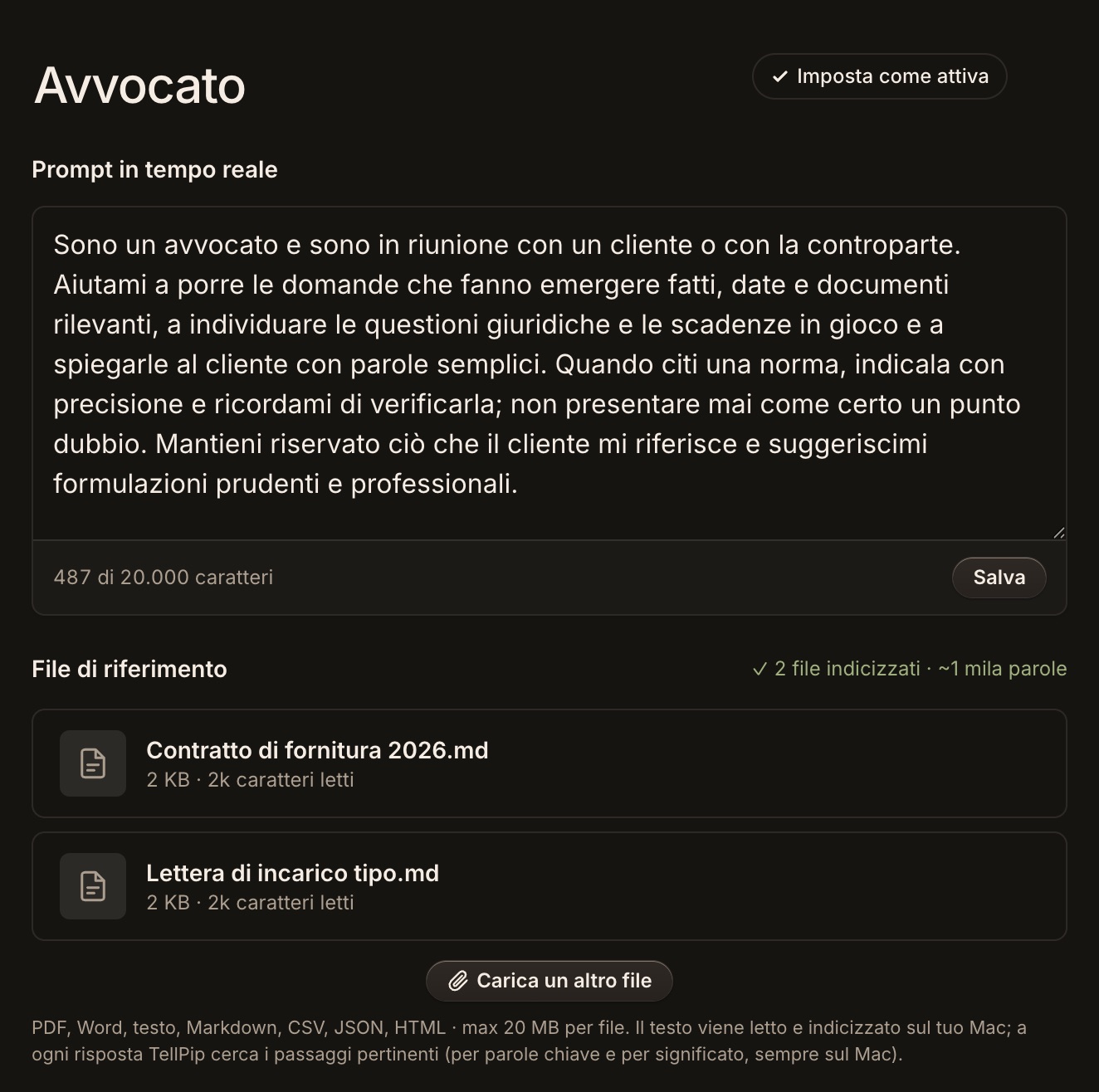
Il fascicolo come file di riferimento
Collega alla modalità i documenti che consulti in call: il contratto in discussione, la lettera d’incarico, un riepilogo della pratica, le tue condizioni standard, la procedura che segui per un determinato tipo di pratica. TellPip legge, tra gli altri, file PDF e Word fino a 20 MB ciascuno.
Tutto viene letto, indicizzato e consultato sul tuo computer. Quando arriva una domanda, TellPip individua in locale i passaggi pertinenti e li usa per formulare la risposta; quando i documenti della modalità sono brevi, Pip può usarne il testo completo per una risposta ancora più precisa. I tuoi file restano custoditi sul tuo computer. Con Solo puoi gestire fino a 15 documenti nelle tue modalità; per lo studio che desidera collegare tutta la propria knowledge base (Notion, Google Drive, OneDrive, SharePoint, cartelle condivise), condivisa con il team e senza limiti, c’è Enterprise. Con Enterprise, dopo ogni call puoi anche proporre alla wiki dello studio, in una cartella del tuo computer, la pagina di note della call e l’aggiornamento della scheda del cliente: vedi l’anteprima, la modifichi e approvi tu.
Una clausola trovata in diretta
Ecco un esempio inventato, per mostrarti come funziona. Durante la call il cliente chiede: «quanto preavviso dobbiamo dare se vogliamo chiudere il contratto di fornitura?»
Premi Suggerisci, oppure lascia che Pip risponda da solo con il Real Time attivo. Nel pannello compare qualcosa come: «Il preavviso è di 30 giorni per iscritto, clausola 7.2 del contratto di fornitura che hai caricato. La clausola 7.3 consente il recesso immediato per grave inadempimento.» Un’occhiata, una verifica sullo schermo se lo desideri, e rispondi al cliente con parole tue.
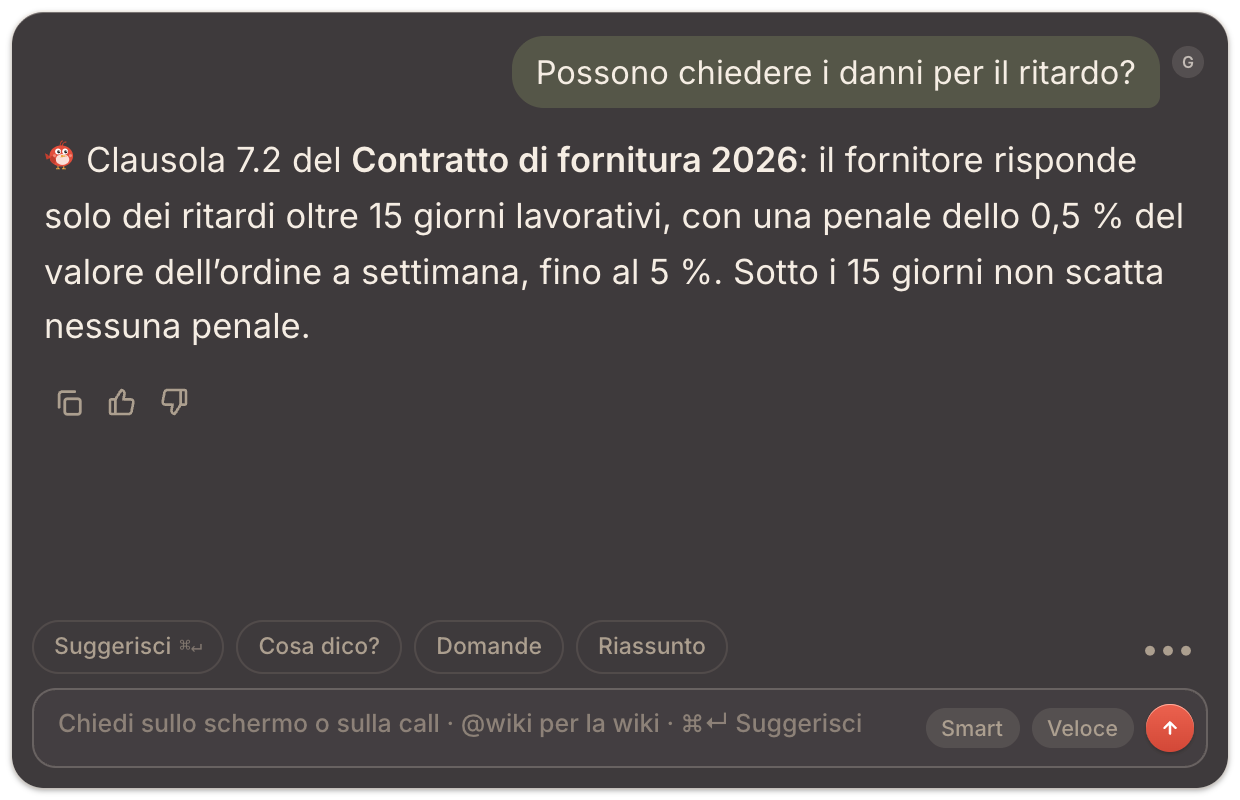
Il valore sta qui: la clausola che ti serve compare davanti a te in pochi secondi, mentre la tua attenzione resta interamente sul cliente.
Le note per il fascicolo
Quando la call finisce, TellPip redige le note secondo il template della modalità. Per il lavoro legale, un template come questo le rende preziose:
- Fatti riferiti dal cliente: cosa ci ha raccontato, con le sue parole quando possibile.
- Domande poste: tutte le domande, con o senza risposta.
- Cosa ci siamo impegnati a fare: documenti da mandare, verifiche da fare, con le date.
- Scadenze e date: ogni data citata, esattamente come è stata detta.
- Punti aperti: cosa aspetta ancora una risposta, e da chi.
Copia le note nel tuo gestionale con un clic e, dopo averlo rivisto, invia al cliente il riepilogo dalla bozza in Email di follow-up. Per note ancora più accurate, Pip può chiederti dopo la call una rapida conferma su un nome o una data. Trovi di più in Le note delle riunioni, come le vuoi tu.
Ricordare promesse e scadenze
Con la memoria dei clienti attiva, TellPip tiene una scheda per ogni cliente, azienda o pratica: chi è, impegni aperti, decisioni, preferenze, punti aperti e questioni chiuse. Quando quel cliente torna, una scheda Psst… l’ultima volta con… ti ricorda cosa avevi promesso e cosa era rimasto in sospeso, prima ancora che sia lui a chiederlo.
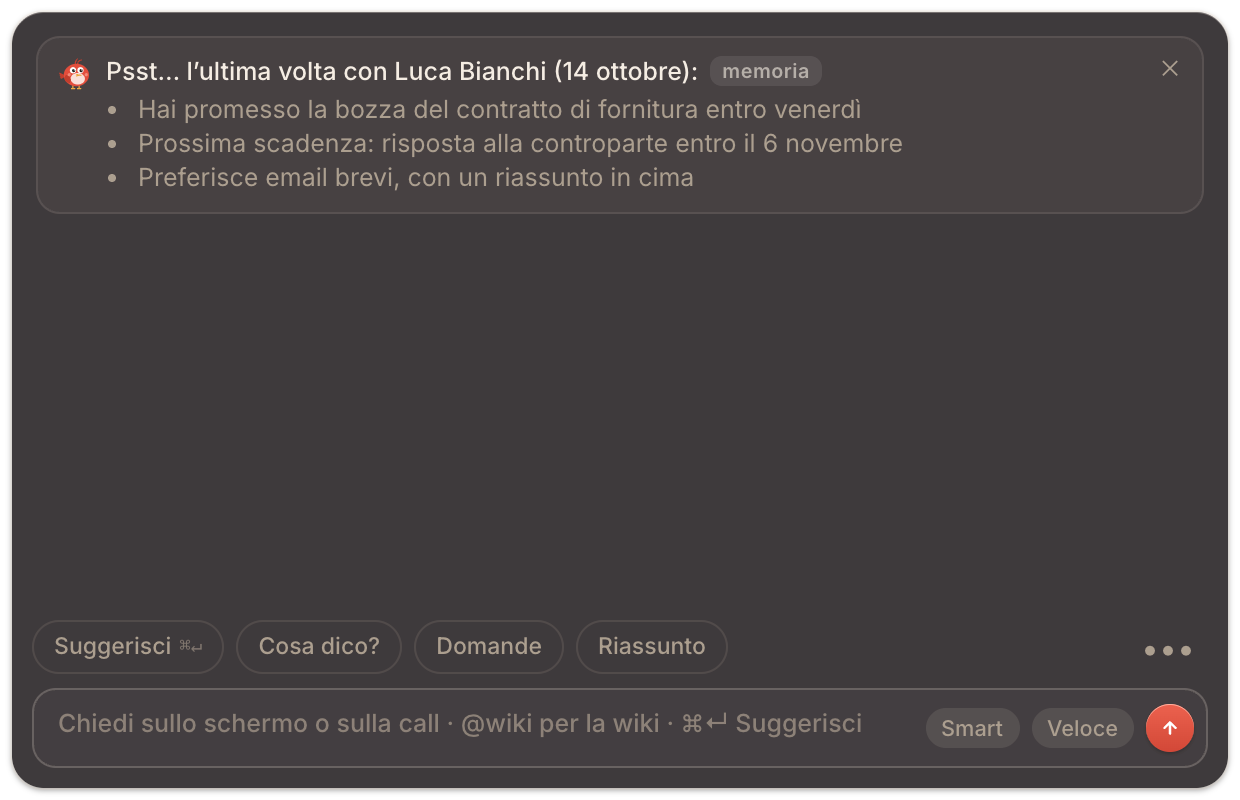
Se una call deve restare fuori dalla memoria, scegli Non ricordare questa call dal menu della chat o dalla sessione. Puoi modificare qualsiasi scheda, segnare un impegno come fatto, dimenticare un singolo cliente o cancellare l’intera memoria. Scopri di più in Mai più una promessa dimenticata.
Riservatezza: tutto sul tuo computer
Per uno studio legale la domanda è sempre la stessa: dove finiscono le informazioni dei miei clienti? La risposta di TellPip è chiara.
- L’audio viene trascritto sul tuo computer da un modello locale e non viene mai inviato.
- I documenti vengono letti, indicizzati e consultati sul tuo computer, dove restano custoditi.
- Sessioni, note e memoria sono custodite sul tuo computer.
- Per formulare una risposta, TellPip invia all’AI solo il testo necessario: la tua domanda, le istruzioni della modalità, la parte utile della trascrizione, i passaggi individuati (o il testo completo dei documenti della modalità, se sono brevi), un breve promemoria sul cliente se la memoria è attiva e, se Usa lo schermo è attivo, uno screenshot, che puoi disattivare in Impostazioni → Intelligenza.
Tutti i dettagli, e come cancellare ogni cosa, sono in Cosa resta sul tuo computer, e cosa serve all’AI e nella nostra informativa privacy.
Condividere un documento senza condividere Pip
Molte call con i clienti passano dalla condivisione di una bozza sullo schermo. Con Invisibile nelle condivisioni schermo attivo (lo è di default), la barra e il pannello di TellPip restano fuori dall’immagine condivisa e dalle registrazioni. Il cliente vede il contratto; tu vedi il contratto e Pip. Lo attivi e disattivi in un istante con ⌘⇧I. Scopri di più in Resta invisibile quando condividi lo schermo.
Per iniziare
Scarica TellPip, accedi con la tua email e avvia la prova gratuita: 5 sessioni gratuite da 10 minuti al massimo, con tutto compreso e senza carta. Crea la tua modalità Avvocato, collega tre o quattro documenti che usi spesso e mettila alla prova alla prossima call con un cliente.