 TellPip
Ask Pip during a call
Quick actions, free questions, Smart and Fast, the screen and languages.
Updated 30 October 2026
Contents
Pip is by your side in the moments when you need the right words fast: an unexpected question, a figure to dig up, an idea to explain precisely. In this guide you’ll find every way to ask Pip for help, and the small habits that get you ever more accurate answers.
What Pip knows when it answers
Every answer from Pip comes from a combination of sources:
- the conversation so far, transcribed on your computer by the local model;
- your screen, if Use the screen is on: the slide, email or document in front of you;
- the documents of the active mode, and your connected sources if you use Enterprise: Pip uses the passages relevant to the question and, when the mode’s documents are short, it can take them in whole, for an even more complete answer;
- the mode’s instructions: the tone, what to highlight, what to avoid. See Modes;
- what Pip remembers about the people in the call, if client memory is on.
To write each answer, TellPip sends the AI the text that answer needs: never the audio. See What stays on your computer, and what the AI needs.
The quick actions
Four buttons at the top of the chat cover the most common needs, and they’re one click away:
- Suggest (⌘↵ with the field empty): the right answer for this exact moment of the call. When there’s nothing useful to add, Pip says so clearly: Nothing to add right now., and the chat stays clean.
- What do I say?: a ready line to say right away, to make your own.
- Questions: effective follow-up questions, to move the conversation forward.
- Recap: a summary of the conversation so far. Ideal when someone joins the call later, or before you wrap up.
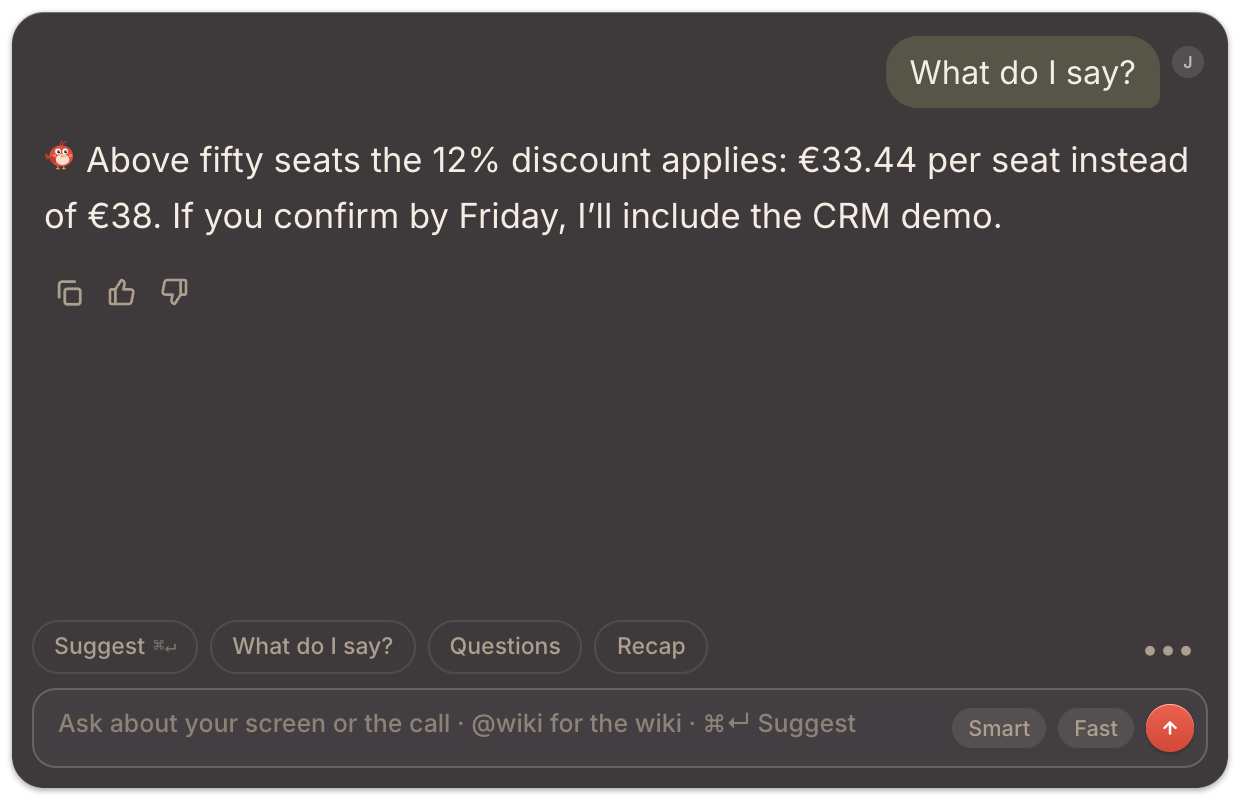
Type your own question
Write whatever you like in the text field and press ↵ (⇧↵ for a new line). The more precise the question, the more targeted the answer. Some examples:
- “What’s the notice period in the contract I uploaded?”
- “Summarise the slide on screen in two sentences.”
- “How do I answer the objection about the price?”
You’re fully in control of every answer: press Stop to interrupt it, Copy answer to copy it, and Clear chat (⌘R) to start from scratch. Next to every answer you’ll also find 👍 and 👎: tell Pip what you liked and what you didn’t, and its answers will become more and more tailored to you. See Client memory. Under an answer a Note box may appear, with an observation from Pip worth keeping in mind.
Smart and Fast
Pip decides by itself how much to think, based on the question: quick on simple requests, more thorough on complex ones. When you want to decide yourself, you have two buttons in the chat:
- Smart, for the questions that matter: a calculation, a careful comparison, a long document to interpret. Smart puts more care into the analysis and gives you a more thorough answer.
- Fast, for maximum speed: Pip answers right away, without extra reasoning.
Smart and Fast turn on one at a time: choosing one switches the other off. You’ll also find Smart in Settings → Intelligence.
Pip looks at your screen
With every question, TellPip takes a screenshot of the screen the chat is on, so Pip answers about exactly what you’re looking at: the slide, the email, the spreadsheet. TellPip’s own windows are always left out of the image, and a small Saw the screen thumbnail shows you when it happens.
You can manage this at any time: go to Settings → Intelligence and turn Use the screen on or off. Without screenshots, Pip answers from the conversation and your documents.
Languages
With TellPip there’s no language to set. Transcription recognises the spoken language by itself, among 25 European languages, even if it changes mid-call. Answers and notes follow the language of the conversation, and when you type a question Pip answers in the language you wrote it in.
For even better answers
- Give Pip your documents. Price lists, contracts, product sheets: add them to the mode and the answers will quote your own data. See Reference files.
- Teach it the names. Clients, products and acronyms added to the Vocabulary are transcribed precisely, and Pip recognises them right away. See Vocabulary.
- Be specific. “Price for 50 seats, annual” leads to a more targeted answer than “price?”.
- Make it easy to read: enlarge the text with ⌘⌥=, or with Text size in the ••• menu.
Pip è al tuo fianco nei momenti in cui ti servono subito le parole giuste: una domanda inattesa, un numero da recuperare, un concetto da spiegare con precisione. In questa guida trovi tutti i modi per chiedere aiuto a Pip e gli accorgimenti per ottenere risposte sempre più accurate.
Cosa sa Pip quando risponde
Ogni risposta di Pip nasce dalla combinazione di più fonti:
- la conversazione fin qui, trascritta sul tuo computer dal modello locale;
- il tuo schermo, se Usa lo schermo è attivo: la slide, l’email o il documento che hai davanti;
- i documenti della modalità attiva, e le fonti collegate se usi Enterprise: Pip usa i passaggi pertinenti alla domanda e, quando i documenti della modalità sono brevi, può considerarli per intero, per una risposta ancora più completa;
- le istruzioni della modalità: il tono, cosa valorizzare, cosa evitare. Vedi Modalità;
- ciò che Pip ricorda delle persone in call, se la memoria dei clienti è attiva.
Per scrivere ogni risposta, TellPip invia all’AI il testo necessario a quella risposta: mai l’audio. Vedi Cosa resta sul tuo computer, e cosa serve all’AI.
Le azioni rapide
Quattro pulsanti in cima alla chat coprono le esigenze più frequenti, e sono a un clic di distanza:
- Suggerisci (⌘↵ con il campo vuoto): la risposta giusta per questo preciso momento della call. Quando non c’è nulla di utile da aggiungere, Pip lo dice con chiarezza: Niente da aggiungere per ora., e la chat resta pulita.
- Cosa dico?: una frase pronta da dire subito, da rendere tua.
- Domande: domande di follow-up efficaci, per far avanzare la conversazione.
- Riassunto: una sintesi della conversazione fin qui. Ideale quando qualcuno si unisce alla call in un secondo momento, o prima di concludere.
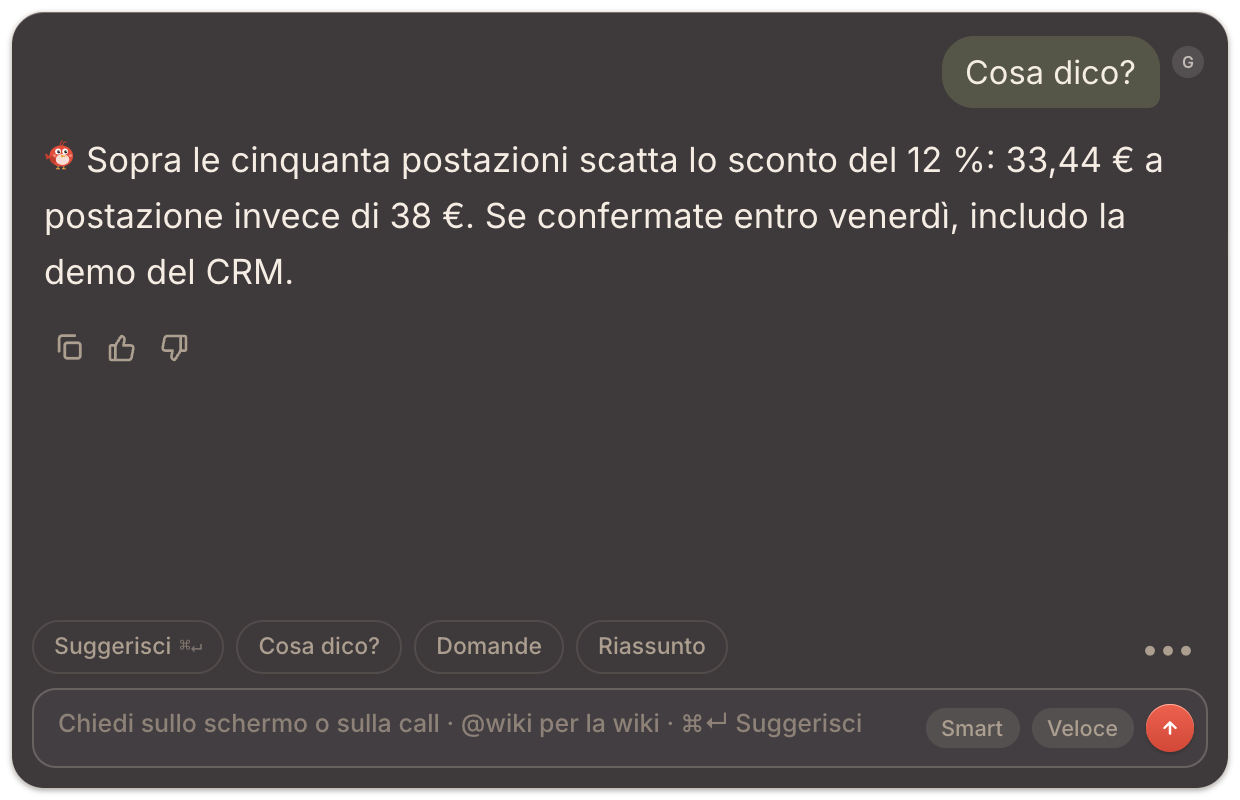
Scrivi la tua domanda
Scrivi ciò che desideri nel campo di testo e premi ↵ (⇧↵ per andare a capo). Più la domanda è precisa, più la risposta sarà mirata. Qualche esempio:
- «Qual è il preavviso nel contratto che ho caricato?»
- «Riassumi la slide sullo schermo in due frasi.»
- «Come rispondo all’obiezione sul prezzo?»
Hai pieno controllo su ogni risposta: premi Stop per interromperla, Copia risposta per copiarla, e Svuota chat (⌘R) per ripartire da zero. Accanto a ogni risposta trovi anche 👍 e 👎: dì a Pip cosa ti è piaciuto e cosa no, e le sue risposte diventeranno sempre più su misura per te. Vedi Memoria dei clienti. Sotto una risposta può comparire il riquadro Nota, con un’osservazione di Pip che vale la pena tenere a mente.
Smart e Veloce
Pip sceglie da solo quanto ragionare in base alla domanda: rapido sulle richieste semplici, più approfondito su quelle complesse. Quando vuoi decidere tu, hai due pulsanti nella chat:
- Smart, per le domande decisive: un calcolo, un confronto delicato, un documento lungo da interpretare. Smart dedica più attenzione all’analisi e restituisce una risposta più articolata.
- Veloce, per la massima immediatezza: Pip risponde subito, senza ragionamenti aggiuntivi.
Smart e Veloce si attivano uno alla volta: scegliendo l’uno, l’altro si spegne. Smart lo trovi anche in Impostazioni → Intelligenza.
Pip guarda il tuo schermo
A ogni domanda, TellPip acquisisce uno screenshot dello schermo su cui si trova la chat, così Pip risponde esattamente su ciò che stai guardando: la slide, l’email, il foglio di calcolo. Le finestre di TellPip restano sempre fuori dall’immagine, e una piccola miniatura Ha visto lo schermo ti mostra quando avviene.
Puoi gestire questa funzione in qualsiasi momento: vai in Impostazioni → Intelligenza e attiva o disattiva Usa lo schermo. Senza screenshot, Pip risponde dalla conversazione e dai tuoi documenti.
Le lingue
Con TellPip non c’è nessuna lingua da impostare. La trascrizione riconosce da sola la lingua parlata, tra 25 lingue europee, anche se cambia a metà call. Le risposte e le note seguono la lingua della conversazione, e quando scrivi una domanda Pip ti risponde nella lingua in cui l’hai scritta.
Per risposte ancora migliori
- Dai a Pip i tuoi documenti. Listini, contratti, schede prodotto: aggiungili alla modalità e le risposte citeranno i tuoi dati. Vedi File di riferimento.
- Insegnagli i nomi. Clienti, prodotti e sigle inseriti nel Vocabolario vengono trascritti con precisione, e Pip li riconosce subito. Vedi Vocabolario.
- Sii specifico. «Prezzo per 50 licenze, annuale» porta a una risposta più mirata di «prezzo?».
- Personalizza la lettura: ingrandisci il testo con ⌘⌥=, o con Dimensione testo nel menu •••.
Related articles
Need anything else? We’re here for you.
Write to us